Beginner

Intermediate

Expert

Scenario Based

Review the All Piller page

3199 Views
Facebook
Twitter
LinkedIn
WhatsApp

Dataverse Interview Questions & Answers (2026) – Complete Guide by Coylix

Looking for the most important Dataverse interview questions? This complete guide by Coylix covers real Dataverse interview questions and answers, including tables, relationships, security roles, and real-world scenarios to help you crack your interview with confidence.

Welcome to the ultimate resource for Dataverse interview questions and answers. Our goal is to create a library of 120+ carefully curated questions that cover everything from Dataverse basics and entities to advanced data modeling and security scenarios.

This page is constantly updated with fresh and relevant Dataverse interview questions asked in real interviews. Whether you are just starting out or aiming for senior roles, you’ll find step-by-step answers, practical examples, and up-to-date explanations to help you succeed in your Dataverse interview preparation.

Bookmark this page and revisit often to access the latest updates.

Coylix is a platform focused on helping developers prepare for real-world Power Platform interviews with structured learning and practical scenarios.

Download Preparation E-Book
Power Platform Interview books by CoyLix


Table of contents

Dataverse Beginner Level Questions

Dataverse Intermediate Level Questions

Dataverse Expert Level Questions

Dataverse Scenario Based Questions

Explore More Power Platform Interview Questions

→ Power Apps Interview Questions
→ Power Automate Interview Questions
→ Power Apps Complete Roadmap

1. What is Microsoft Data verse?

Think of Dataverse like a smart, managed database in the cloud. Its built not just for developers but also for business apps. In Data Verse, you don’t have to manage servers, backups, or scaling.

In simple terms: Data verse is a place where your app’s data lives, in tables (rows + columns).

  • What makes it smarter: It comes with built-in validation, security, relationships, and integration with Microsoft tools.
  • Real use case: A company wants to build an expense-tracking app. They store expense records, users, categories, approvals — all in Dataverse — so that Power Apps, Power Automate, and Power BI can easily connect and use them.
What is DataVerse - CoyLix

Microsoft says: “Dataverse lets you securely store and manage data that’s used by business applications.

2. How does Microsoft Data verse differ from traditional relational databases?

Below are the diffences between Data verse and any other traditional relational databases?

FeatureDataverseTraditional Database
ManagementMicrosoft manages infra, backups & scalingYou manage servers, backups & scaling
Ease of UseLow-code, easy for non-developersNeeds SQL & technical expertise
Business Logic & SecurityBuilt-in rules & role-based securityMust build/configure manually
IntegrationWorks seamlessly with Power Platform, Teams, Dynamics 365, Power BI etc.Integration possible but needs more custom work.
ScalingSuited for business apps & moderate dataBetter for very large/complex datasets
CostSubscription/licensing & managed service costInfra, maintenance & staff cost
Best UseIdeal when you want quick app development, business-userBest when you need: large scale data

3. What is the purpose of forms and views in Dataverse?

In Microsoft Dataverse, forms and views are essential tools that shape how users interact with data. While they both serve to display information, they cater to different user needs and scenarios.

Forms: Forms in Dataverse make it easy to create and update individual records. They give users a simple interface with fields (text boxes, dropdowns, date pickers, etc.) to enter or edit data. You can add new records or update existing ones directly through forms, without dealing with complex backend logic.

Types of Forms:

  • Main Form: The primary interface for creating and editing records.
  • Quick Create Form: A lightweight form with only key fields for fast record creation.
  • Quick View Form: Shows related data from another record without leaving the current screen.

Views: Views in Dataverse control how records are shown in a list. They decide which columns appear, how data is sorted, and what filters are applied—helping users quickly find what matters. Views can also be tailored so different roles see only the information they need.

Types of Views:

  • System Views: Built-in views, often used for admin tasks.
  • Public Views: Custom views shared with everyone in the organization.
  • Personal Views: User-created views for individual customization.

For a deeper understanding , you can refer to Microsoft’s resources

4. What are the common data types (column types) supported in Data verse?

Dataverse supports different column types to store and manage data. The most common ones are:

  • Text – Single line, multiple lines, email, URL, phone, auto-number
  • Numeric – Whole number, decimal, floating point, currency
  • Date & Time – Date only, date & time
  • Choice – Single choice, multi-select choice
  • Boolean – Yes/No values
  • Reference – Lookup (links to another table)
  • File – File, Image
  • Calculated & Rollup – Formula-based (calculated) or aggregated (rollup) values

5. How do business rules work within Microsoft Data verse?

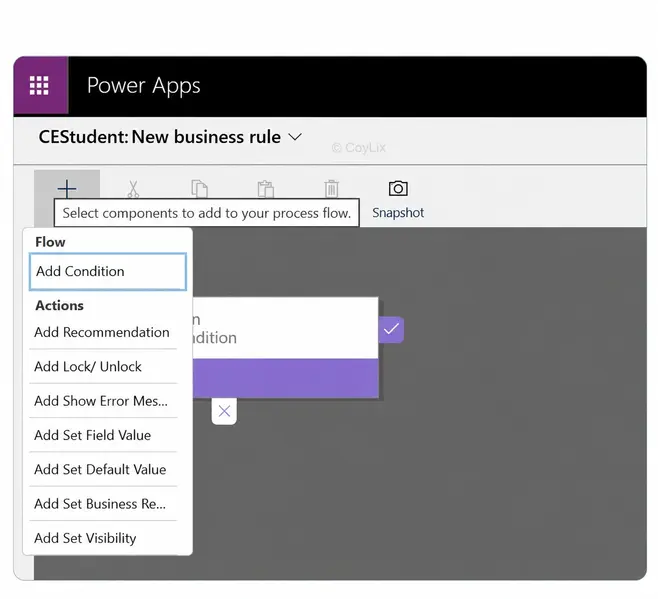
Business rules in Dataverse provide a no-code way to enforce logic and data consistency at the table level. They allow you to define conditions and actions without writing code, and they work consistently across all apps that use the table — including Canvas Apps, Model-driven Apps, and the API. They are mostly used for:

    • Set or clear field values
    • Make a field required
    • Show or hide fields
    • Display error messages for validation

Example:

Suppose you’re working with an Order table: Then you can setup following business rule.

Business Rules in Data Verse by CoyLix
IF: Order Amount > $100,000
	THEN:
	- Set 'Requires Approval' field to Yes.
	- Make the 'Approver' field visible and required.

Another example is

 If : OrderStatus = "Cancelled", 
   THEN
       - Hide the 'Shipping Date' field.

This helps ensure data integrity and improves user experience without custom code.

Key Points to Note:

  • Business rules generally run on the client side (when a form is opened or when values change on that form).
  • The scope determines where they apply — e.g., “All Forms” will enforce the rule across all forms for that table.
  • They don’t support multi-select choice fields, which is a known limitation.

Overall, business rules are a quick and maintainable way to enforce table logic, especially for scenarios where full Power Automate flows or plugins might be overkill.

6. How are relationships defined and managed in Dataverse?

In Microsoft Dataverse, relationships define how records in one table connect to records in another, allowing you to build richer data models and enable seamless integration across apps.

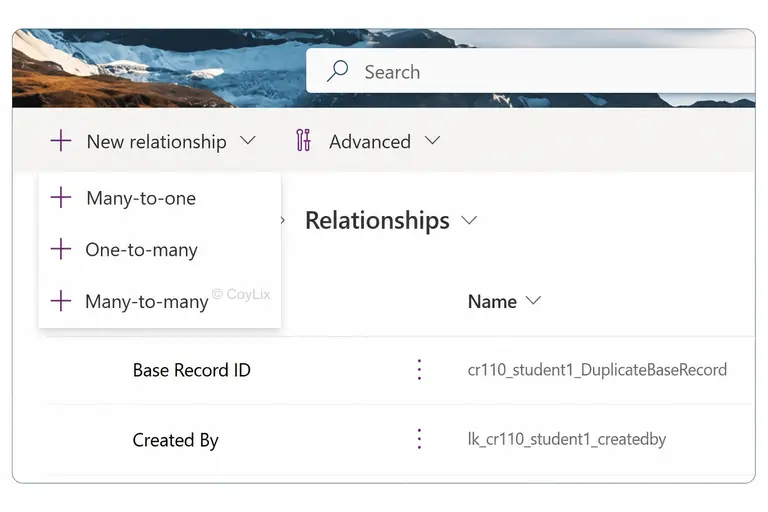
There are three main types of relationships:

Relationship in Data Verse by CoyLix

  • One-to-Many (1:N): One record in a table can relate to many in another.
    Example: A single Customer can have multiple Orders. This is implemented by adding a lookup column in the related table (e.g., Orders → Customer).
  •  

  • Many-to-One (N:1): The reverse of 1:N, where multiple records relate back to a single record.
    Example: Multiple Orders link back to one Customer.
  •  

  • Many-to-Many (N:N): Multiple records in both tables can relate to each other.
    Example: A Student can enroll in many Courses, and each Course can have multiple Students. Dataverse handles this using an intersect (junction) table.

By defining these relationships, Dataverse ensures data integrity, supports relational queries, and provides flexibility in app design without requiring complex coding.

7. What’s the difference between a standard table and a custom table in Dataverse?

In Dataverse, tables are of two types: standard and custom

Standard Tables are predefined and come out-of-the-box. They cover common business needs such as Accounts, Contacts, and Users. You can customize them slightly, but their core structure is fixed. They don’t have any prefix and used in the common scenarios.

Custom Tables are user-defined. They give you flexibility to add columns, relationships, and business logic for specific needs. You can also choose the ownership model (User/Team or Organization), and they usually carry a prefix (e.g., new_project) to distinguish them.

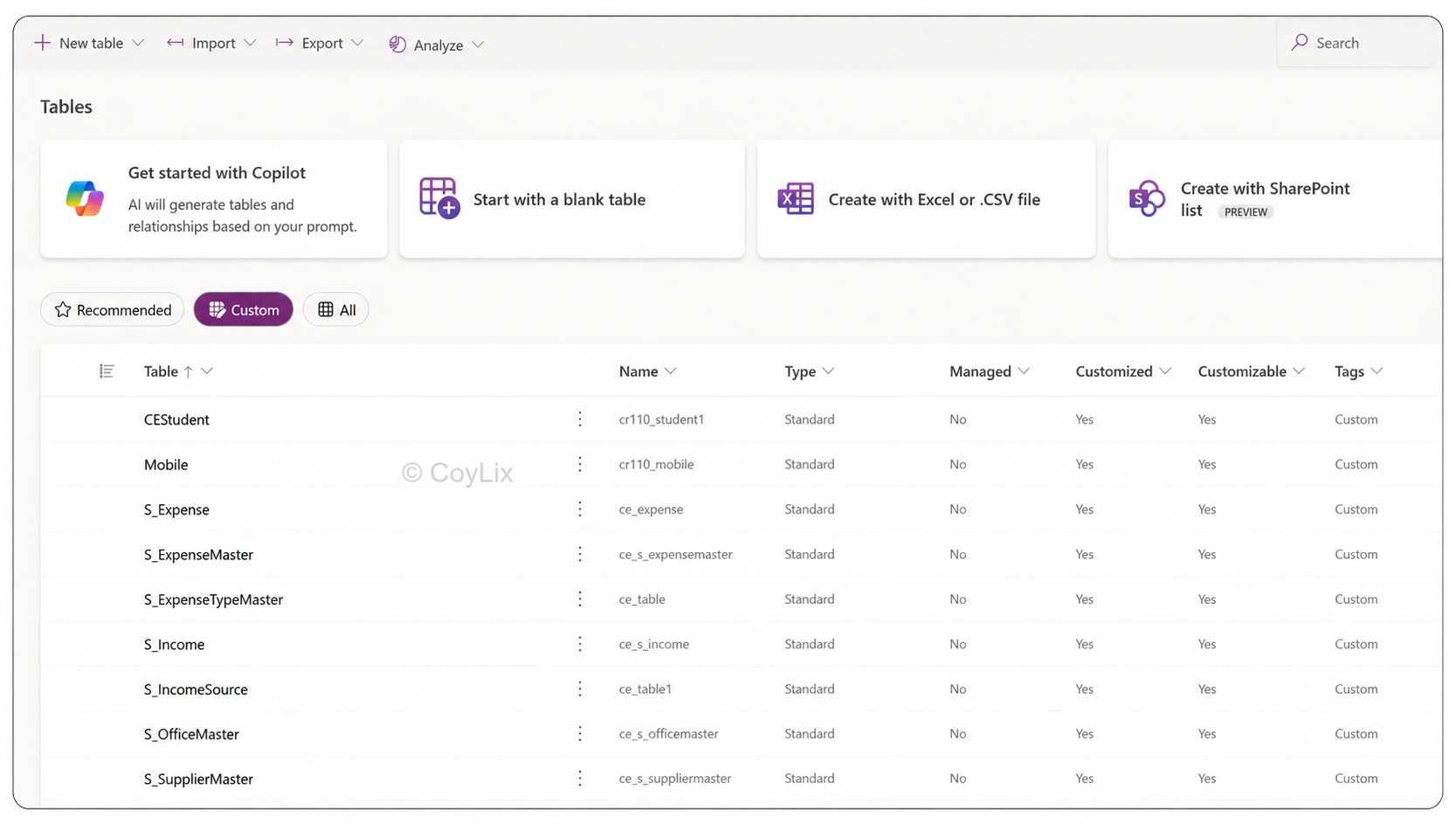
If you click on Custom Tab section, it will give you custom tables created in the dataverse as shown below. Whereas All tab will display all types of tables.
Custom Tables in Data Verse by CoyLix

8. What is the “primary name column” or “primary key” in a dataverse table?

In Microsoft Dataverse, each table includes a Primary Key (system identifier) and often a Primary Name Column (human-friendly identifier). They serve distinct but complementary purposes.

Primary Key

  • A system-generated GUID that uniquely identifies each record.
  • Default format is <tablename>Id (e.g., accountid for Account, contactid for Contact).
  • Cannot be renamed or changed; ensures data integrity and relationships.
  • Used for CRUD operations and to establish links between tables.

Primary Name Column

  • A text-based field that provides a user-readable label for records.
  • Defaults to <tablename>name, but can vary (e.g., fullname in Contact).
  • Can be customized; helps users quickly recognize records in forms, views, and lookups.
  • Should be kept meaningful and unique to avoid confusion.

Key Takeaway

The Primary Key secures uniqueness at the system level, while the Primary Name Column improves usability by giving records a clear display name. Both are essential for effective data management in Dataverse.

9. What is a lookup column / Foreign key in Data verse?

A lookup column in Microsoft Dataverse is how you reference a record from another table—similar to a foreign key in traditional databases. It links two tables, allowing relationships and cross-references between their data. A lookup column stores the reference to another table’s primary key.

For example: In your Order table:

  • You might add a lookup column Customer that points to a record in the Customer table.
  • When creating or editing an Order, you select which Customer it belongs to (via lookup).

Because that lookup gives you access to related fields, you can show Customer name, address, etc., directly or via logic.

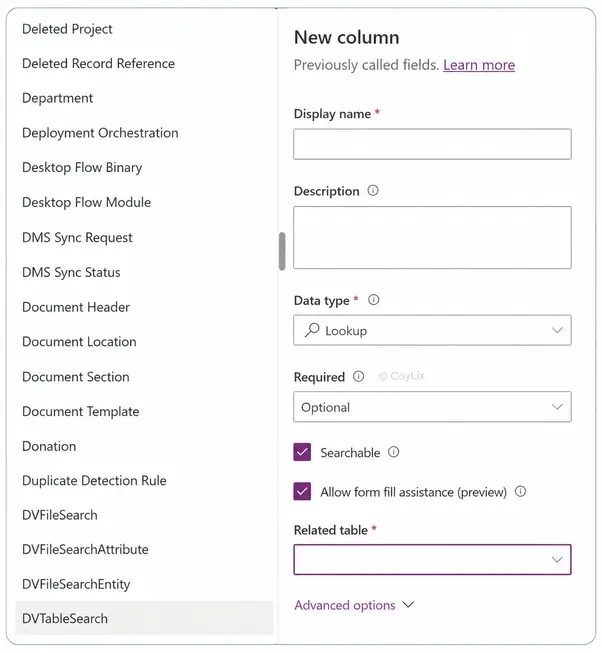
In the below screenshot, when creating a new column, selecting the Lookup data type requires specifying a Related Table. This tells Dataverse which table the lookup will point to

Key Takeaway

A lookup column acts as a relational bridge in Dataverse—functioning like a foreign key—ensuring tables can share and display meaningful related data.

Lookup Columns in Data Verse by CoyLix

10. What are the core components of the Dataverse data model?

Following are the data verse core components.

  • Tables
  • Columns
  • Records
  • Relationships
  • Business logic
  • Security Model
  • Data Types
  • Standard Vs Custom Tables

To know more about this. Click on below button

View Detailed Answer

11. What is a choice (optionset) column and how is it used in Dataverse?

In Microsoft Dataverse, a Choice (formerly known as an Option Set) column is a specialized field that allows users to select a value from a predefined list of options. This column type is particularly useful for categorizing data, ensuring consistency, and simplifying data entry.

A Choice column provides a set of predefined options from which users can select a single value. This column is commonly used for fields like Status, Priority, Category, or Type, where the values are limited and standardized.

Example:

In a Service Request table, a Priority field might offer options such as Low, Medium, and High.

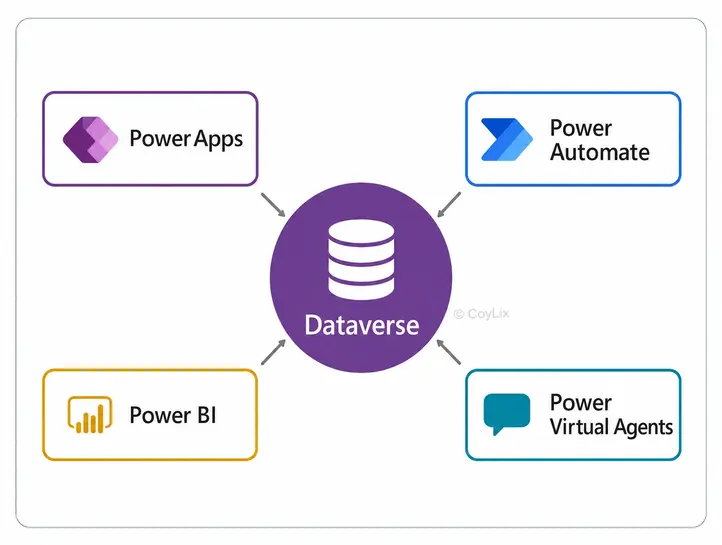
12. How does Dataverse integrate with Power Apps, Power Automate, Power BI and Dynamics 365?

Think of Dataverse as the common data layer sitting in the middle, and all these tools plug directly into it — no complex connectors or duplicate data needed.

  • Power Apps: Dataverse is a native data source. You build Canvas Apps or Model-Driven Apps directly on top of Dataverse tables — forms, views, and business rules all come ready-made, so you don’t have to build validation logic from scratch.
  • Power Automate: You can trigger flows automatically when a Dataverse record is created, updated, or deleted (using the “When a row is added, modified or deleted” trigger). For example, “send an email when a new customer is created” — no coding needed.
  • Power BI: Power BI connects to Dataverse to pull live data for dashboards and reports. Since the data is already clean and structured in tables, you don’t need heavy transformation before visualizing it.
  • Dynamics 365: This one’s interesting — Dynamics 365 isn’t a separate thing; it’s actually built on Dataverse. So when you create a custom table in Dataverse, it shows up in Dynamics 365 too, automatically.
  • Real use case: Say a company has a Power App where field staff log customer visits. Those visits get saved in Dataverse. A Power Automate flow can ping the manager on Teams if it’s an urgent visit. Power BI shows a report of all visits. And the sales team using Dynamics 365 sees the exact same customer data — everyone’s looking at one shared source, not four different copies.

Real use case: Say a company has a Power App where field staff log customer visits. Those visits get saved in Dataverse. A Power Automate flow can ping the manager on Teams if it’s an urgent visit. Power BI shows a report of all visits. And the sales team using Dynamics 365 sees the exact same customer data — everyone’s looking at one shared source, not four different copies.

Interview tip: Just remember one line — “Dataverse is the common layer, so all Power Platform tools connect to the same data instead of duplicating it.”

13. What is an environment in Power Platform and how does it relate to a Dataverse database?

An environment in Power Platform is a separate space where you build, test, and manage your apps, flows, and other solutions.

For example, an organization may have separate environments for:

  • Development – where makers build and test solutions
  • Test – where solutions are tested
  • Production – where end users use the final solution

An environment can have a Dataverse database. When a Dataverse database is added to an environment, you can create and manage tables, columns, relationships, security roles, and other Dataverse components inside that environment.

In simple terms:

Environment = the workspace
Dataverse database = the place where the data is stored and managed

For example, your Development environment may have its own Dataverse database, while your Production environment has a separate Dataverse database with the live business data.

Interview tip: They might ask “Can one environment have multiple Dataverse databases?” — the answer is No, an environment can have only one Dataverse database at a time.

14. What licensing models exist for Dataverse?

Dataverse doesn’t have its own standalone license — you get access to it through whichever Power Platform product you’re licensed for (Power Apps, Power Automate, Power Pages, Co-pilot Studio, etc.), and each of those bundles in some free Dataverse storage.

Here’s how it breaks down, based on Microsoft’s official Power Apps pricing page:

  • Power Apps Developer Plan — Free
    For learning and development. Not for production use.
  • Power Apps Premium — $20/user/month
    For production apps using Dataverse and other premium capabilities. A discounted price of $12/user/month is available with a minimum purchase of 2,000 new licenses.
  • Pay-as-you-go — $10 per active user/app/month
    You pay based on monthly app usage through an Azure subscription.
  • Dynamics 365 licenses — Price varies
    Some Dynamics 365 licenses include Dataverse access and related Power Platform capabilities.
  • Additional Dataverse Database Capacity — $40/GB/month
    Available when an organization needs more database storage.

Note: Microsoft licensing, availability, and pricing can change over time. Always check the latest official Microsoft pricing before making a purchase.

PlanCostStorage Best For
DeveloperFree2 GB DBLearning, testing
Premium$20/user/month250 MB DB + 2 GB fileFull production
Enterprise Premium$12/user/month (2K+)Same as PremiumLarge orgs
Pay‑As‑You‑Go$10/user/app/monthUsage‑basedPilots, seasonal

👉 Official pricing: https://www.microsoft.com/en-us/power-platform/products/power-apps/pricing

15. What’s the difference between a canvas app and a model-driven app in how each connects to Dataverse?

Both can use Dataverse, but the way they work is pretty different.

Canvas App:
You start with a blank screen and drag-and-drop everything yourself — buttons, text boxes, images — wherever you want, kind of like designing a slide in PowerPoint. Dataverse is just one option for storing your data — you could also use Excel, SharePoint, SQL, or something else instead. So the design and the data are two separate things you connect together.

Model-Driven App:
Here it’s the opposite. You don’t design the screens yourself — the app builds itself automatically based on your Dataverse tables and relationships. And the big thing to remember: model-driven apps can’t work without Dataverse. It’s not a choice, it’s required. The whole app is built on top of it.

Simple way to remember it:

  • Canvas app → you design it, Dataverse is optional
  • Model-driven app → Dataverse builds it for you, and it’s required

Interview tip: They might ask “Can a canvas app work without Dataverse?” — Yes, it can. But “Can a model-driven app work without Dataverse?” — No, it always needs it.

1. What are activity tables and how are they different from standard tables?

Activity tables track time‑based actions. They share common fields like subject, start/end time, and “regarding.”

Standard tables store business data without timeline behavior.

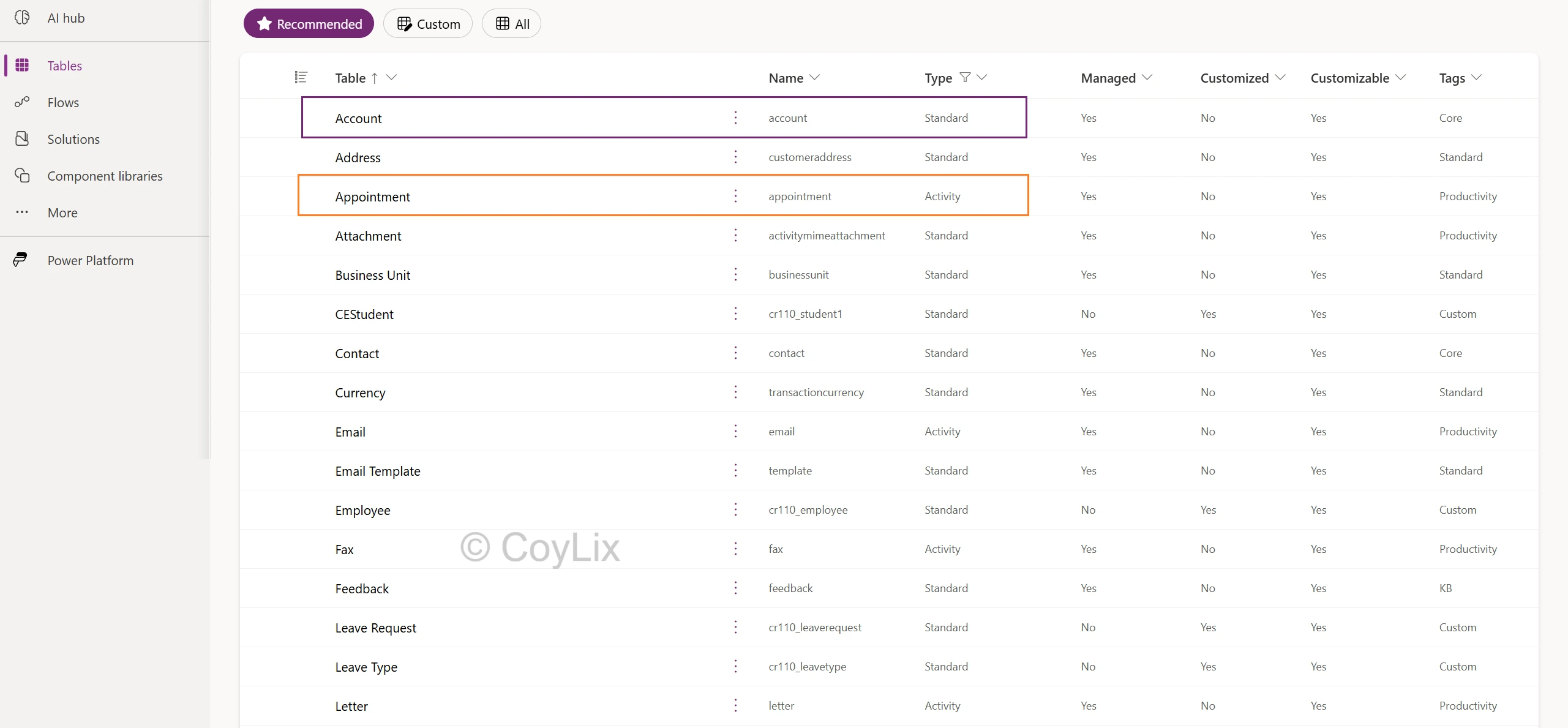
As shown in below diagram, Appointment is marked as an Activity table, while Account is marked as a Standard table.

Dataverse-tables-showing-Activity-vs-Standard-types-in-Power-Apps-by-CoyLix


Examples

  • Activity Tables: Appointment, Email, Fax, Letter, Phone Call etc.
  • Standard Tables: Account, Business Unit, Contact etc.

Difference

Activity tables can only be owned by a User or a Team. Organization-level ownership is not allowed in activity table. Standard tables support both user/team and organization ownership

Interview tip: They’ll often ask “Can an activity table be org-owned?” – the answer is No.

2. What is a virtual table and when would you use one instead of importing data?

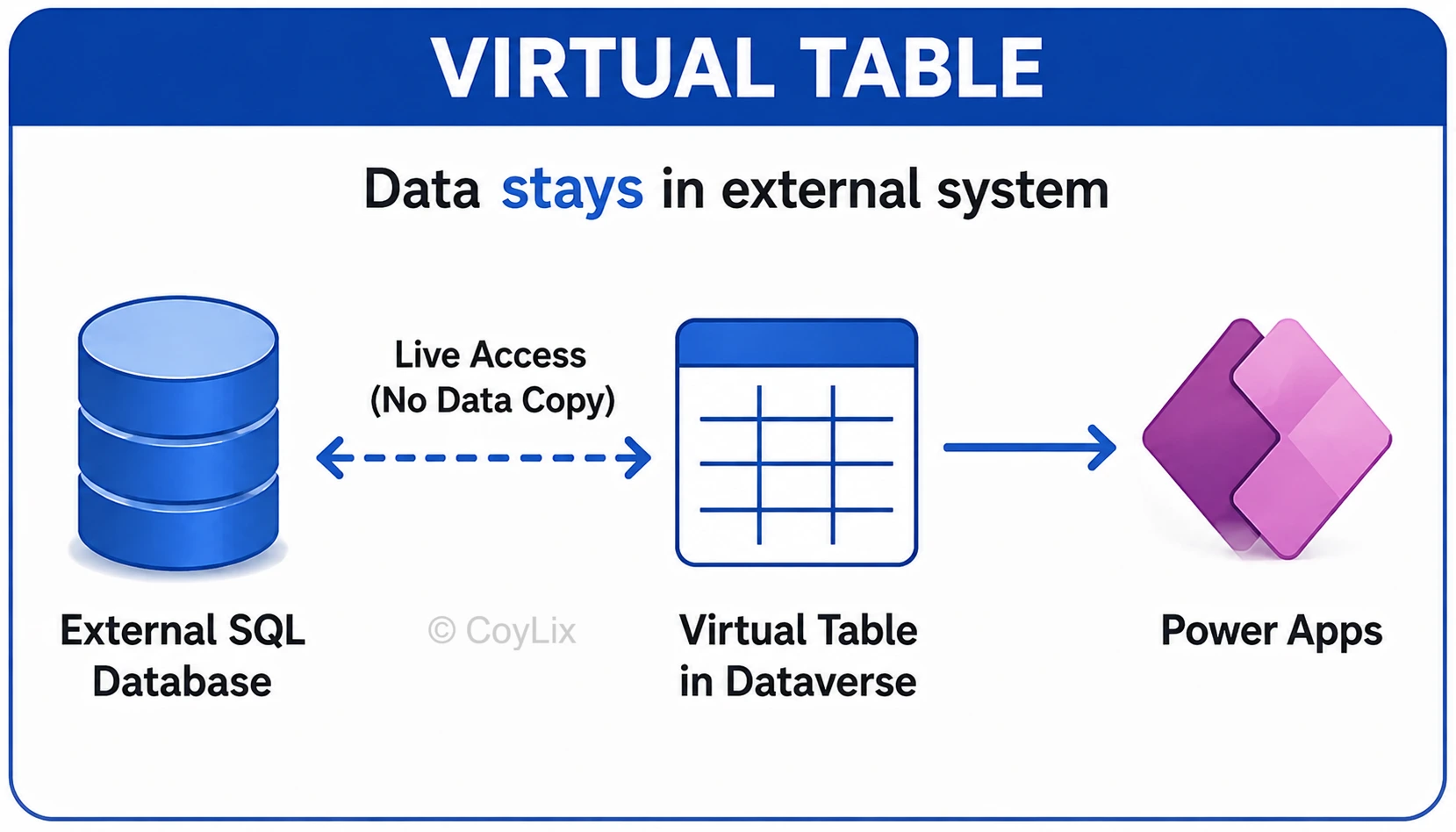
A virtual table lets you define columns in Dataverse, but the actual data stays in an external system like SQL Server or a REST API. Dataverse fetches it live through a data provider instead of storing a copy.

For example, if product pricing lives in an external system and changes every few minutes, a virtual table shows the current price instantly instead of relying on a scheduled import.

Virtual-Table-in-Data-Verse-by-CoyLix

When to Use Virtual Tables Instead of Importing Data

  • Real-time data: Use virtual tables when you need to see the latest data from the external system without copying it into Dataverse.
  • Large amounts of data: Use them when storing all the external data in Dataverse would increase storage needs and costs.
  • Data must stay in the source system: Use them when the external system needs to remain the main place where the data is stored and managed.
  • Frequent changes: Use them when the data changes often in the external system and you don’t want to keep synchronizing copies.

Good to know: virtual tables are mostly read-only, and they can only be organization-owned.

Interview tip: Follow-up to expect – “what are the limitations?” Mention no offline sync and fewer supported column types.

3. What’s the difference between a calculated column and a rollup column?

A calculated column uses fields from the same record or a related parent record to calculate a value in real time.
Example: First Name + Last Name = Full Name.

A rollup column calculates an aggregate value from related child records, such as SUM, COUNT, MIN, MAX, or AVG.
Example: Totaling all Opportunity values for an Account.

Calculated ColumnRollup Column
Data sourceSame record or related parent recordRelated child records
CalculationCalculated in real timeCalculated asynchronously
PurposeCalculates a valueAggregates related records
FunctionsMath, text, conditions, etc.SUM, COUNT, MIN, MAX, AVG
ExampleQuantity × Price = TotalTotal Opportunity value for an Account

Interview tip: Remember Calculated = current record; Rollup = related records.

4. What is a formula column and how does it differ from a calculated column?

A formula column uses Power Fx to calculate a value in Dataverse. Power Fx is the same formula language used in Power Apps. Both formula and calculated columns calculate their values in real time when retrieved.

The key practical difference is how the formula is written and how null values are handled. A formula column uses Power Fx, and a null numeric value is treated as 0 during the calculation. In a calculated column, a null numeric value can result in a null result.

Example:
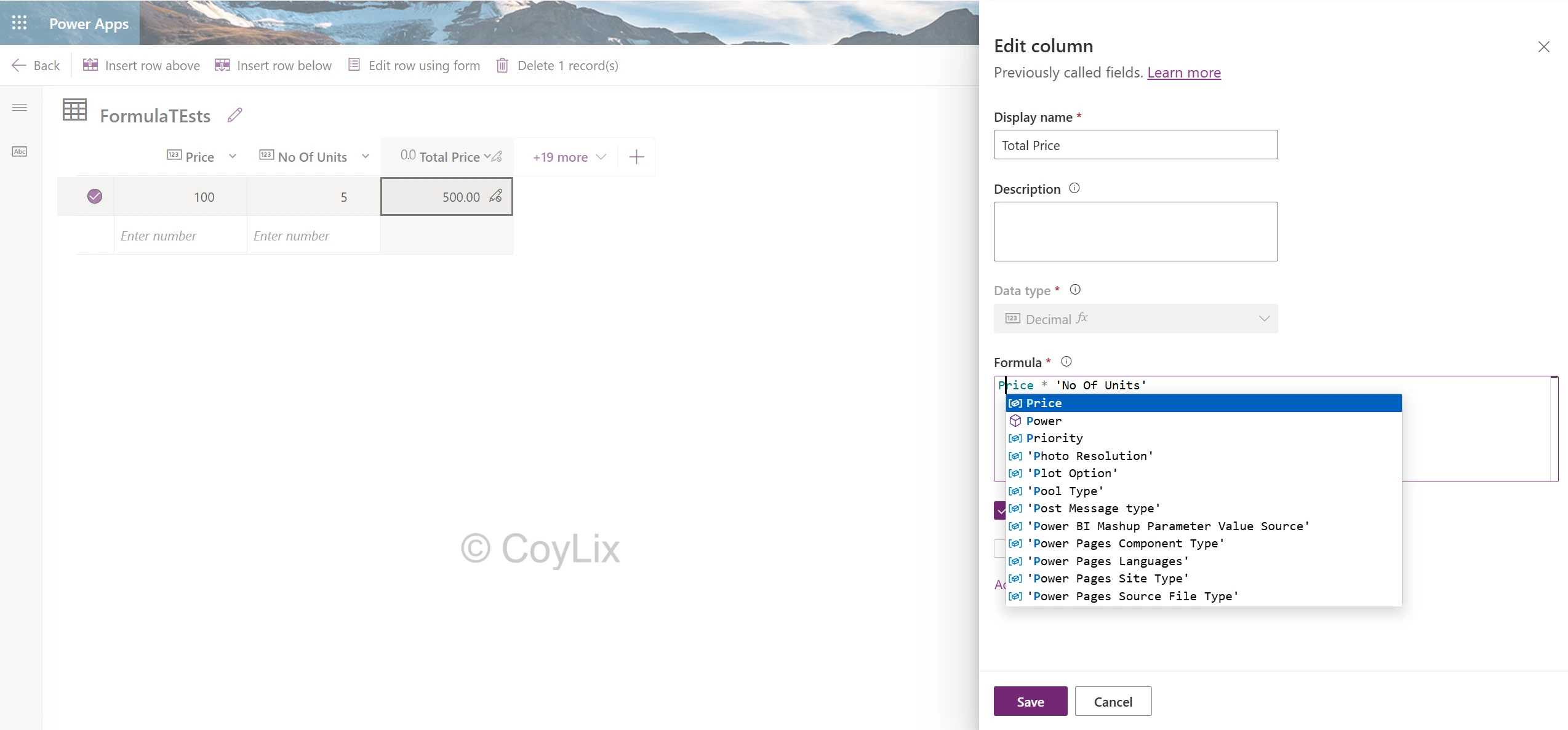
If Price = 100 and No Of Units = 5:

TotalPrice= Price * ‘No Of Units’ = 500

In the below diagram, we have created formula column TotalPrice using Power fx.

Formula-columns-in-data-verse-by-CoyLix


Difference

Calculated ColumnFormula Column
Formula languageDataverse calculated-column expressionPower Fx and intellisense
Null numberCan result in nullTreated as 0
Data TypesSupports several types, including Currency, Whole Number and ChoiceSupports many data types but Currency isn’t currently supported

Interview tip
Formula column = Power Fx + null numbers treated as 0

5. What are alternate keys and when would you use one instead of the primary GUID?

Every Dataverse record has a unique GUID that Dataverse uses as its primary Key. An alternate key lets you identify a Dataverse record using a unique business value instead of its GUID. It is mainly useful when working with external systems.

A customer may have a Dataverse GUID like 7a8f…, but an ERP system identifies the same customer as CUST1001. You can create an alternate key using CustomerID and use CUST1001 to find or update that customer in Dataverse.

In short:

GUID = Dataverse record ID.
Alternate key = business ID used to identify the record.

Interview tip:

Use an alternate key when an external system already has a unique ID for the record and you don’t want to depend on the Dataverse GUID.

6. What is a polymorphic lookup and where is it used out of the box?

Normally, a lookup column points to just one table. Like, if you have a lookup called “Customer” on your Order table, it only points to the Customer table — nothing else.

A polymorphic lookup is different. It can point to more than one table at the same time. So instead of being locked into just one table, it gives you a choice of a few tables it’s allowed to connect to.

Simple example:
Think about the “Regarding” field you see on activities like Email, Phone Call, or Task. That field can point to an Account, a Contact, an Opportunity, or even a Case. It’s not locked into just one of them — it depends on what you pick when you’re creating that email or task.

Why it’s useful:
Without polymorphic lookups, you’d need a separate lookup column for every possible table, plus logic to figure out which one is filled in. That gets messy fast. Polymorphic lookups just let one field handle it all cleanly.

Interview tip: If asked: Can you create a custom polymorphic lookup?”  Say: “No, polymorphic lookups are only available in system tables like Customer, Owner, and Regarding. Custom lookups can only point to one table.”

7. What are file and image columns in dataverse?

These are two column types in Dataverse made specifically for storing actual files.

File column:
This lets you attach any kind of file directly to a record — PDFs, Word docs, Excel sheets, zip files, whatever. Think of it like adding an attachment to an email, but the attachment lives right there on the record itself. It’s useful when you want the file stored with the record instead of somewhere in SharePoint or your email.

Image column:
This one’s just for pictures — jpg, png, that kind of thing. And instead of just sitting there like a regular attachment, the image actually shows up visually on the form. So if you add a Photo column on an Employee table, the person’s photo appears right on their record when you open it, not just as a downloadable file.

Simple way to remember it:

  • File column → any file type, shows as a downloadable attachment
  • Image column → only pictures, and it actually displays on the screen

Interview tip: If they ask “where does the storage for these come from?” — remember, files and images use File capacity, which is tracked separately from your regular Database capacity in Dataverse.

8. What is a self-referencing relationship in dataverse? Give a real example.

A self-referencing relationship is when a table has a relationship with itself. So instead of linking to a different table, a record in the table links to another record in that same table.

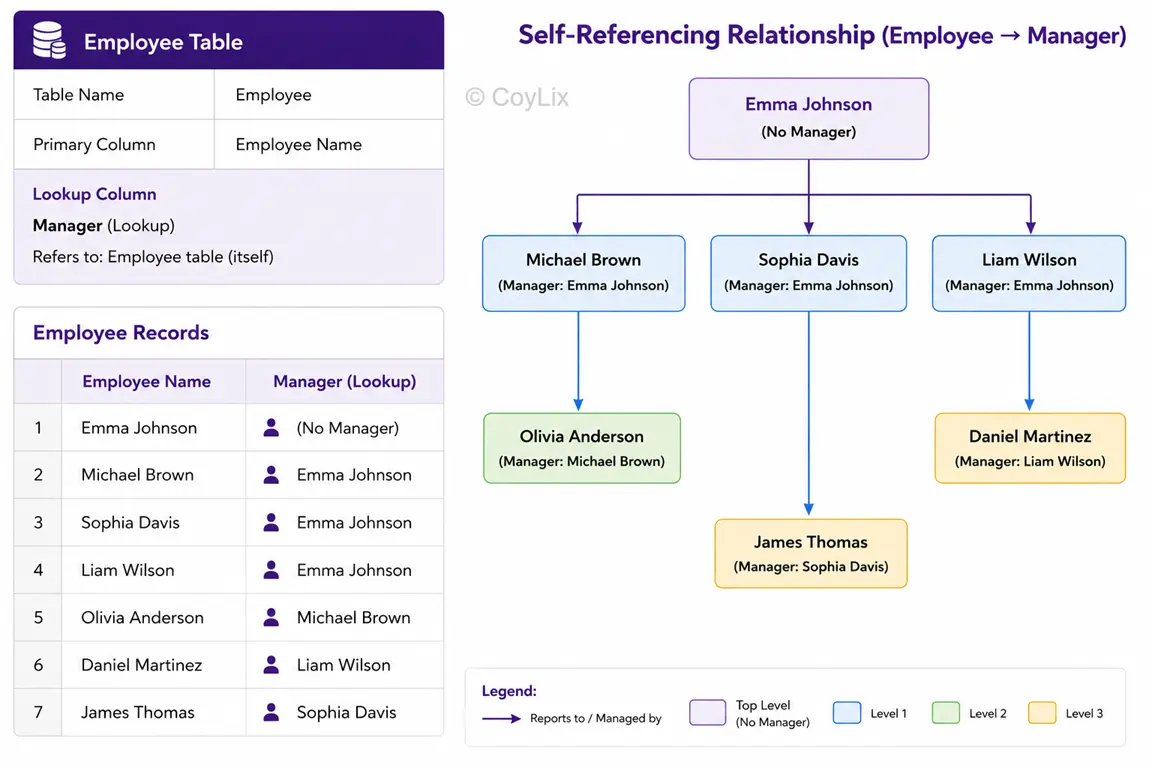
Self Referencing Relationships by CoyLix

Real example:
Take the Employee table. You’d add a lookup column called something like “Manager” on the Employee table, and that lookup points back to the Employee table itself — because a manager is also an employee.

So one row, such as James Thomas, can have another row, Sophia Davis, set as their Manager. Sophia is also just another record in the same Employee table.

Simple way to remember it:
Normal lookup → points to a different table
Self-referencing lookup → points back to the same table

Why it’s useful:
It lets you build hierarchies without creating extra tables. You don’t need a separate “Manager” table — you just reuse the same Employee table and link records to each other.

9. What access levels exist within a security role privilege?

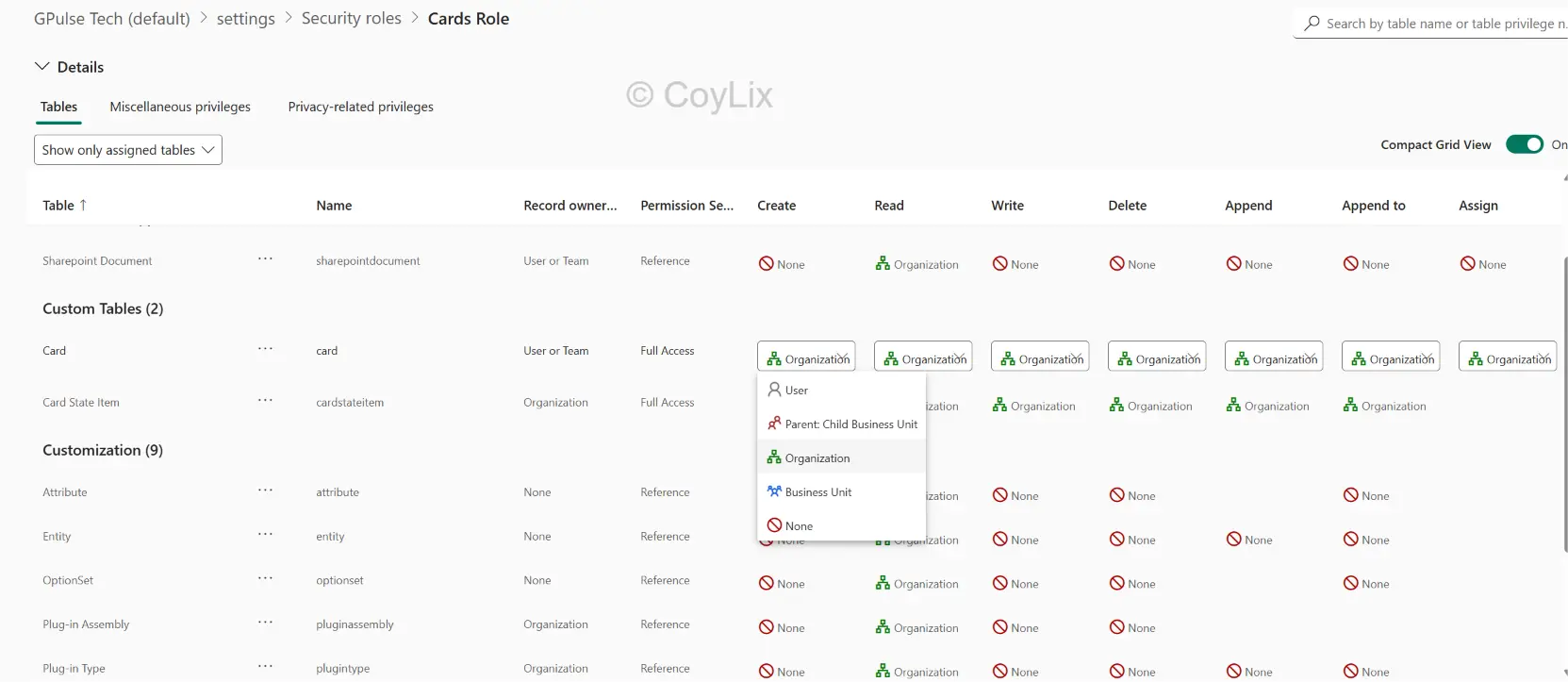
In Dataverse, every privilege inside a security role (like Read, Write, Delete, etc.) can be set to one of five access levels. These levels basically decide how far that permission reaches.

Here they are, from smallest to biggest:

  • None – No access at all for that privilege. The user simply can’t do that action.
  • User (Basic) – The user can only access records they personally own. Nothing more.
  • Business Unit (Local) – The user can access records owned by anyone in their own Business Unit, not just their own records.
  • Parent: Child Business Units (Deep) – The user can access records in their own Business Unit and any child Business Units underneath it.
  • Organization (Global) – The user can access every record in the entire organization, no matter which Business Unit owns it.

Example:

Security Roles by CoyLix

Say you’re setting the Read privilege on the Card table as shown in the above diagram

  • A regular user might get User level — they can see only the Card records they own.
  • A team manager might get Business Unit level — they can see Card records within their business unit.
  • A regional manager might get Parent: Child Business Unit level — they can see Card records in their business unit and child business units.
  • An admin might get Organization level — they can see all Card records across the organization.

10. What is field-level security and how do Field Security Profiles work?

Field-level security:
This lets you lock down individual columns, even if the user already has full access to the record itself. So someone could open an employee record, but a field like “Salary” stays hidden or read-only for them.

How it actually works — Field Security Profiles:
First, you turn on field-level security for a specific column (it’s off by default). Once that’s done, that field becomes invisible to everyone except users who are added to a Field Security Profile that grants access to it.

A Field Security Profile basically says three things for that field:

  • Read – Can the user see the value?
  • Update – Can the user change the value?
  • Create – Can the user set the value when creating a new record?

You then add specific users or teams to that profile, and only they get the access defined in it.

Real example:
You have to secure the Salary column in the Employee table. For that create a “HR Salary Profile” that allows Read/Update access.

  • Assign HR managers to that profile.
  • Other users without the profile will see the field as blank or hidden.

Interview tip: A common follow-up question is “does the user still need a security role?” — yes, field security works on top of security roles, not instead of them. The user still needs record-level access first; field security just adds an extra layer on specific columns.

11. What is a Dataverse solution and what can it contain?

A solution in Dataverse is basically a container — a way to package up everything you’ve built so you can move it from one environment to another, like from Development to Production. Instead of manually recreating your tables, forms, and flows in each environment, you just pack them into a solution and import it wherever you need it.

Think of it like a zip file for your app’s building blocks.

A solution can contain components such as:

  • Tables
  • Columns
  • Relationships
  • Canvas apps
  • Model-driven apps
  • Power Automate flows
  • Forms
  • Views
  • Charts and dashboards
  • Security roles
  • Business rules
  • Business process flows
  • Plug-ins and other customizations

Two types of solutions:

  • Unmanaged solution – Still editable, mainly used in Development. You build and test here.
  • Managed solution – Locked/finalized, used when moving into Test or Production. You can’t edit components directly inside a managed solution

12. How do business rules work in Dataverse and what are their known limitations?

Business rules provide a no-code way to apply conditions, validations, and actions to Dataverse data. They can set, clear, or validate column values and, in model-driven forms, show/hide or enable/disable fields.

Key limitations:

  • No loops, no external API calls, no complex calculations – if the logic needs that, you should look at plugin or Power Automate flow instead.
  • Multi-select choice and file/image columns aren’t supported – you can’t set conditions or actions on them.
  • Composite columns (like Full Name) aren’t supported directly in Unified Interface apps – you have to use the underlying columns (First Name, Last Name) instead.
  • Editable sub grids don’t support business rules.
  • More than 150 business rules on one table can cause performance issues.

13. Do business rules run client-side, server-side or both — and why does that matter?

They run both client‑side and server‑side. But it also depends on the scope of the business rule.

  • Entity (table) scope: Runs client-side and server-side, so the rule can also apply when data comes through APIs, imports, or integrations.
  • All Forms: Runs client-side only on model-driven app forms.
  • Specific Form: Runs client-side only on the selected form.

Example: If a rule must be enforced regardless of whether data comes from a form, Power Automate, or an API, use Entity (table) scope.

ScopeClient-sideServer-side
Entity (table)
All Forms
Specific Form

Interview tip: Don’t assume a rule tested successfully on a form is enforced everywhere. Entity scope is the option that also provides server-side execution.

14. What are business process flows and how do they differ from business rules and workflows?

A Business Process Flow (BPF) guides users through a business process using stages and steps in a model-driven app.

Here’s how the three compare:

  1. Business rules handle field-level logic on a form — show/hide a field, make it required, set a value, or show a validation message. They’re triggered by conditions.
  2. Business process flows guide users through a multi-stage process, potentially across multiple tables. For example, a BPF can move a user from the Lead table to the Opportunity table as they progress. They’re about sequence and structure, not individual field logic.
  3. Workflows (now mostly replaced by Power Automate cloud flows) run in the background when an event occurs, such as a record being created or updated. They don’t appear on the form; they perform actions such as sending an email, updating a field, or creating a related record.

Interview tip: BPFs are mainly about guiding users through a process, while business rules and workflows handle logic and automation.

15. How does duplicate detection work in Dataverse and what triggers it?

Dataverse uses duplicate detection rules to compare selected columns, such as Name, Email, or Phone, and identify possible duplicate records.

Before it works, duplicate detection must be enabled at three levels: organization, table, and operation (create/update).

It can be triggered by:

  • Create or update: Dataverse checks the record and can show a duplicate warning.
  • Scheduled duplicate detection jobs: Scans existing records for possible duplicates.
  • Web API/SDK: Duplicate detection is suppressed by default. The request must explicitly enable it using SuppressDuplicateDetection = false.

Example: A rule compares Email addresses. If john@CoyLix.com already exists, creating another record with the same email can trigger a duplicate warning.

Interview tip: Remember that duplicate detection identifies possible duplicates; it doesn’t automatically prevent them.

1. What is an elastic table and how is it different from a standard table?

A standard Dataverse table uses Azure SQL and is designed for structured business data, relationships, transactions, and complex queries.

An elastic table uses Azure Cosmos DB and is designed for very large amounts of data, high-volume requests, and workloads that can grow quickly.

Example:
Use a standard table for Customers and Orders. Use an elastic table for millions of IoT sensor readings or application logs coming in continuously.

Elastic tables also have features such as a Partition Id for distributing data and a Time to Live (TTL) value that can automatically delete records after a specified time.

Below is the quick comparison.

Standard TableElastic Table
StorageAzure SQLAzure Cosmos DB
Best forStructured business dataHigh-volume, rapidly growing data
ScalingStandard Dataverse scalingAutomatic horizontal scaling
TransactionsSupports transactionsNo multi-record transactions
RelationshipsBroad relationship supportLimited
Special featuresPartition Id, TTL
ExampleCustomers, OrdersIoT data, logs, telemetry

2. What is the Partition Id column in an elastic table and why does it matter when updating records via Patch()?

Every elastic table has a Partition Id column. It helps Dataverse divide records into logical partitions so the table can handle large amounts of data efficiently. If you don’t set a Partition Id when creating a row, Dataverse uses the primary key (GUID) as the default value.

Custom Partition Id:

It is a value you choose to group related records into a logical partition. For example, in an IoT sensor table, you could use the Device ID as the Partition Id.

Example:
PartitionId = Device-001
Sensor records for that device can use Device-001 as their Partition Id.

Why does it matter with Patch()?
When an elastic table uses a custom Partition Id, you must provide the Partition Id when updating the existing record. The GUID + Partition Id together identify the record.

GUID = ABC123 , PartitionId = Device-001

If the Partition Id is missing or incorrect, Dataverse can’t correctly identify the existing record.

Important: You can’t change a record’s Partition Id after it is created, so choose your partitioning strategy carefully.

Interview tip:
Custom Partition Id → GUID + Partition Id identify the record.

read Microsoft documentation for more details:
https://learn.microsoft.com/en-us/power-apps/developer/data-platform/elastic-tables
https://learn.microsoft.com/en-in/power-apps/developer/data-platform/use-elastic-tables

3. How do you enforce a required field at the platform level vs. using a business rule or plugin?

There are actually three different ways to make a field required in Dataverse, and each one works at a different level.

  1. Platform level (Column setting):
    This is the simplest way — you just go into the column properties and set “Required” directly on the table itself. Once you do this, it applies everywhere — every form, every app, every API call. There’s no way around it. If the value is missing, Dataverse itself blocks the save, no matter how the record was created.
  2. Business rule:
    This one is form-based. You set a condition, like “if Order Amount is greater than $1000, then make Approver required.” It only kicks in when someone is using a form and that condition is true. The downside is, business rules mostly run on the client side (in the form), so they don’t fully protect you if someone creates the record another way, like through an API or a Power Automate flow, unless the rule is also set to run on the server.
  3. Plugin:
    This is the most powerful option. A plugin runs on the server, so it doesn’t matter how the record gets created — form, API, flow, import, anything. You write code that checks the condition and throws an error if the required value is missing. This is the option you’d pick when you need to guarantee the rule can never be bypassed.

Real example:
Say a company wants “Approver” to always be filled in for every Order, no exceptions — that’s a column-level required field. But if they only want it required when the Order is above $1000, that’s a business rule. And if they need that same $1000 rule to be enforced even when orders come in through an integration from another system, that’s when a plugin is the safer choice.

4. What happens to related records when you delete a parent record?

It depends on how the relationship between the two tables was set up. When you create a 1:N relationship in Dataverse, there’s a setting called “cascading behavior” that controls exactly this. There are a few options:

  1. Cascade All (Parental):
    If the parent gets deleted, all the related child records get deleted too, automatically. No warning, no leftover records — they just go with the parent.
  2. Referential (Remove Link):
    The child records don’t get deleted. They just lose the connection — the lookup field on the child gets cleared out, but the child record itself stays in the system. This is the default for new relationships.
  3. Referential, Restrict Delete:
    This one blocks you completely. If there are any related child records still linked, Dataverse won’t let you delete the parent at all. You’d have to remove or reassign the children first.
  4. Cascade Active:
    Only the child records that are still “active” get deleted. Anything already inactive or closed stays untouched.

Interview tip: A common follow-up is “what’s the default behavior for a standard 1:N relationship?” — most standard Dataverse relationships default to Referential, meaning child records are not deleted automatically, they just lose the link.

5. What’s the difference between an owner team, an access team, and a Microsoft Entra ID group team?

These are different types of teams in Dataverse, mainly used for record ownership and access management.

1. Owner Team : An owner team can own Dataverse records. For example, a Sales Team can own customer records. Members of the team can get access to those records based on their security roles and team privileges. Owner teams can also have security roles assigned to them.

2. Access Team : An access team does not own records and does not have security roles. It is mainly used to give a group of users access to a specific record. For example, you can give five users access to one particular Employee record without changing who owns that record.

3. Microsoft Entra ID Group Team: A Microsoft Entra ID group team is linked to a Microsoft Entra ID group. Instead of manually adding users to the Dataverse team one by one, membership is managed through the Microsoft Entra ID group. When users are added to or removed from the Entra ID group, their Dataverse team membership is managed accordingly.

6. When would you use record sharing instead of a security role?

Use a security role when you want to give a user or group a general level of access to a table.

Use record sharing when you need to give someone access to one specific record or a small number of records.

Example : Suppose you have an Employee Card table. A manager normally has access only to the Employee Card records in their own business unit. But occasionally, they need to review one Employee Card record owned by another business unit. Instead of changing the manager’s security role and giving them broader access to all records in that business unit, you can share that specific Employee Card record with them.

You can also decide what they can do with the shared record, such as:

  • Read
  • Write
  • Delete
  • Append
  • Append To
  • Assign
  • Share

Interview tip: A common follow-up is “does sharing work well for a lot of records or users?” — no, sharing is meant for exceptions, not everyday access. If you’re sharing hundreds of records the same way, that usually means you actually need a proper security role or a team setup.

7. What is hierarchical security and how is it different from business-unit-based security?

Hierarchical security:  This gives access based on the actual manager-employee relationship. If you’re someone’s manager, you automatically get access to the records owned by that person, and it keeps going down the chain — a manager’s manager can see even further down. There are two types:

  • Manager Hierarchy: Access follows the “Manager” field on the user record. So if Priya is Ravi’s manager, Priya automatically sees Ravi’s records.
  • Position Hierarchy: Access follows job positions instead of the manager field, which is useful when the actual org chart doesn’t match who’s marked as “manager” in the system.

Business-unit-based security:
This one doesn’t care about who reports to whom. It’s based purely on which Business Unit owns the record. If you’re given Business Unit-level access, you see everyone’s records within that Business Unit, no matter who their manager is. And if it’s set to Parent: Child Business Unit access, you also see records in the smaller units underneath yours.

Simple way to remember it:
Hierarchical security → based on manager-employee relationships (or job positions)
Business unit security → based on which unit owns the record, regardless of reporting lines

8. Why is it a mistake to design security roles named after individual people (“Anna’s role”) instead of job functions?

Security roles should be based on job functions, not individual users. A role such as Sales Manager can be reused for everyone performing that function.

Person-based roles create security-role sprawl and become difficult to understand and audit. When Anna leaves or changes roles, it’s unclear whether “Anna’s Role” should be deleted, modified, or reassigned.

Function-based roles are easier to maintain. When Anna changes positions, simply remove her from Sales Manager and assign the appropriate new role.

Example: Instead of creating separate roles for Anna, John, and David, create one Sales Representative role and assign it to all three.

Interview tip: For one-off access beyond a user’s normal role, consider record sharing or teams instead of creating a person-specific security role.

9. What is Privileged Identity Management (PIM) and how does it relate to reducing System Administrator role assignments?

Privileged Identity Management (PIM) helps organizations control and manage privileged access by providing just-in-time, time-limited access to sensitive roles.

Instead of permanently assigning the System Administrator role to users who occasionally need elevated privileges, PIM can allow eligible users to activate the role only when required, subject to controls such as approval, MFA, or time limits.

This follows the least-privilege principle and reduces the number of users with standing administrative access.

Example: A Power Platform administrator normally has a lower-privileged role but activates System Administrator through PIM for a specific maintenance task. The elevated access automatically expires afterward.

Interview tip: PIM doesn’t replace Dataverse security roles; it helps control and minimize standing privileged-role assignments.

10. Why can’t business rules act on multi-select choice fields and what would you use instead?

  • Technical Limitation: Business rules in Dataverse only support simple data types (single line of text, number, single choice, etc.).
  • Multi‑select choice fields store values as an array of option IDs, not a single value. Business rules don’t have the ability to evaluate or manipulate arrays.
  • Result: You can’t directly set, clear, or conditionally evaluate multi‑select choice fields with business rules.

      What to Use Instead?

  • Power Fx (Canvas Apps): Handle multi‑select logic in formulas (e.g., If(“Option A” in ChoicesField.SelectedItems, …)).
  • Power Automate Flows: Automate updates or validations when multi‑select fields change.
  • Plugins / Custom Code: For server‑side enforcement, write a plugin to evaluate the array and apply business logic.

💡 in short: Business rules don’t support multi‑select choice fields because they can’t process arrays. Use Power Fx, flows, or plugins to handle multi‑select logic instead.

1. Users should see only their own records, managers see their team’s and directors should see the whole business unit. Design the security model.

Use Security Roles + Business Units + Hierarchy Security.

  • Users: Give the table User-level Read access. They can see records they own.
  • Managers: Use Manager Hierarchy Security so managers can access records owned by their direct reports. The manager must also have the required security-role privileges.
  • Directors: Give them Business Unit-level Read access if they need records from their own BU. If they also need records from child BUs, use Parent: Child Business Unit access.

Example
Business Unit

├── Director

├── Manager 1
│ ├── User A
│ └── User B

└── Manager 2
├── User C
└── User D

  • User A → sees their own records
  • Manager 1 → sees records owned by User A and User B
  • Director → sees records across the required Business Unit

Important distinction
If “team” means direct reports, use Manager Hierarchy Security.
If “team” means everyone in the manager’s Business Unit, use Business Unit-level access instead. Business Unit access allows access to records owned by users in that Business Unit, so it can be broader than just the manager’s direct reports.
Interview tip

User → User-level access
Manager → Manager Hierarchy Security
Director → Business Unit / Parent: Child BU access
Hierarchy Security doesn’t replace security roles. The manager still needs the appropriate security-role privileges; hierarchy access works alongside those roles.

Microsoft documentation:

https://learn.microsoft.com/en-us/power-platform/admin/security-roles-privileges
https://learn.microsoft.com/en-us/power-platform/admin/how-record-access-determined
https://learn.microsoft.com/en-us/power-platform/admin/hierarchy-security

2. Two business units need to share some records but not all. How do you design it?

Keep each Business Unit’s default access restricted. Don’t give both BUs broad security-role access, because that could expose records that should remain private.

For records that need to be shared, use an Access Team. Add the required users to the Access Team and give them only the permissions they need, such as Read or Write. The users can belong to different Business Units.

Example:

  • Sales BU owns customer records.
  • Support BU normally cannot see them.
  • When Support needs access to one customer record, add the required Support users to an Access Team for that record.

For a larger, defined group that needs access to many records, an Owner Team may be a better option.

ApproachBest for
Access TeamSharing specific records with selected users
Owner TeamA defined group that needs access to many records
Manual sharingA few exceptional cases

In short
Business Units = separate the data.
Access Teams = share selected records.
Owner Teams = manage access for a defined group.

3. A user has Parent: Child Business Unit Read access but still can’t see a record they should be able to access. How would you troubleshoot the issue?

I would check these things:

  1. Check the security role
    Make sure the user has Read permission for the correct table and the access level is set to Parent: Child Business Unit.
  2. Check the business unit structure
    Make sure the business unit of the record owner is actually a child of the user’s business unit.
  3. Check who owns the record
    Check whether the record is owned by a user or a team, and which business unit that owner belongs to.
  4. Check the correct table
    Make sure the user has the required Read permission on the table where the record exists.
  5. Check other access settings
    Check the user’s other security roles, team membership, record sharing, and make sure they are working in the correct environment.

Example: Suppose Emma is in the Sales business unit, and North Sales is a child business unit. Emma has Parent: Child Business Unit Read access to the Card table. If a Card record is owned by someone in North Sales but Emma still cannot see it, I would check:

Security Role → Access Level → Business Unit Structure → Record Owner

4. A user can open a Dataverse table but cannot create a new record. How would you troubleshoot the issue?

I would check the following:

  1. Check the Create privilege
    Make sure the user’s security role has the Create privilege for that table.
  2. Check the access level
    Make sure the Create privilege has an appropriate access level. Usually, the user needs at least User access to create records they own.
  3. Check required columns
    The record may not be getting created because a required column has been left blank.
  4. Check field-level security
    If a required column is secured, make sure the user has permission to enter a value in that column.
  5. Check business rules or custom logic
    A business rule, Power Automate flow, plug-in, or other custom logic may be preventing the record from being created.

5. A user creates or updates a Dataverse record but some field values change automatically. How would you troubleshoot the issue?

I would check the following:

  1. Check the column type
    Check whether the field is a calculated or formula column. Its value may be changing automatically based on other data.
  2. Check business rules
    A business rule may be setting or changing the field value.
  3. Check plug-ins
    A plug-in may be running when the record is created or updated and changing the data.
  4. Check classic workflows or other Dataverse processes
    An existing process may be updating the record automatically.
  5. Check Power Automate flows
    Check whether a flow triggered by the Dataverse record is updating the field.
  6. Check the record’s audit history
    If auditing is enabled, review the audit history to see when the field changed and what caused the change.

6. A Dataverse table has duplicate records. How would you investigate and prevent duplicates?

I would first check where the duplicates are coming from—for example, manual entry, data import, Power Automate, or an integration.

Then I would check whether any duplicate detection rules are in place and whether a flow or custom logic is creating records without checking for an existing match.

To prevent future duplicates:

  • Use Duplicate Detection Rules to identify possible duplicates.
  • Use an Alternate Key when a value, such as Employee ID, must be unique.
  • Update flows or integrations to check for an existing record before creating a new one.

In simple terms: Find the source of the duplicates, then use duplicate detection, alternate keys, or proper validation to prevent them from happening again.

7. You need to expose data from an external SQL database inside Dataverse without duplicating it. What do you use?

You can use a Virtual Table.

A virtual table lets Dataverse display data from an external system, such as a SQL database, without storing a copy of that data in Dataverse.

The data remains in the external SQL database. When needed, Dataverse accesses it through the configured connection or data provider.

For example, if customer data already exists in an external SQL database, you can expose it in Dataverse using a virtual table instead of importing and duplicating all the customer records.

Interview tip: You might be asked, “Why not use a regular table and sync the SQL data with a flow?” Because syncing creates a copy of the data in Dataverse, and the data may not always be up to date because it depends on the sync frequency. Virtual Tables avoid both problems—the data stays in the external system and is accessed without copying it into Dataverse.

8. A model-driven app view with 50,000+ records is slow to load. What would you check (indexing, view filters, related-record columns)?

Start by checking whether the view is retrieving more data than necessary.

  • View filters: Use specific filters so Dataverse returns only the required records.
  • Indexes: Check whether columns used for filtering and sorting are properly indexed.
  • Related-record columns: Avoid unnecessary columns from related tables, which can increase query complexity.
  • Sorting: Check for expensive sorting on large datasets.
  • Number of columns: Remove unnecessary columns from the view.
  • Paging and search: Check that the view isn’t displaying an unusually high number of records per page. Also check whether Dataverse Search is enabled for large-dataset searching rather than relying only on older Quick Find behavior.

Example: Instead of loading 50,000+ cases, create a view filtered to Active Cases assigned to the current team and display only the required columns.

Interview tip: Don’t immediately blame the record count. Check the query, filters, sorting, related columns, indexing, and paging first.

9. You need to import 2 million legacy records into Dataverse without locking up the environment. What approach do you take?

For 2 million records, use a bulk/batch migration approach rather than creating records one at a time.

  • Use bulk operations such as CreateMultiple and UpdateMultiple where supported to reduce API calls and improve throughput.
  • Batch the data into manageable chunks and tune the batch size to avoid request limits and timeouts.
  • Temporarily disable non-essential synchronous plug-ins and workflows during the migration to avoid unnecessary processing for every record.
  • Handle duplicates deliberately. Bulk operations suppress duplicate detection by default, so clean the data beforehand or explicitly enable detection where appropriate.
  • Run during off-peak hours and monitor API limits, throttling, failures, and overall environment performance.
  • Plan relationships carefully, importing parent records before dependent child records when required.

Example: Split the 2 million records into manageable batches, validate each batch, process it using bulk operations, and retry failed batches rather than restarting the entire migration.

Interview tip: At this scale, the key is bulk operations + controlled batching + minimizing unnecessary automation, rather than simply increasing the import size.

10. A plugin and a Power Automate flow are both trying to update the same field on record save — how do you avoid a conflict/race condition?

First, define clear ownership of the field. Ideally, only the plugin or the flow should update it.

A synchronous plugin runs during the save transaction, while a Power Automate flow runs asynchronously after the record is saved. If both update the same field, the flow could potentially overwrite a value changed by another process.

If both are genuinely required:

  • Use filtering attributes for the plugin so it runs only when relevant fields change.
  • Add trigger conditions to the flow to prevent unnecessary or repeated runs.
  • Use conditions or flags when the two processes must coordinate.
  • Prefer having the plugin and flow update different fields where possible.
  • Monitor for automation loops and execution-depth issues.

Example: The plugin calculates CreditScore during save, while the flow reads that value and sends a notification. The flow doesn’t update CreditScore.

Interview tip: The best solution is single ownership of the field. Guard conditions and flags should be used only when both processes genuinely need to interact.

11. You need business logic to run instantly and synchronously before save and also trigger a long-running external call. How do you split this between a plugin and a flow?

Use a synchronous plugin for the business logic that must run immediately before the record is saved, and use Power Automate for the long-running external operation.

The plugin can validate data, calculate values, or enforce business rules within the save transaction. If the validation fails, the plugin can prevent the record from being saved.

After the record is saved, the Power Automate flow can handle the external call asynchronously. This keeps the user from waiting for a long-running operation.

Example: A plugin validates an order and calculates its total before save. After the order is saved, a flow calls an external ERP system to create the corresponding order.

Interview tip: If asked, Why not use an asynchronous plugin instead of a flow?” say that Power Automate provides easy monitoring, run history, and retry options, so it is a good choice for long-running external integrations. An asynchronous plugin can still be used when the logic needs to stay within Dataverse.

FAQs

Dataverse is Microsoft’s secure, cloud-based data platform serving as the central storage for Power Apps, Power Automate, and other Power Platform components. It is used for its robust data modeling, enterprise-grade security, and scalability for business applications.

Entities, now commonly referred to as tables in Dataverse, are the fundamental structures used to organize and store specific types of data. They function similarly to tables in a traditional relational database, consisting of rows (records) and columns (fields).

Dataverse implements a robust, multi-layered security model, allowing control over access at the organizational, business unit, record, and even column level. It uses security roles and field security profiles to ensure data access aligns with user responsibilities.

Dataverse seamlessly integrates with Power Apps as a native data source for building rich applications, and with Power Automate for automating workflows. Its tight integration provides a unified and secure data backend for the entire Power Platform ecosystem.

Watch The Videos

Scroll to Top