Beginner

Intermediate

Expert

Scenario Based

Review the All Piller page

4537 Views
Facebook
Twitter
LinkedIn
WhatsApp

300+ Power Apps Interview Questions & Answers (2026) – Complete Guide by Coylix


Looking for the most important Power Apps interview questions? This complete guide by Coylix covers 300+ real Power Apps interview questions and answers, along with practical scenarios and explanations to help you crack your interview with confidence. Our goal is to create a library of **300+ carefully curated questions** that cover everything from Power Apps basics to advanced and expert-level scenarios. This page is constantly updated with fresh and relevant Power Apps Q&A  asked in real interviews.

Power Apps interview questions typically test your knowledge of canvas apps, model-driven apps, delegation, data sources, performance optimization, and real-world problem-solving scenarios.

Whether you are just starting out or aiming for senior roles, you’ll find step-by-step answers, practical examples, and up-to-date explanations to help you succeed in your  interview preparation.  For deeper technical insights, you can also explore the official Microsoft Power Apps documentation to strengthen your understanding of core concepts.  Bookmark this page and revisit often to access the latest updates.


Free Power apps Interview Ebook - Course Elevate

Prefer structured learning? Explore all Power Apps interview questions organized on Coylix for complete preparation.


Table of Contents

Explore our structured collection of Power Apps interview questions covering fundamentals, Power Fx, delegation, integration, security, and advanced scenarios. Use this index to quickly navigate to the topic you want to revise.

Power Platform Fundamentals (Core Interview Questions)


🔎 Power Platform Core Questions – Complete Interview Breakdown

Access structured explanations, real-world implementation examples, licensing insights, and interview-ready responses for each core Power Platform question listed above.


Explore the Complete Power Platform Core Interview Guide →

Canvas App Fundamentals


🔎 Master Power Apps Canvas App Fundamentals Interview Questions

These questions cover the core fundamentals of Power Apps Canvas apps. For broader interview preparation across the entire Power Platform, explore the complete set of core questions.


Explore the Complete Canvas App Fundamentals Interview Questions →

Power Fx


⚡ Power Fx Interview Questions – Complete Developer Guide

Explore concise explanations, formula examples, performance insights, and interview-focused concepts covering the most important Power Fx topics used in Power Apps development.


Explore the Complete Power Fx Interview Guide →

Power Apps Delegation (Interview Questions)


🔎 Power Apps Delegation Questions – Complete Interview Breakdown

Understand how Power Apps delegation works, why delegation warnings appear, and how to design scalable apps for large datasets. Explore clear explanations, practical examples, and interview-ready answers for each delegation question listed above.


Explore the Complete Power Apps Delegation Interview Guide →

Data & Integration Layer

Power Apps Security (Interview Questions)


🔐 Power Apps Security – Complete Interview Breakdown

Explore authentication, authorization, RBAC, MFA, and data security layers with real-world scenarios and interview-ready explanations.


Explore the Complete Power Apps Security Interview Guide →

Security & Governance

Scenario-Based Problem Solving

Model-Driven Apps

ALM & Deployment Strategy

Azure Integration

No direct questions mapped yet.

Power BI Integration

No direct questions mapped yet.

PCF Controls

No direct questions mapped yet.

If you’re serious about cracking your Power Apps interview, don’t stop here.

Explore 

→ Power Automate Interview Questions
→ Dataverse Interview Questions 
→ Power Apps interview roadmap on Coylix.

All available on Coylix.
1. What is Power apps and why is it used?

Power Apps is Microsoft’s low-code / no-code platform used to build custom business applications. It allows users to create mobile and web apps by connecting to different data sources.

Features:

  • PaaS: Power Apps is a Platform as a Service (PaaS) offering from Microsoft.
  • Low-code platform: It enables rapid application development with minimal coding.
  • Versatile: Apps can run on mobile, tablet, and desktop devices.
  • Cross-platform: Apps work across different operating systems.
  • User-friendly: It provides a visual, drag-and-drop interface that is easy to use.

Why Power Apps is used:

  • You can build apps quickly without coding.
  • It easily connects to data sources like SharePoint, Excel, SQL, Dataverse, and more.
  • It helps automate manual and paper-based processes.
  • Developers can extend apps using Power Automate, APIs, and Azure when needed.

2. What is Platform as a service (PAAS)?

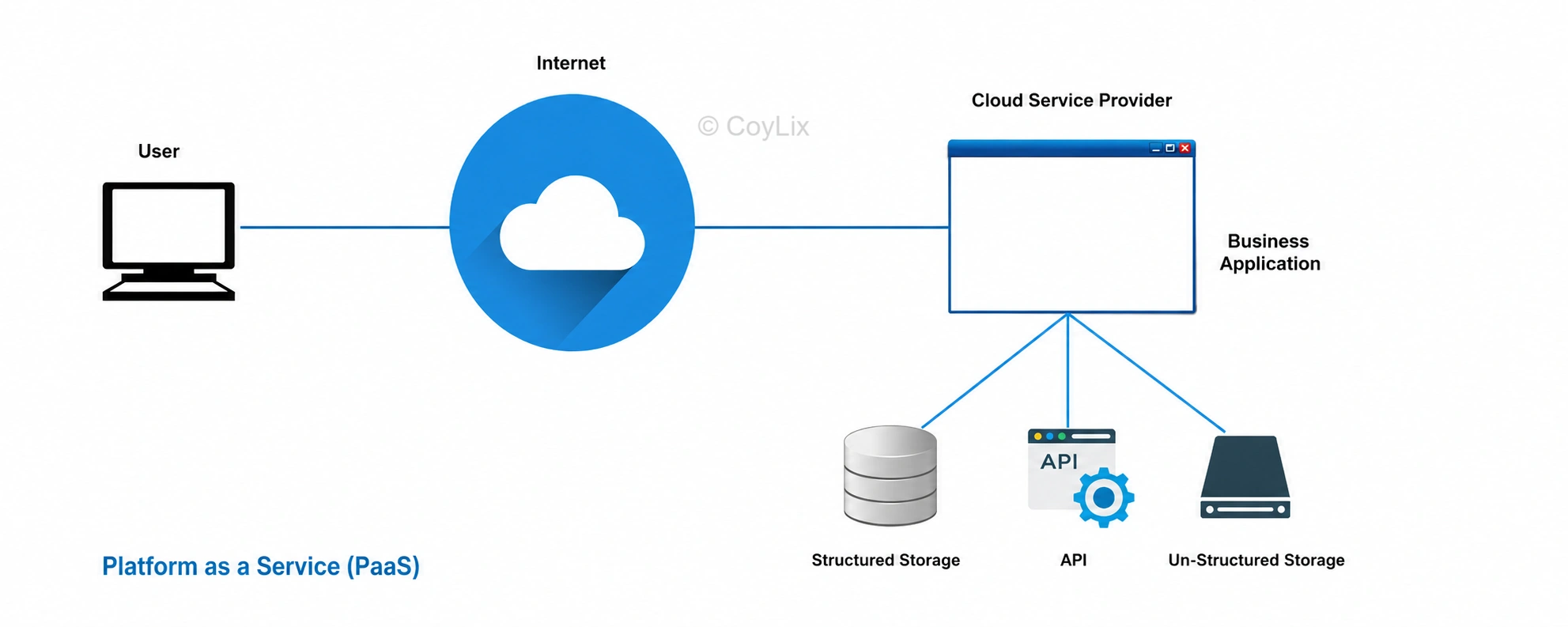
Platform as a service (PaaS) is a complete environment in the cloud where user can do development and deployment in the cloud itself.

In PAAS, Everything like Hardware, Software, Infrastructure is provided by service provider for developing, running and managing the applications

Power Apps - Platform As A Service

Above diagram shows Platform as a Service (PAAS):

  • A User connects via the Internet to a Cloud Service Provider.
  • The provider hosts Business Applications and offers resources like: Structured Storage (databases), APIs (services/integrations), Unstructured Storage (files, media).

👉 Users can build and run applications without managing underlying infrastructure.

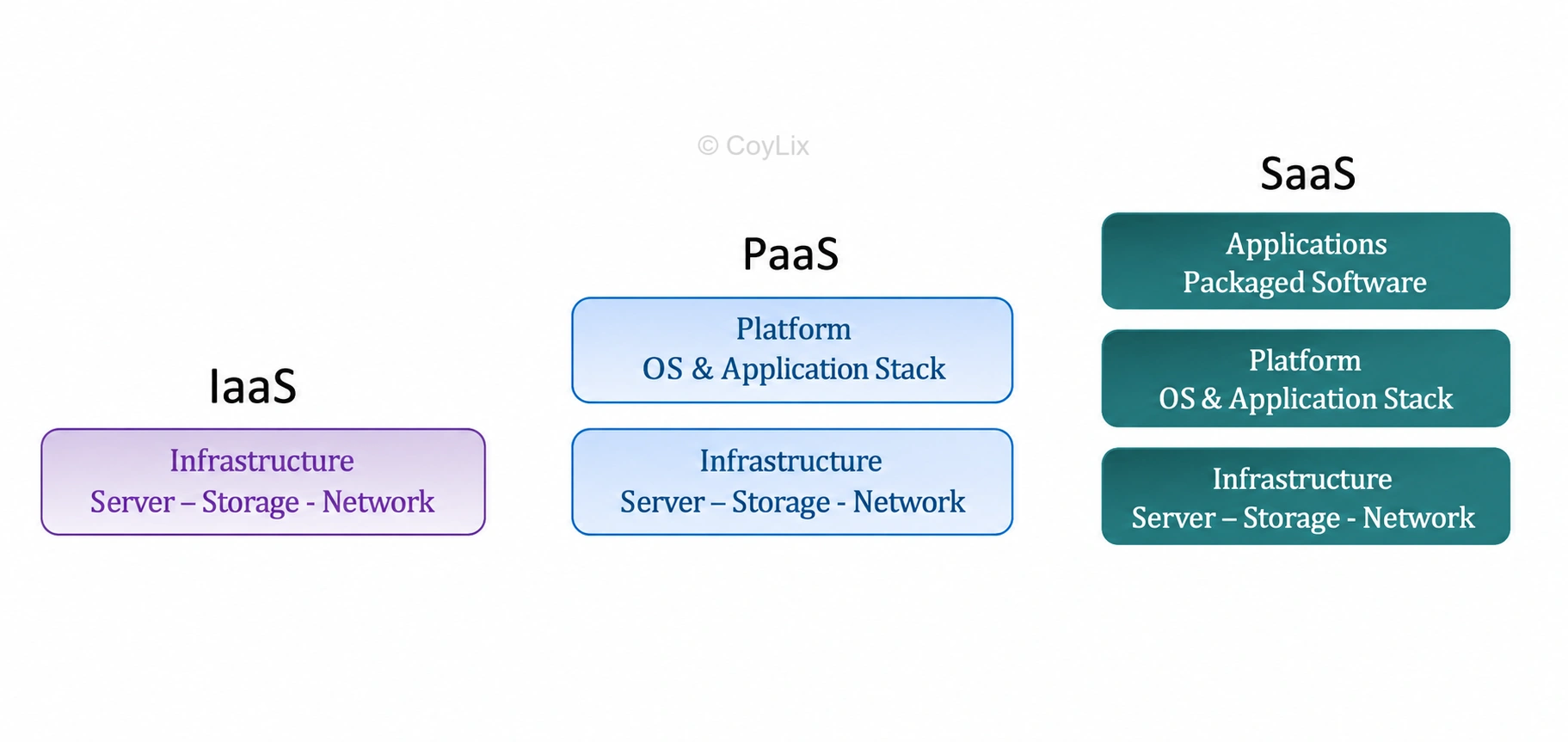
3. What is the difference between IaaS, PaaS and SaaS ?

IaaS  – Infrastructure as a Service

PaaS – Platform as a Service

SaaS- Software as a Service

Difference between IAAS, PAAS and SAAS

Lets analyse the difference between each of them with real life analogy.


Model What You Get What You Manage Example Simple Analogy
IaaS Servers, Storage, Networking OS, apps, data AWS , Microsoft Azure, Google Cloud You buy wheat flour and cook chapati + vegetables yourself (full control, full effort).
PaaS Infrastructure + Platform (OS, tools, DB) Only your apps & data Power Apps, Zoho Creator You get frozen paratha and frozen cooked vegetables, you just heat them up (some control, less effort).
SaaS Complete application (ready-to-use software) Just use the app Gmail, Drop Box, NetFlix,Office 365 and Salesforce You order chapati and vegetables from a restaurant and simply eat (no control, least effort).

4. Which Programming language is used by Power apps?

Microsoft Power-Fx is used as a programming language in Power apps. It is the low-code language for the Power Platform. It is strongly typed and Declarative language

  • It look and feel is similar to Excel formulas e.g. If(), Filter(), Sum() are the similar functions.
  • It’s declarative: Because you describe what you want.
  • It’s used for building logic, data manipulation, and UI behavior inside Power Apps.

Apart from Power Fx , Power Apps also uses :

  • JavaScript (via PCF – PowerApps Component Framework for custom controls)
  • JSON / OData (for data connections)

5. How do you navigate between screens in Power Apps and pass data to another screen?

In Power Apps, screen navigation is handled using the Navigate() function. It allows you to move between screens and optionally apply transition effects.

Syntax:

Navigate(TargetScreen, Transition [, UpdateContextRecord])

You can also pass data during navigation using the optional context record parameter. This enables transferring values such as user input or selected records to the target screen.

6. Can you develop Power Apps without having a license?

No. Without a license, you won’t be able to create or use Power Apps.

By joining up for a 30-day Power Apps trial plan, you may try out all of the features for free. If you don’t have a Power Apps licence, the trial plan gives you temporary access to the power app features.

You can enroll for power apps trial account here.


Intermediate Power Apps Interview Questions

Let’s explore Intermediate Power Apps Interview Questions now.

7. What are Connectors in Power Apps?

Connectors in Power Apps allow your app to connect with external services and data sources. They act as a bridge between the app and the data.
Types of Connectors:

  • Standard Connectors: e.g. SharePoint, Outlook, Microsoft Teams
  • Premium Connectors: SQL Server, Dataverse and Salesforce (require extra licensing)
  • Custom Connectors: As per the project requirements.

Click below for detailed explanation

View Detailed Answer

8. What is the difference between Concatenate and Concat function?

When you want to join text values in Power Apps, you have two different functions:
Concatenate() and Concat() — and they don’t work the same way.

Concatenate() is used only for joining simple text strings.
Example:

Concatenate("Hello", " ", "World") 

Result → Hello World
But it fails when you try to join items coming from a table or checkbox list.

That’s where Concat() comes in.
Concat() can loop through a table and join multiple values into one text string with a separator.

What is the difference between Concatenate and Concat function in power apps?

Example:
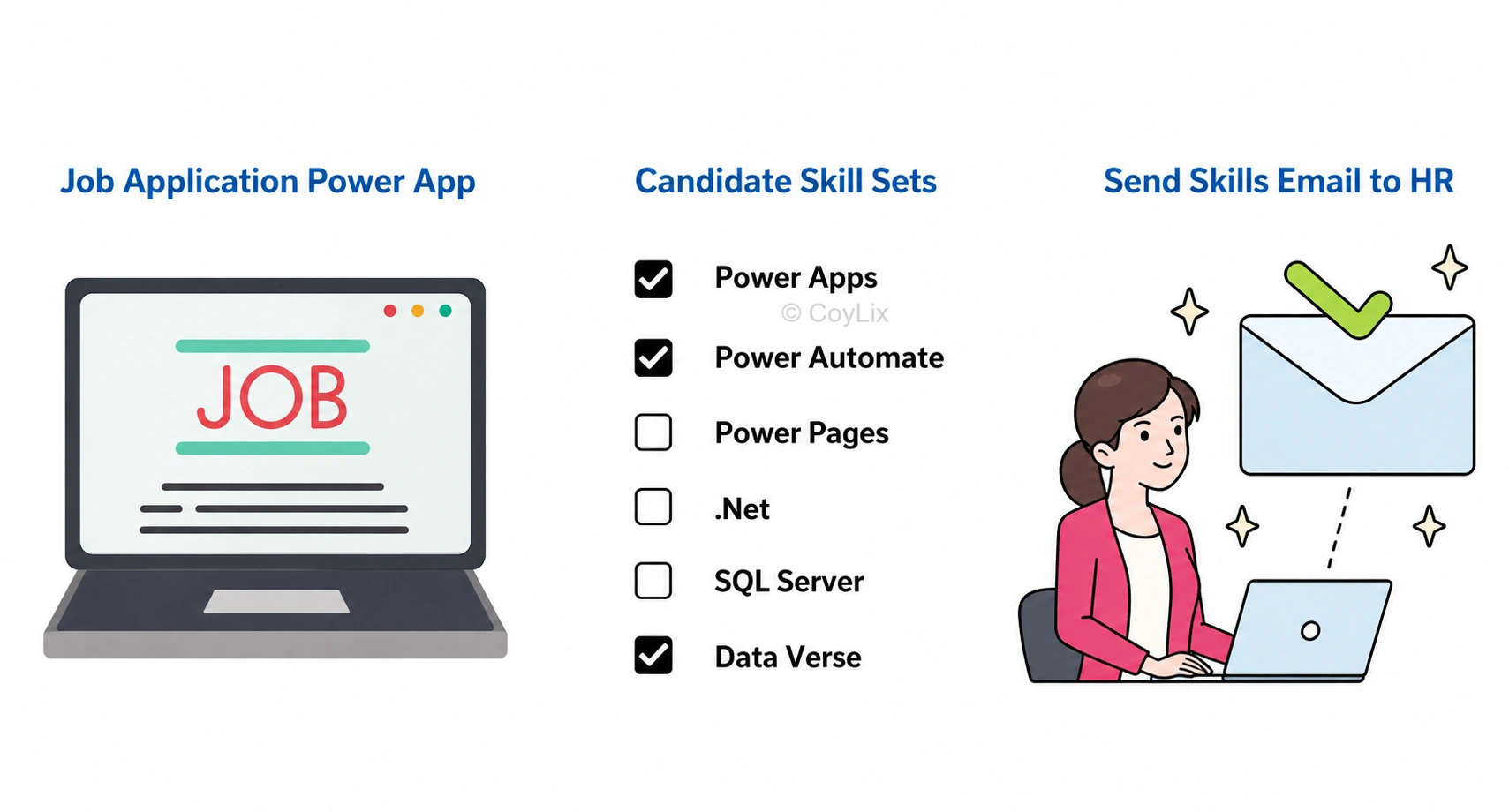
You built a Job Application App where a user selects skills. To send those skills as a single string in email, concat will be used.

Concat(SkillCheckbox.SelectedItems, Value, ", ")

Result → Power Apps, Power Automate, Dataverse

So in interviews, remember:

  • Concatenate = Simple text
  • Concat = Table/Collection values

9. What is the difference between Combo box and Dropdown in Power Apps?

In Power Apps, both Combo box and Dropdown look similar but work differently. A Dropdown lets you pick only one item from the list — it’s simple and used for small data. A Combo box, on the other hand, supports search, multi-select, and even custom values. It’s ideal when you need to show large data or connect with Dataverse.

If you disable search and multi-select in a Combo box, it behaves just like a Dropdown.

Click below button to understand this question with real examples & Video — it’s a very common Power Apps interview question for both intermediate and experienced developers.

View Detailed Answer

10. What are environment variables in power apps? How do you create them?

A Power Apps Environment Variable helps you store information like URLs, API keys, or connection names outside your app or flow.
This means you don’t have to edit your app every time something changes — for example, when your SharePoint site URL is updated.

These variables make it easy to move your solution from Development to Testing or Production without breaking anything.
You can create them inside a solution and choose data types like text, number, or secret for security.

In short, environment variables help you build once and deploy anywhere, saving time and reducing errors.

Click below to Watch Video and step by step details on Environment Variables

View Detailed Answer

11. What types of apps can be built using Power Apps?

Power Apps supports three main types of applications:

1. Canvas Apps – Fully customizable UI using drag-and-drop controls.
2. Model-Driven Apps – Data-driven apps built on Dataverse with auto-generated UI.
3. Portal Apps (Power Pages) – External websites for users outside the organization.

12. What is the difference between a Model-driven app and a Canvas app?

Canvas apps are UI-driven and fully customizable, where you design screens manually. Model-driven apps are data-driven, built on Dataverse, with UI generated automatically.

Canvas App

  • Screen-by-screen design
  • Full UI control
  • Works with multiple data sources
  • Best for custom, mobile-friendly apps

Model-Driven App

  • Data-first approach (Dataverse)
  • Auto-generated UI
  • Strong business logic and security
  • Best for process-driven apps

13. What is a Power Platform Environment?

A Power Platform Environment is a secure and separate workspace where an organization builds and manages its Power Apps, Power Automate flows, data, and related components. Each environment works independently, which means changes made in one environment do not impact others.

Organizations use multiple environments to keep work organized and safe. For example, developers usually build and test applications in separate environments before releasing them to users. This helps avoid errors and protects live business data.

Environments also allow organizations to control who can access apps and data, ensuring that teams only see what they need.

Every environment belongs to a specific geographic region, which helps meet compliance  requirements. An environment can also include a Dataverse database for support.

In simple terms, environments help organizations maintain security, stability, and control while building and managing Power Platform solutions.

View Detailed Answer

14. What is the significance of the App OnStart property in Power Apps?

The OnStart property is like the setup phase of an app. It runs once when the app opens and is used to prepare everything the app needs — like loading data, setting variables, or choosing the start screen.
Typical Uses:

  • Load collections:
    ClearCollect(Employees, '[dbo].[EmployeeTable]')
  • Set global variables:
    Set(CurrentUser, User())
  • Navigate to a splash or login screen conditionally
  • Preload data to improve performance

Bonus Tip:
Microsoft now recommends reducing the use of App.OnStart and moving logic to a screen’s OnVisible property to make apps more responsive. However, OnStart is still widely used for setting up app-level variables and initial configuration.

15. What is the formula in power apps and why it’s important?

A formula in Power Apps is a set of functions, written using Power Fx, the low-code language. Formula is used to define logic, behavior and activity of your app. This is similar to formula which is used in the excel.

Why is it Important?
Formulas help your app work properly. They tell it how to:

  •  Show data
  •  Filter data
  •  Move between screens
  •  Show messages and much more.
  •  How user will interact with the app.

Let’s have some examples.

Use Case Example Formula Explanation
Display a user’s name User().FullName Shows the full name for logged In user.
Submit a form SubmitForm(EditForm1) Saves data which is present in EdotitForm1  to a connected data source
Filter a gallery by name Filter(Employees, StartsWith(Name, txtSearch.Text)) Filters employee list based on user input
Show a success message Notify(“Saved successfully!”, NotificationType.Success) Shows a pop-up message after an action
Navigate between screens Navigate(Screen2, ScreenTransition.Fade) Moves the user to another screen

16. How to Connect Power Apps to Data Sources?

To connect Power Apps to data sources, open your Canvas App in Power Apps Studio, go to the Data panel, click Add Data, choose your connector (such as SharePoint, SQL Server, Excel, or Dataverse), and select the table or list you want to use. Once added, the data source becomes available inside your app for forms, galleries, and formulas.

Power Apps does not store data by itself. Instead, it connects securely to external systems where your business data already exists. After creating the connection, you can read, update, create, and delete records directly from your app.

Commonly used data sources include:

  • SharePoint lists
  • Excel files (stored in OneDrive or SharePoint)
  • SQL Server databases
  • Microsoft Dataverse

To know step by step process for this, click on detailed answer below.

View Detailed Answer

17. Difference between Excel and Sharepoint as data sources?

Think of Excel like a personal notebook on your desk, while SharePoint is a shared whiteboard in an office—one is for individual work, the other is built for team collaboration.
Excel is file-based, so only one person can reliably update data at a time

  • Data locking and sync issues happen when multiple users access Excel
  • SharePoint stores data as structured lists, not files
  • SharePoint supports permissions, version history, and concurrent users
  • Power Apps connects more reliably to SharePoint than Excel

If you build a Power Apps leave request app using Excel, users may see conflicts or outdated data. Using a SharePoint list allows multiple employees to submit requests at the same time without overwriting each other.

Main Difference / Takeaway:
Excel is for personal or light data entry, while SharePoint is designed for multi-user Power Apps.

18. How can you distribute a canvas app with all the employees in an organization?

A canvas app can be shared with multiple users by using group-based access instead of adding users individually.

Steps

  • Publish the app.
  • Share it with Azure AD security groups.
  • Ensure users have the required licenses.
  • Optionally, add the app to Teams or SharePoint for easy access.

Key Point
Use security groups for bulk sharing instead of assigning access user by user.

19. What happens when Power Apps hits data row limit?

Power Apps has a limit on how many records it can process for non-delegable queries (default 500, maximum 2,000).

Key Points

  • Only a limited number of records are loaded.
  • Filters and calculations run only on those records.
  • Some data may not appear in the app.
  • No error is shown, but results can be incomplete.

20. What is a Form in Power Apps and what are its types?

A Form in Power Apps is used to show, add, or update data from a data source like SharePoint or Dataverse. It gives users an easy way to view and enter information inside the app.

Types of Forms

1. Display Form (Read-only)

This form is used when you only want to show data. Users can see the information but cannot make any changes. It is commonly used in approval or summary screens.

2. Edit Form (Create or Update)

This form is used when users need to add new data or update existing records. It includes input fields and saves data using functions like SubmitForm().

21. What’s the difference between a variable and a collection in Power Apps?

In Power Apps, variables and collections are both used to store data, but they serve different purposes.

A variable stores a single value, such as text, a number, or a true/false condition. It is ideal for storing small pieces of information like a user name, a flag, or a temporary calculation result.

A collection, on the other hand, stores multiple records in a table-like structure. Each record can contain multiple fields. Collections are useful when you need to temporarily store lists of data inside the app.

Key Difference

  • Variables store single values.
  • Collections store multiple records.

22. How many types of variables are there in Power Apps?

Power Apps has three main types of variables: Global Variables, Context Variables and Collections.

Global Variables can be used anywhere in the app. They are created using the Set() function.
Example:

Set(UserName, "John")

Context Variables are limited to a single screen. They are created using the UpdateContext() function.
Example:

UpdateContext({IsVisible: true})

Collections are table-like variables that can store multiple records and multiple fields. They are created using Collect() or ClearCollect().
Example:

ClearCollect(Products, {Name: "Laptop", Price: 500})

Each type is chosen based on where the data needs to be used and how much information you want to store.

23. What is a Collection in Power Apps?

A collection in Power Apps is a temporary, in-memory table used to store multiple records and fields inside an app. It works like a small local database that exists only while the app is running.

Collections are useful when you need to:

  • Store data temporarily
  • Manipulate records before saving
  • Work with offline data
  • Improve performance by reducing repeated data source calls

They are created using functions such as:

Collect() and ClearCollect()

Example

ClearCollect(
    Products,
    { Name: "Laptop", Price: 500 },
    { Name: "Phone", Price: 300 }
)

This clears any existing data in the Products collection and then adds two records to it.

Difference Between Collect and ClearCollect in Power Apps

Function What It Does
Collect() Adds new records to an existing collection without removing existing data
ClearCollect() Deletes existing records first, then adds new records

Key Characteristics

  • Can store multiple rows and columns
  • Accessible across the app
  • Not automatically saved to a data source
  • Exists only during the app session unless stored externally

Interview-Ready Definition

A collection is a temporary table stored in memory that holds multiple records and can be used anywhere in a Power Apps app.

24. What are the different form modes in power apps?

In Power Apps, forms have different modes that control how the form behaves — whether users are viewing, editing, or creating data.

1. FormMode.View

Used to display data in read-only mode. Users can see the information but cannot make any changes.

ViewForm(Form1);

2. FormMode.Edit

Used to update existing records. Users can modify the data in the form.

EditForm(Form1);

3. FormMode.New

Used to create new records. The form usually starts with blank or default values.

NewForm(Form1);

25. What is Microsoft Power Platform? What are its components?

Microsoft Power Platform is a group of low-code tools that help businesses analyze data, build apps, automate tasks, create websites, and develop AI solutions — without needing advanced coding skills.
It has five main components:

  •  Power BI – Used to create reports and dashboards from data.
  •  Power Apps – Used to build custom business apps.
  •  Power Automate – Used to automate repetitive tasks and workflows.
  •  Copilot Studio – Used to build AI chatbots and virtual agents (formerly Power Virtual Agents).
  •  Power Pages – Used to create secure external websites connected to business data.

26. What is the purpose of Microsoft Power Platform?

The purpose of Microsoft Power Platform is to help people work smarter and get things done faster.
It allows anyone, even without coding knowledge, to build apps, automate repetitive tasks, and create reports. It connects data from different systems so businesses can understand their information easily. It also helps teams make better decisions using real-time insights, reduce manual work, save time, and improve teamwork.

27. What is the relationship between Power Platform and Microsoft 365?

Power Platform is closely connected to Microsoft 365. Both use the same identity system (Microsoft Entra ID), the same tenant, and the same users, so no separate login is needed.
Power Platform works directly with Microsoft 365 apps like Teams, SharePoint, Outlook, Excel, and OneDrive. You can build apps inside Teams, automate emails, and create dashboards using the same data.
They also share security and compliance settings, making management easier for organizations.

28. Can Power Platform work without coding at all?

Yes, Power Platform can work without coding for most common business needs.
You can build apps using drag-and-drop tools in Power Apps, create workflows in Power Automate, design dashboards in Power BI, build Chabot’s in Co-pilot Studio, and create websites in Power Pages — all without writing code.
However, for more complex scenarios, you may need simple formulas, expressions, or low-code tools. Full coding is rarely required and usually only needed for advanced customization.

29. What are Power Platform environments?

Power Platform environments are separate spaces used to build, manage, and store apps, flows, and data.

For example, a company may use a Development environment to create new apps, a Test environment to check and validate changes, and a Production environment where real users work.

Each environment has its own apps, data, security roles, and settings. This means changes made in Development will not affect live users. Environments help teams manage projects safely, maintain control, and follow proper deployment processes.

30. What is the Power Platform Admin Center?

The Power Platform Admin Center is the main portal where administrators manage the platform.
From here, admins can:

  • Create and manage environments
  • Set Data Loss Prevention (DLP) policies
  • Monitor usage and analytics
  • Manage security and governance
  • View capacity and licensing details
  • It helps organizations control security, users, and overall platform settings in one place.

31. What is Power Apps delegation and why is it important?

Delegation in Power Apps means sending data processing tasks to the data source instead of processing the data inside the app. When delegation works, the data source (such as SharePoint, Dataverse, or SQL Server) performs filtering, sorting, or searching and returns only the required records.

When delegation works:

  • The data source processes the query
  • Only required records are returned so app performance improves

Benefits include:

  • Correct results even with thousands of records
  • Faster loading time and lower memory usage

Example: If a list contains 20,000 records, a delegable filter like

Filter(Employees, Department="HR")

allows the server to return only HR records.

Without delegation, Power Apps evaluates only the first 500 or 2000 records, which can lead to incomplete results.

For a deeper explanation and real examples, see the

Power Apps Delegation Interview Guide →

33. What happens when delegation fails?

When delegation fails, Power Apps cannot send the query to the data source.

Instead:

  • Power Apps downloads a limited number of records (500 or 2000)
  • The formula runs locally inside the app
  • Remaining records are ignored

Example:

Filter(Requests, IsBlank(EmployeeName))

In SharePoint this condition is not delegable, so Power Apps evaluates only the first part of the dataset.

34. What is a the delegation warning in Powerapps?

A delegation warning appears when Power Apps detects that part of a formula cannot run on the data source.

You will usually see:

  • A blue underline in the formula
  • A yellow warning icon

The app may still work during testing, but when the dataset becomes large, users may see missing records.

35. What is the difference between Search() and Filter() in Power Fx?

Both functions retrieve records from a data source but serve different purposes.
Filter() evaluates logical conditions to return records that match a rule, while Search() performs text matching across one or more columns using a search string.
Example

 Filter(Employees, Department="IT")

This formula returns only those records from the Employees table where the Department column equals “IT”.

36. How do you combine multiple filter conditions in Power Fx?

Multiple conditions can be applied inside the Filter() function using logical operators such as AND (&&) or OR (||).
This allows developers to retrieve records that satisfy multiple criteria simultaneously.
Example

 Filter(Employees, Department="IT" && Salary > 50000)

This retrieves employees who belong to the IT department and have a salary greater than 50,000.

37. How can you implement field-level validation using formulas?

Field validation ensures that users provide valid input before submitting a form. Developers commonly use If() conditions with validation functions such as IsBlank().
Example

 If(IsBlank(TextInputName.Text), Notify("Name is required") ) 

This formula checks whether the Name input field is empty and displays a message if the user has not entered a value.

38. How do you filter records based on multiple columns?

You can filter data based on multiple columns by combining conditions inside the Filter() function. Logical operators allow Power Apps to evaluate several fields at once.
Example

 Filter(Employees, Department="IT" && City="London") 

This returns employees who work in the IT department and are located in London.

39. What is the difference between behavior formulas and data formulas in Power Fx?

Power Fx formulas are categorized as behavior formulas and data (property) formulas.
Behavior formulas execute when an event occurs, such as clicking a button.
Data formulas automatically calculate values and update whenever the dependent data changes.
Example

 Set(IsAdmin, true) 

This behavior formula runs when triggered (such as on a button click) and sets the global variable IsAdmin to true.

40. What does authentication mean in Power Apps?

Authentication simply means verifying who the user is before allowing access to an app. In Power Apps, users sign in using their Microsoft work or school account, and this identity is verified through Microsoft Entra ID.

For example, when an employee opens a Power App, they log in with their company account. Once Entra ID confirms their identity, the app allows access. If that identity is not valid, then user cannot open the app. This makes sure that only authorized users can enter the application.

41. How does Power Apps authenticate users?

Power Apps uses Microsoft Entra ID to handle authentication. The process works in steps:

  • The user signs in.
  • Entra ID verifies the identity.
  • Then an access token is issued.

This token is used by Power Apps to access services like SharePoint, Dataverse or SQL Server. For example, when a user opens an app connected to SharePoint, Power Apps uses the token instead of asking for credentials again. This keeps the login process secure and avoids exposing user passwords.

42. What is the difference between authentication and authorization?

Authentication checks who the user is, while authorization decides what the user can do after login. Both are important steps in security.

For example, in an HR app, an employee logs in successfully (authentication). After that, authorization determines access:

  • HR Manager can edit employee records.
  • Regular employee can only view their own details.

This separation ensures that even valid users only perform actions they are allowed to do.

43. How does Power Apps work with Microsoft Entra ID?

Power Apps integrates with Microsoft Entra ID for identity management. When a user signs in, the request is redirected to Entra ID, which verifies the identity and applies security policies.

A common example is in organizations where employees use the same login for Outlook, Teams, SharePoint, and Power Apps. This works because all these services rely on Entra ID and support Single Sign-On, allowing users to log in once and access multiple applications securely.

44. How is multi-factor authentication (MFA) applied in Power Apps?

MFA is configured in Microsoft Entra ID, not inside Power Apps. It is usually implemented using Conditional Access policies.

For example, when a user logs into a Power App, they first enter their email and password. Then they must approve a request in the Microsoft Authenticator app or enter an SMS code. Only after this second step is completed, access is granted. This adds an extra layer of security and protects against unauthorized access.

For more details, on how to configure MFA, please visit this blog article.

45. What authentication methods are available in Power Platform?

Power Platform mainly uses Microsoft Entra ID for authentication. It also supports Single Sign-On, OpenID Connect, and OAuth 2.0.

For external integrations, different methods can be used depending on the API. For example, a custom connector calling a REST API may require an API key in the header, an OAuth token, or even basic username and password authentication. This flexibility allows Power Platform to securely connect with both internal and external systems.

46. How does Power Apps interact with external systems using connectors

Power Apps connects to external systems using connectors, which act like a bridge between the app and the data source.

Connectors allow the app to send data (like saving a form) and retrieve data (like loading records). This makes it easy to work with systems like SharePoint, SQL, or Dataverse without writing complex backend code.

1. Can we access local network data sources in Power Apps? Or can we connect Power apps with local SQL Server?

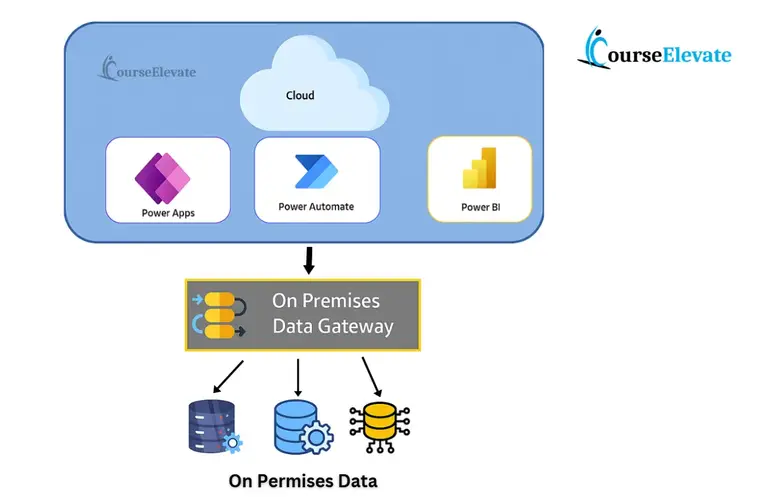
Yes, we can easily connect to the local network data sources. Use the on premises Data gateway for that.


On Permises Data Gateway

The On-premises Data Gateway acts as a bridge to provide quick and secure data transfer between on-premises data (data that isn’t in the cloud) and several Microsoft cloud services like Power BI, Power Apps, Power Automate, Azure Analysis Services, and Azure Logic Apps.

You can download on permises data gateway from this  location.
Once downloaded, Run the downloaded executable to install and configure the on-premises data gateway.

2. What are the Power Apps limitations?

Performance Limitations

  • By default, you can retrieve only 500 items, which can be extended up to 2000, but performance decreases.
  • Many functions are non-delegable, making it hard to query large datasets efficiently.

Development Limitations

  • In Canvas apps, only one developer can work at a time. Multi-developer setup via GitHub requires extra effort.
  • JavaScript cannot be integrated into Power Apps forms.
  • There is no support for shared or reusable functions across apps.
  • Debugging in Power Apps is complicated and less efficient compared to traditional coding platforms.

Integration & Features

  • Works fine with SharePoint, but if using SQL as backend, the attachment control is disabled.
  • Some integrations require custom connectors, which adds complexity.
  • Offline functionality is restricted and not suitable for heavy offline scenarios.
  • Limited support for various device sizes and screen orientations.

Licensing & Sharing Issues

  • Licensing structure is complicated and confusing for many organizations.
  • Many premium connectors require additional licensing, increasing costs.
  • Difficult to share apps with external users due to license constraints.

Scalability & Enterprise Readiness

  • Not Suitable for Complex Projects – Power Apps is not ideal for very large projects with complex business requirements.
  • ALM Complexity – Application Lifecycle Management requires additional setup with Power Platform Build Tools.

3. What are the benefits of Power Apps?

Following are the benefits of Power Apps.

Low code/No code

  • Power apps help you to create apps faster with low-code/no-code approach.
  • User can create power apps without knowing how to code.
  • Designing Power app is easy and there is no need to hire a UI/UX expert to do your apps.

Copilot Capabilities

  • Now AI capabilities are also available in Power apps like business Card reader, Receipt Processor, Form Processor, object detector and Text Recognizer.
    Introduction of Co-pilot has boosted the power app development productivity using natural language.
  • Cross Platform & Easy Deployment

Easy deployment and cross platform access.

  • Power Apps works seamlessly across web, mobile, and tablets without extra coding.
  • You can easily automate the business process flow.
  • No development environment installation is required, user can directly develop and deploy and share in the cloud
    itself.
  • Cost Efficiency with team productivity
  • Power apps reduce the development cost.
  • Being a low code development platform, it boosts the productivity of the teams.
  • Improves business productivity and automation with quick solutions

Better Integration

  • Easily Integration with various Microsoft services like Share Point, Excel, Teams, Microsoft Dynamics.
  • Seamless connection with thousands of external connectors such as Dropbox, Salesforce, Google Drive, and social media platforms.

For more details on Power apps, you can visit to Microsoft Official website.

4. What are the advantage and disadvantage of using Submit Form function?

Following are the advantages and disadvantages of using submit forms.

Advantage

  • Easy to use : Submit Form makes it simple to send form data to the data source with very little coding.
  • Automatic Validation: It automatically checks the data before saving, based on the rules in the data source.This helps keep the data clean and accurate.
  • Integration: Submit Form also seamlessly integrates with various data sources supported by Power Apps.
  • Error Handling: There is a built-in error handling mechanisms, such as displaying error messages to users if data submission fails due to validation issues, so error handling is very easy.

Disadvantage

  • Limited Customization: Submit Form have limiting customization options for advanced scenarios.
  • Dependent on Data Source: Its functionality depends heavily on the data source you are connected to.
  • Issues with Multiple Data Sources: Using multiple data sources in the same form can make things complicated.
  • Debugging is Harder – Fixing issues such as validation errors or connectivity problems can take time, especially in big apps.
  • Performance Problems: In apps with large data sets or complex validation rules, form submission can be slower compared to other methods.

5. How to remove duplicates in Power Apps Using Distinct() function

The Distinct() function in Power Apps helps remove duplicate values from a table or column. It returns a single-column table with only unique values, making dropdowns and lists cleaner and easier to use. This is especially useful when working with repetitive data like qualifications, categories, or product names.

Click below to view the complete answer with explanations, formulas, and best practices

View Detailed Answer

6. What is the Difference Between a Container and a Group in Power Apps?

Group

  • Used to keep multiple controls together.
  • Makes it easier to move or manage them as one unit.
  • Does not help with layout or screen responsiveness.

Container

  • Used to control how controls are arranged on the screen.
  • Supports responsive design.
  • Controls inside it adjust automatically when screen size changes.

Key Point
Use groups for simple organization, but use containers when you want proper layout and responsive behavior.

7. How to detect whether your canvas app is running in Power Apps Studio or Player

You can check whether your app is running in Studio (design mode) or Player (live app) using the Host object.

isAppInDesignMode = StartsWith(Host.Version, "PowerApps-Studio");

This returns true in Studio and false in Player.

Why it matters

  • Show test or debug features only in Studio.
  • Handle features differently for real users.
  • Avoid errors by adding fallback options in Player.

8. Can you load the Canvas App without Microsoft’s default top navigation bar?

Yes, it’s possible! By default, when you launch a Canvas App, Microsoft displays a top bar with the app name, environment, notifications and setting icons. But you can hide it by using a URL parameter.

How to Hide the Top Navigation Bar?

You can remove the default navigation bar by modifying the app’s web link.
â€ĸ If your app link already has query parameters (like ?tenantId=xxxx), simply append: &hidenavbar=true
â€ĸ If there are no parameters in the URL, just add: ?hidenavbar=true

This will load the app without Microsoft’s top navigation bar, giving you a much cleaner look.

Example

A typical app URL might look like this after appending hidenavbar:

 https://apps.powerapps.com/play/{AppID}?tenantId={TenantID}&hidenavbar=true

This loads the app with no top navigation bar. This parameter allows you to give end users a cleaner, branded experience without the default Microsoft UI elements.


9. What is the difference between IsBlank and IsEmpty in Power Apps?

When building apps in Power Apps, two functions often confuse beginners: IsBlank() and IsEmpty(). While both are used to check for “emptiness,” they serve different purposes. Let’s break them down with examples and real-world use cases.

IsBlank()

In Power Apps, IsBlank() is used for single values (like text inputs, variables, or fields) to check if they are empty,

Example: Validating a Text Input

Imagine you have a Text Input control named txtEmployeeName. Before saving an employee record, you want to make sure the user entered a name.

IsBlank(txtEmployeeName.Text)

This will return true when txtEmployeeName will have no value and will return false when txtEmployeeName will have any value.

IsEmpty()

IsEmpty() is used for tables or collections to check if they contain any records.

Example: Checking a SharePoint List

Suppose you have a SharePoint list named Employees displayed in a gallery. If the list has no records, you may want to show a message.

IsEmpty(Employees)

Here, IsEmpty() will returns false when Employees table has some data and it will return true when no data is present in the Employees sharepoint list.

👉 In short: Use IsBlank for values and IsEmpty for tables.

10. What are the main limitations when using SharePoint with Power Apps?

SharePoint is one of the most widely used data sources for Canvas Apps. Also it’s included with the Office 365 license. While it works well for simple apps, developers often run into challenges when building larger or more complex solutions. Here are some key limitations:

Not a true database – SharePoint lists were never designed to act like a relational database. Features such as relationship handling and transactional consistency (ACID principles) are missing. For example, if two users update the same record at once, the first update usually wins and the second update will fail.

Missing basic functions – Common operators (Not(), In) and certain query features aren’t supported. This forces extra workarounds and sometimes complex formulas.

Performance issues – CRUD (Create, Read, Update, Delete) operations are slower compared to standard databases. This is because SharePoint sends unnecessary metadata to Canvas apps which slows down performance.

 Connectivity restrictions – Power Apps doesn’t expose the full SharePoint REST API. This means advanced queries and actions are limited compared to what’s technically possible.

 List view threshold (5000 items) – If your list grows beyond 5000 items, queries may break or return incorrect data unless you use indexing and optimize your queries carefully.

 ALM (Application Lifecycle Management) challenges – SharePoint lists don’t integrate smoothly with solutions or Dev-Test-Prod environments. When you Move apps across environments then it often requires manual setup.

 Complex delegation rules – Many SharePoint functions aren’t delegable in Power Apps, so only the first 2000 rows can be retrieved by default. This makes working with large datasets tricky.

 Permission complexity – SharePoint has a flexible but sometimes confusing permission model. Integrating row-level security in Power Apps using SharePoint permissions can be error-prone.

 Offline capability is weak – Unlike Dataverse, SharePoint is not built for robust offline scenarios. Caching and sync require a lot of manual setup.
👉 For lightweight apps, SharePoint is fine. For enterprise-grade apps, Data verse is usually the better option.

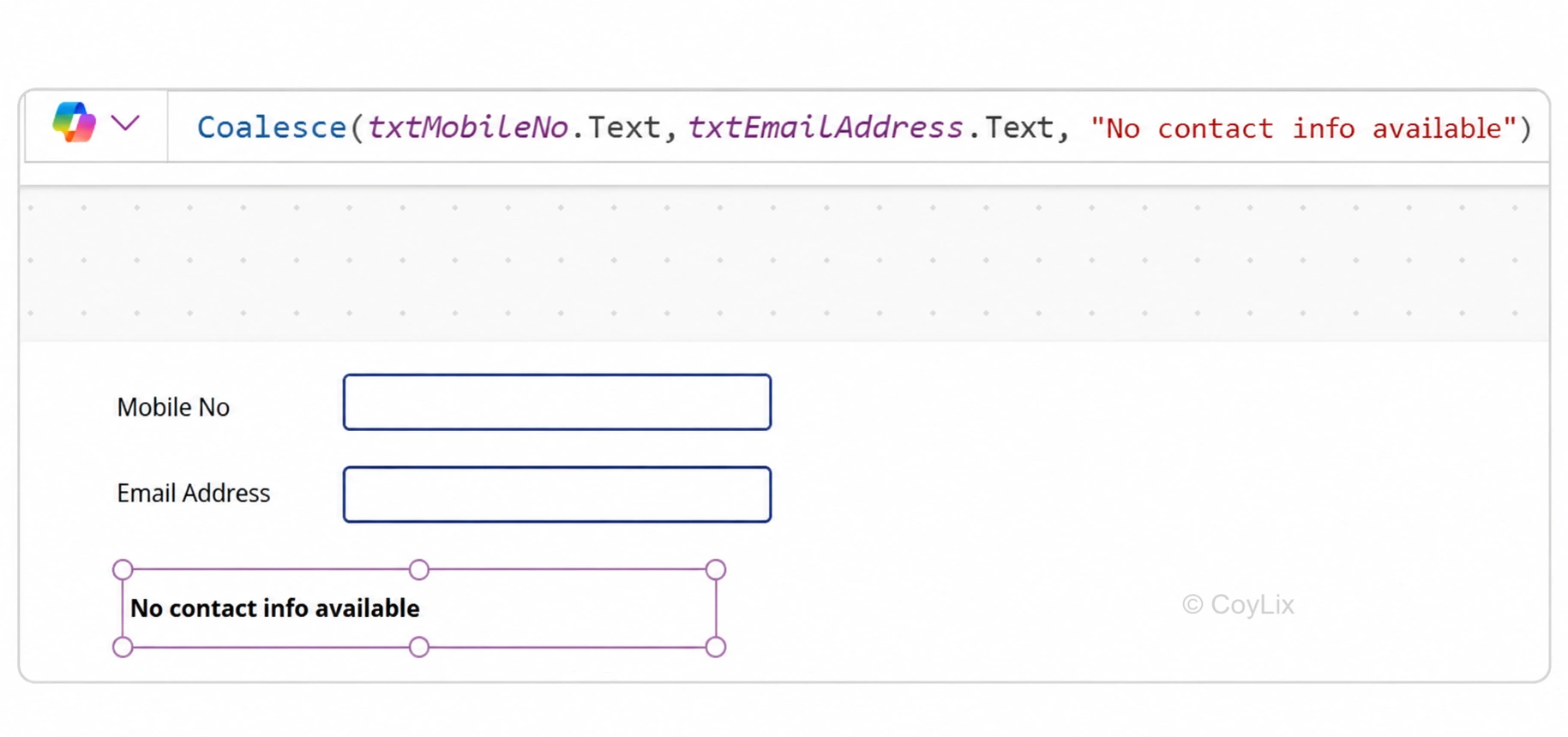
11. What is the Coalesce() Function in Power Apps?

In Power Apps, the Coalesce() function is used to return the first non-blank value from a list of arguments. If all values are blank, it returns blank.

👉 Think of it as a fallback mechanism – when the first value is missing, it automatically checks the next one until it finds a valid value.

Syntax
Coalesce( Value1, Value2, Value3, … )

where Value1, Value2, Value3… are expressions or values you want to check in order. The function evaluates each value from left to right and returns the first one that isn’t blank.

Coalesce function in Power Apps.


Example :

Coalesce(txtMobileNo.Text, txtEmailAddress.Text, "No contact info available") 

In this example :

Coalesce checks values in order:
If Mobile No is entered → it displays that.
If Mobile is blank but Email Address is entered → it shows that.
If both are blank → it shows “No contact info available”.

👉 In short, Coalesce() picks the first non-blank value from the list, ensuring your app never displays an empty field.
It’s commonly used to provide default values or fallbacks when fields are empty.

12. What is the Difference Between Coalesce() and If(IsBlank()) in Power Apps?

When building Canvas Apps, you’ll often need to handle blank values. Two common ways to do this are using Coalesce() and If(IsBlank()). While both solve similar problems, they work a little differently.

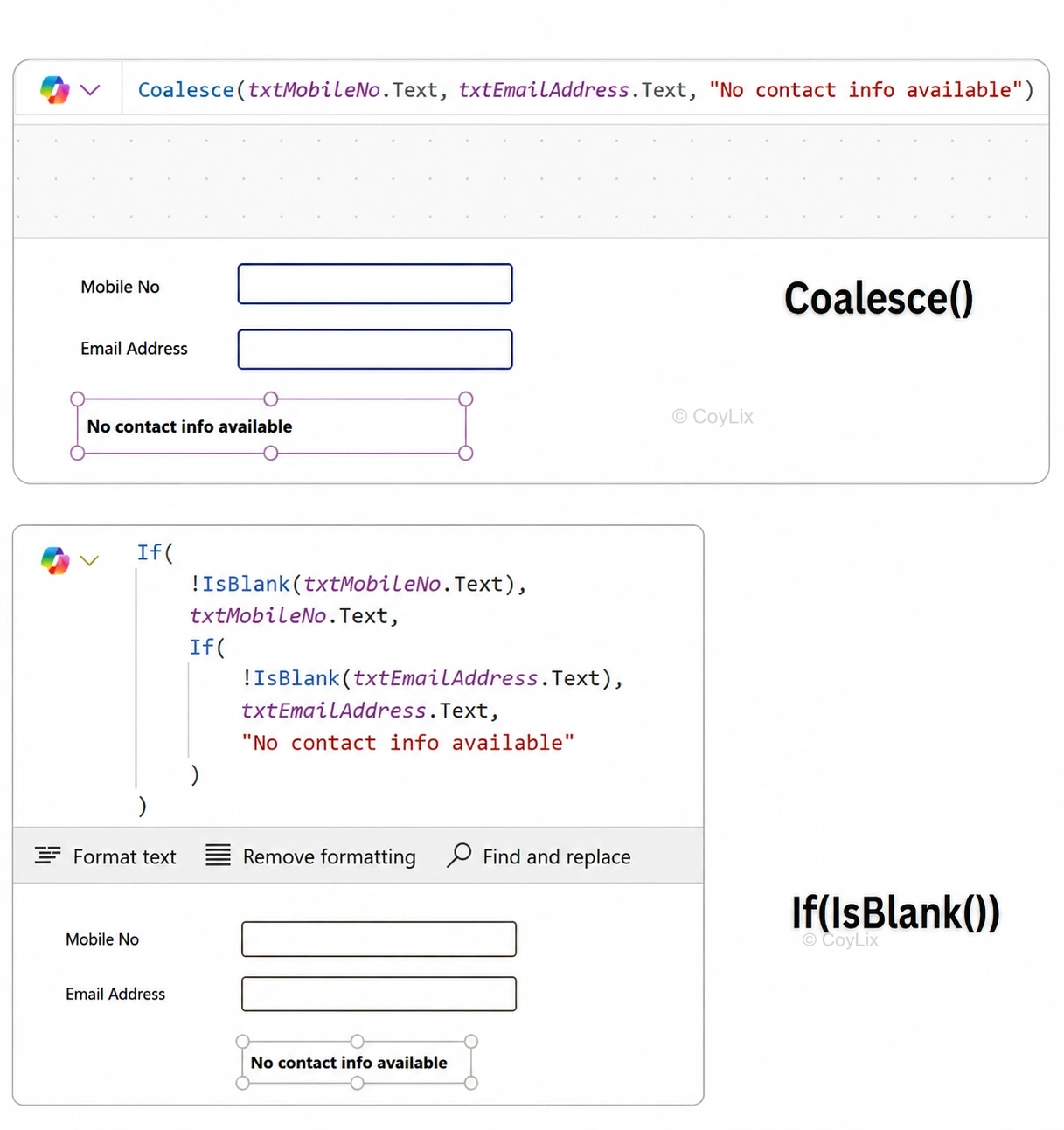
Difference between Coalesce() & If(Is Blank()) function

Coalesce() → Returns the first non-blank value from a list of options.
If(IsBlank()) → Evaluates one value at a time and then decides what to return.

Coalesce() Example :

 Coalesce(txtMobileNo.Text, txtEmailAddress.Text, "No contact info available") 

This will:
â€ĸ Show Mobile No. if available.
â€ĸ If blank, fallback to Email Address.
â€ĸ If both are blank, show “No contact info available”.

Difference Between Coalesce() and If(IsBlank()) in Power Apps

If(IsBlank()) Example

If(
!IsBlank(txtMobileNo.Text),
txtMobileNo.Text,
If(
!IsBlank(txtEmailAddress.Text),
txtEmailAddress.Text,
"No contact info available"
)
)

👉 Same logic, but more verbose:
â€ĸ First check Mobile.
â€ĸ If blank, then check Email.
â€ĸ If both blank, fallback to the default message.
So here, Coalesce() keeps it short & clean, while If(IsBlank()) works but gets nested.

13. Describe the Power apps life cycle.

The Power Apps life cycle is the process of building and managing an app from start to end.

Planning
Understand the requirement and decide what the app should do.

Development
Build the app using Power Apps Studio and connect it to data.

Testing
Test the app to make sure everything works as expected.

Deployment
Publish and share the app with users.

Maintenance
Monitor the app, fix issues, and improve it over time.

14. What’s the difference between managed and unmanaged solutions? When do you use each?

We can create two types of solution.

Unmanaged solutions are what we use during development. They’re editable, so developers can make changes easily.

Managed solutions are used for deployment to Test or Production. They’re locked down, which helps prevent accidental changes and keeps things stable.

In my projects, we always export a managed version of the solution when we’re ready to deploy. It’s part of our ALM process and helps maintain control over what’s running in production.

15. How to Create Custom Connector in Power Apps

To create a custom connector in Power Apps, define the API host, configure authentication, create an action with request and response structure, then test and publish it inside a Solution.

Creating a custom connector in Power Apps allows you to integrate any external REST API into your application. This is useful when a built-in connector is not available.

Process for creating custom connector

The process includes five main stages:

  • General Configuration – Define the connector name, API host, and HTTPS scheme.
  • Security Setup – Configure authentication (or choose no authentication for public APIs).
  • Definition – Create actions, define request parameters, and structure the expected response.
  • Code (Optional) – Add custom logic if required.
  • Testing – Create a connection and validate the API response

Once published, the connector behaves like a native Power Apps connector and can be reused across multiple Canvas Apps and Power Automate flows.

When Should You Create a Custom Connector?
You should create a custom connector when:

  • No standard connector exists for your API
  • You need reusable API integration
  • You want centralized and secure external communication

Learn Step-by-Step with a Real Example

In our detailed tutorial, we demonstrate how to create a custom connector using a public REST API and use it inside a Canvas App.

Click on below detailed button to learn this step by step.

View Detailed Answer

16. What is the ForAll function in Power Apps?

The ForAll function allows you to run a formula for each record in a table or collection. It is commonly used for bulk processing, such as checking data, updating records, or performing actions on multiple items at once.

Basic Syntax
ForAll(Table, Formula)

Table → The table or collection to loop through

Formula → The action performed for each record

Example

ForAll(
TrainingInventory,
If(
RequestedSeats > AvailableSeats,
{
CourseName: CourseName,
SeatsToArrange: RequestedSeats - AvailableSeats
}
)
)

In this example:

TrainingInventory is the data source being processed. The formula checks each record one by one.

If the number of RequestedSeats is greater than AvailableSeats, it calculates how many additional seats need to be arranged.

It then returns a record showing:

  • The course name
  • The number of extra seats required

This means the app automatically identifies training sessions where capacity is insufficient.

When to Use ForAll

Use ForAll when you need to:

  • Process multiple records at once
  • Perform bulk calculations
  • Create, update, or analyze multiple rows
  • Apply logic to every item in a collection

Key Takeaway

ForAll is powerful for batch operations, but it should be used carefully with large datasets because it processes records one by one, which can impact performance.

17. What’s the difference between Sort and SortByColumns in Power Apps?

In Power Apps, both Sort and SortByColumns are used to arrange data. Although they may produce similar results, the way they work — and when you should use each one — is different.

The main difference is that Sort supports formula-based sorting but requires nesting when sorting by multiple columns, whereas SortByColumns sorts directly by column names and supports multiple columns in a single function call.

Let’s understand this using the Students example.

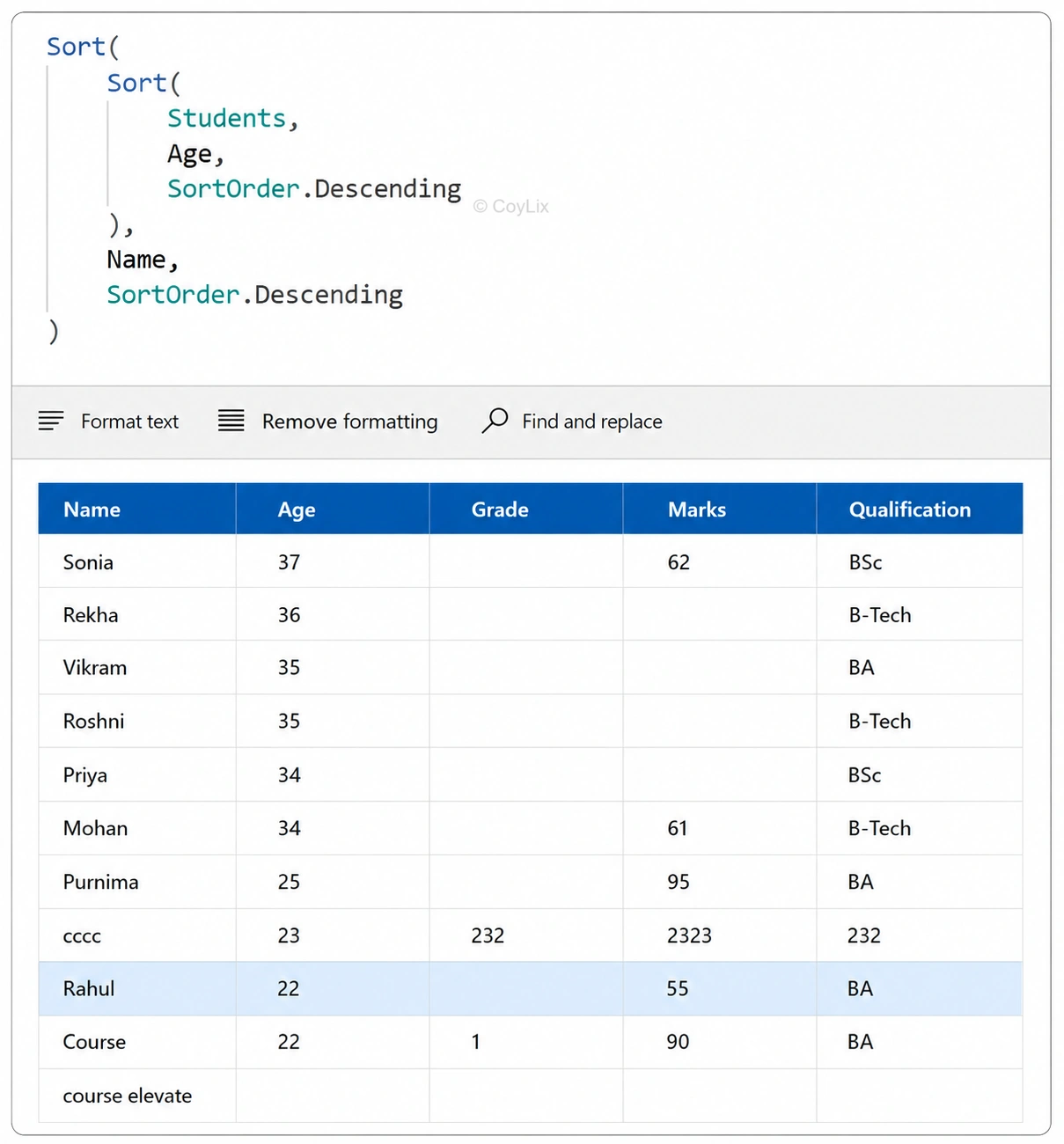
Sort Function

The Sort function allows you to sort data using a column or even a formula.

Sort function in power apps

What’s happening here?

  • First, the Students table is sorted by Age in descending order.
  • Then, the result is again sorted by Name in descending order.
  • Since Sort only handles one sorting condition at a time, we use nested Sort for multi-column sorting.

Key points about Sort:

  • Uses display column names (Age, Name).
  • Supports sorting using formulas.
  • Requires nesting for multiple columns.
  • Good when you need calculated logic before sorting.


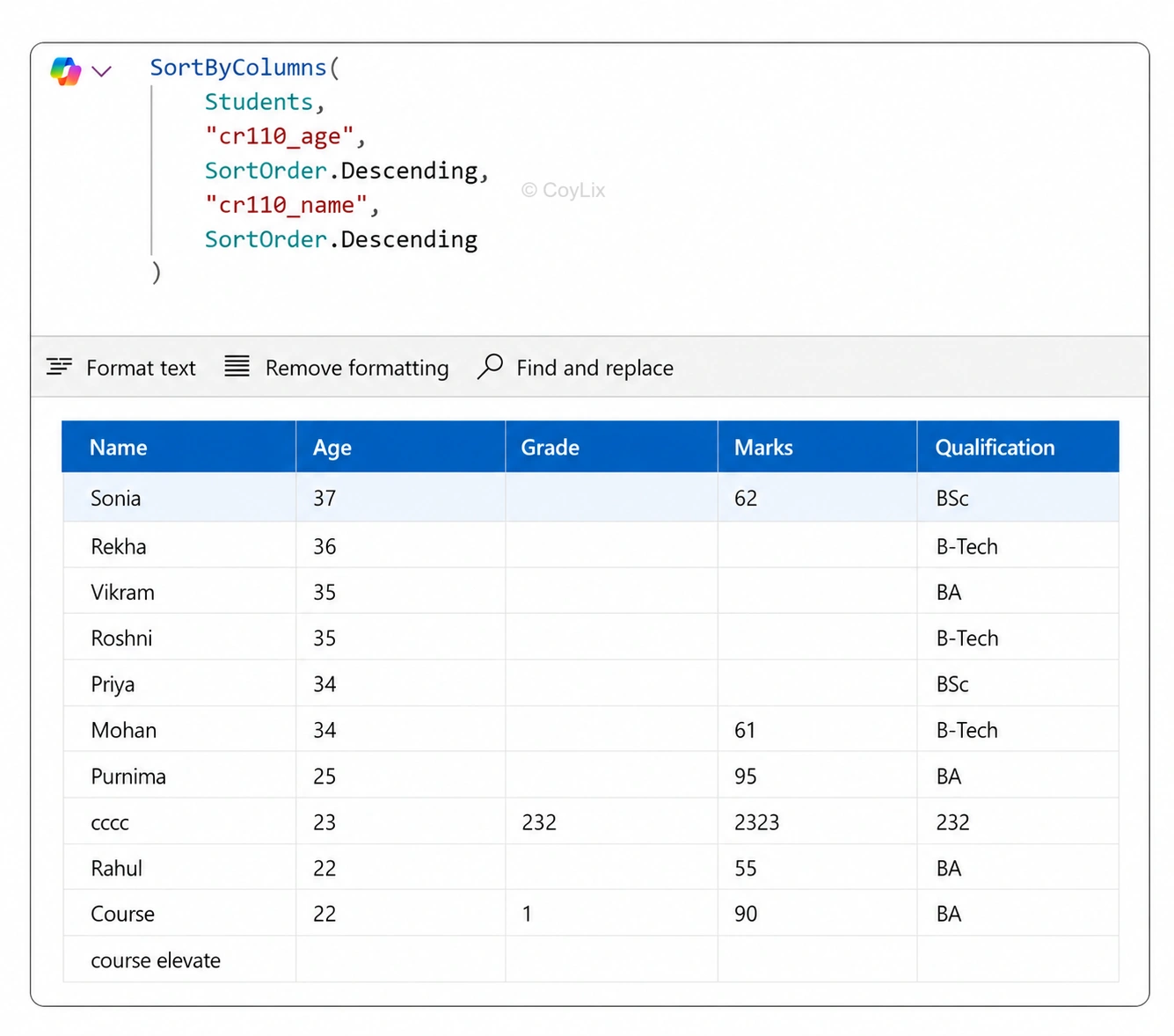
SortByColumns Function

SortByColumns is more direct. It sorts using column names and allows multiple columns in a single function call.

SortByColumns function in Power apps

What’s happening here?

  • The Students table is sorted first by Age (internal column name cr110_age).
  • Then it sorts by Name (cr110_name).
  • No nesting is required.

Key points about SortByColumns:

  • Uses internal column names (like cr110_age).
  • Supports multiple columns directly.
  • Cleaner and easier for multi-column sorting.

Difference between Sort and SortByColumns

Feature Sort SortByColumns
Sorting Method Uses a column or a formula Uses column names only
Formula Support Supports calculated expressions Cannot use formulas
Multiple Columns Requires nested Sort Supports multiple columns directly
Column Reference Uses display names (Age, Name) Uses internal names (cr110_age)

Interview-Ready Summary

  • Sort is more flexible because it supports formula-based sorting.
  • SortByColumns is cleaner and better for multi-column

18. How do you sort data using multiple columns in Power Apps?

In Power Apps, you can sort data using multiple columns in two ways: by using nested Sort functions or by using SortByColumns.

Method 1: Using Nested Sort (with Sort)

When using the Sort function, you must nest one Sort inside another to apply multiple sorting levels.

Example:

Sort(
    Sort(
        Students,
        Age,
        SortOrder.Descending
    ),
    Name,
    SortOrder.Ascending
)

How it works:

  • First, the Students table is sorted by Age.
  • Then, the result is sorted by Name.
  • Each Sort handles only one column at a time.

Method 2: Using SortByColumns (Recommended)

SortByColumns allows you to sort by multiple columns in a single function call.

Example:

SortByColumns(
    Students,
    "cr110_age",
    SortOrder.Descending,
    "cr110_name",
    SortOrder.Ascending
)
 

How it works:

  • The table is sorted first by Age.
  • Then it is sorted by Name.
  • No nesting is required.
  • The syntax is cleaner and easier to maintain.

Which Method Should You Use?

  • Use Sort if you need formula-based sorting.
  • Use SortByColumns when sorting directly by multiple columns.
  • For readability and cleaner code, SortByColumns is usually preferred.

 Interview-Ready Answer

To sort data using multiple columns in Power Apps, you can either nest Sort functions or use SortByColumns with multiple column names. SortByColumns is cleaner and preferred for direct multi-column sorting.

19. What is the data row limit for a collection in Power Apps?

A collection itself does not have a fixed row limit.

However, the number of records that can be stored in a collection depends on how the data is loaded.

When Loading from a Data Source

If you create a collection from a data source using a non-delegable query, Power Apps applies the Data row limit for non-delegable queries setting.

By default: 500 records, Can be increased up to 2,000 records

Example:

ClearCollect(MyCollection, SharePointList)

If the query is non-delegable, only the first 500 or 2,000 records (based on your app setting) will be loaded into the collection.

When Creating Records Manually

If you manually add records using Collect() or ClearCollect() without querying a large external source, there is no practical hard-coded limit — performance becomes the real constraint.

Important Clarification

  • The limit is not on the collection itself.
  • The limit applies to how many records Power Apps retrieves from a data source when delegation is not supported.

Interview-Ready Answer

A collection does not have a fixed row limit, but when data is loaded from a non-delegable source, Power Apps applies the app’s data row limit setting (default 500, maximum 2,000).

20. What are the different ways to submit data from Power Apps?

Power Apps lets you submit data using methods like SubmitForm, Patch, Collect, Update, Power Automate, or Dataverse APIs based on how simple or complex your requirement is. Each method is designed for a specific scenario, from simple form submission to advanced enterprise workflows.

1. SubmitForm() —Best for standard forms
Used with Edit Forms to send user input directly to a connected data source. It automatically handles validation, required fields, and whether a record should be created or updated.
Example: SubmitForm(Form1)

2. Patch() — Most flexible method
Patch lets you create or update records while controlling exactly which fields change. It’s ideal when you need custom logic, partial updates, or advanced scenarios.
Example: Patch(Orders, ThisItem, {Status:”Approved”})

3. Collect() / ClearCollect() — Add new records
These functions insert new records into a data source or collection. They’re commonly used to add records or temporarily store data inside the app.
Example: Collect(Orders, {Title:”New Order”})

4. Update() / UpdateIf() — Modify existing data
These are used to update existing records based on conditions. They work well when you need to change multiple records at once without writing complex logic.
Example: UpdateIf(Orders, Status=”Pending”, {Status:”Completed”})

5. Power Automate — For advanced processing
Power Apps can send data to a flow, which can then perform complex tasks such as sending emails, calling APIs or running backend logic.
Example: MyFlow.Run(Value1, Value2)

6. Custom APIs / Actions — Enterprise scenarios
Apps can submit data to server-side logic defined in Dataverse, such as custom actions, plugins, or business rules. This is typically used in enterprise solutions that require centralized validation or multi-table processing.

21. What is the difference between Patch() and SubmitForm() in terms of flexibility and performance? When would you prefer one over the other?

Both SubmitForm() and Patch() are used to save data in Power Apps, but they serve different purposes depending on how much control you need.

SubmitForm() — Best for Full Form Submission
Think of it like filling out a complete bank form and submitting it all at once.

  • Works only with Edit Form controls
  • Automatically handles create, update, and validation
  • Submits all fields together
  • Easier to use for standard forms
  • Automatically manages form modes (New, Edit, View)

Best used when:
You want simple, reliable form submission with built-in validation.
Example: Submitting a Leave Request form.

Patch() — Best for Flexible Updates
This is like sending a quick message: “Just update my phone number.”

  • Updates specific fields without submitting a full form
  • Gives full control over what gets saved
  • Supports custom logic and dynamic updates
  • Works with or without forms
  • Can update multiple records programmatically

Best used when:
You need partial updates or advanced logic.
Example: Manager updates only a request status.

Key Difference
SubmitForm → Full form submission with validation
Patch → Targeted updates with maximum flexibility

Performance Insight (Important for Interviews)

  • SubmitForm is optimized for form scenarios and handles validation automatically.
  • Patch can be faster for small updates because it sends only specific fields instead of the entire record.

Interview-Ready Answer

SubmitForm is best for standard form submissions with built-in validation, while Patch is preferred for flexible, partial, or logic-based updates where you need more control over what data is saved.

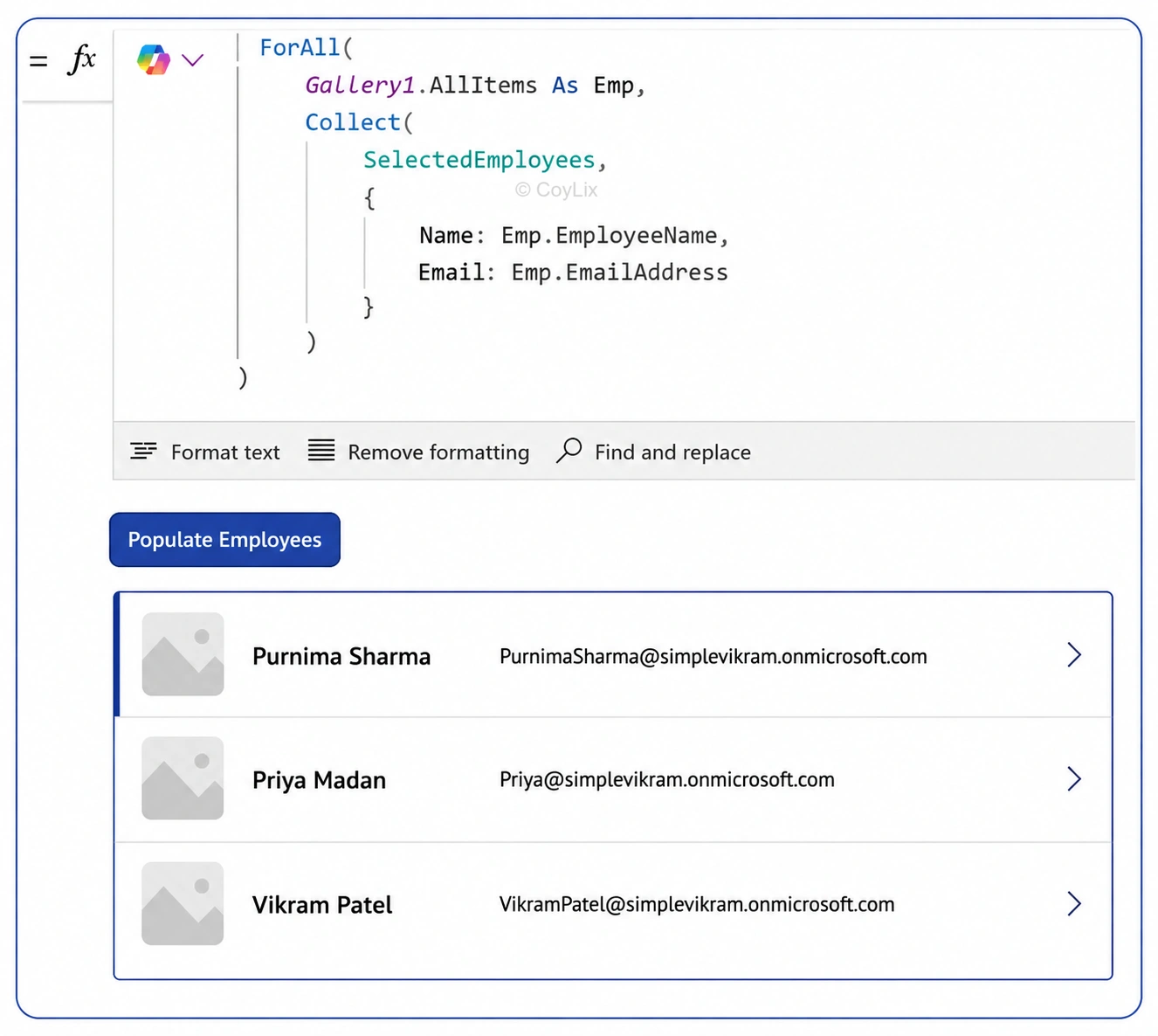
22. What does As operator do in Power Apps and why it’s important?

In Power Apps, the As operator is used to assign an alias (a temporary name) to a control or record.
Let’s have an example

As operator in Power apps
Here:

Gallery1.AllItems represents all rows in the gallery.
With as operator, each row gets the alias Emp.
Now you can refer to Employee.EmployeeName and Emp.EmailAddress instead of repeating complex expressions like ThisRecord.EmployeeName.

Benefits of Using As

  • Usefulness: As operator is useful at AddColumns / GroupBy / With statement and dealing with nested records.
  • Readability – Instead of seeing many ThisRecord, you see meaningful names like Emp,
  • Avoids Confusion – Especially in nested ForAll, AddColumns, GroupBy, or With statements where multiple record scopes exist.
  • Fewer Bugs – It Reduces the chance of referencing the wrong field.
  • Professional Best Practice –Experienced Power Platform developers use it for clean formulas

23. What is DelayOutput property and when should it be used?

DelayOutput is used on text inputs to delay updates until typing is finished. With this property you can reduce unnecessary recalculations and improves app performance.

Where it’s used

  • Primarily in Text Input controls
  • Common in search boxes, filters, and live queries

What It Does

Normally, when a user types in a text box, Power Apps recalculates formulas instantly for each character.
When DelayOutput = true, calculations run only after typing stops — reducing unnecessary processing.

Example scenario

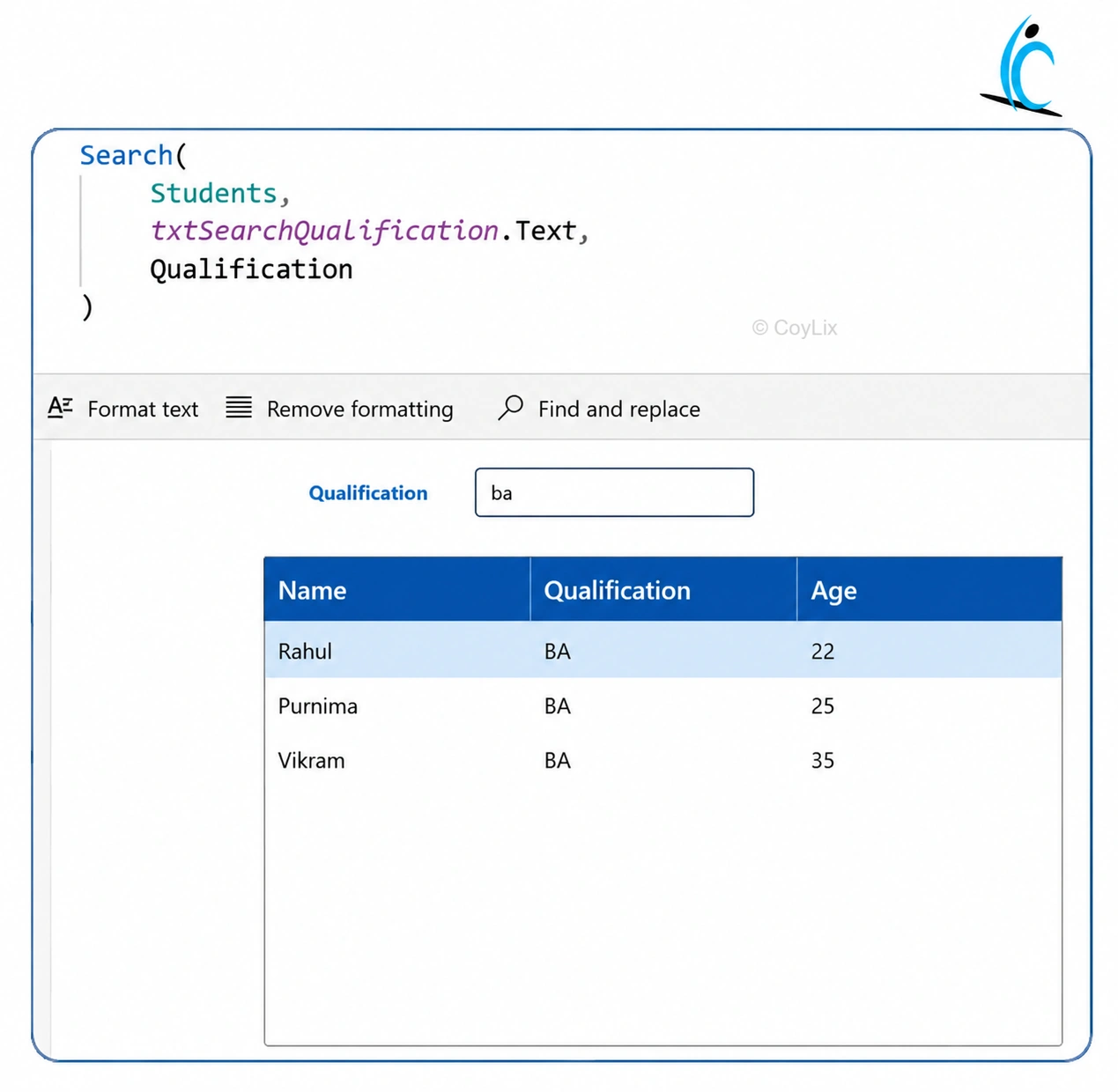
Here search box (txtSearchQualification ) filters below gallery. So when :

  • DelayOutput = false → Gallery refreshes on every keystroke (“B” → refresh, “Ba” → refresh).
  • DelayOutput = true → Gallery refreshes only after typing finishes → smoother performance.

DelayOutput property in Power Apps

Caption: Example of DelayOutput improving gallery search performance.

Benefits

  • Improves app performance
  • Reduces unnecessary recalculations
  • Prevents excessive connector/API calls
  • Creates smoother user experience for large datasets

Interview-ready one-liner

DelayOutput delays formula execution until typing stops, improving performance by preventing recalculation on every keystroke.

24. Can Power Platform integrate with Dynamics 365?

Yes, Power Platform integrates fully with Dynamics 365.
Both use Microsoft Dataverse as their shared data platform. In fact, Dynamics 365 apps (like Sales or Customer Service) are built as model-driven apps on Dataverse.
You can extend Dynamics 365 using Power Apps, automate processes with Power Automate, and create dashboards using Power BI. Because they share the same data and security system, everything works smoothly together.
This integration helps businesses customize faster, automate tasks, and get better insights from their data.

25. What AI models are available in Power Platform?

Power Platform offers AI features through AI Builder.
It has ready-to-use models that can read business cards, process invoices and receipts, recognize text, detect language, and analyze sentiment.
You can also create your own custom models, such as prediction models or object detection models, based on your business needs.
In addition, GPT-based models allow you to add smart chat and text generation features to your apps and flows.

26. What are the security features of Power Platform?

Power Platform has multiple security layers to protect data.
Users must sign in through Microsoft Entra ID, and Multi-Factor Authentication adds extra protection. Admins can use DLP (Data Loss Prevention) policies to control how data moves between apps. Separate environments (Dev, Test, Production) keep work isolated.
In Dataverse, security roles and field-level security control who can see or edit data. Tenant isolation prevents data from flowing outside the organization. Audit logs and security score help monitor and improve security.


27. What is the role of Dataverse in Power Platform?

Dataverse is the built-in cloud database of Power Platform. It stores business data in structured tables and acts as the central data source for apps, flows, and reports.
Power Apps stores data in Dataverse, Power Automate can trigger when that data changes, and Power BI uses the same data to create reports. Dataverse also provides built-in security, user roles, and rules to control how data is accessed and used.
Dataverse can handle large amounts of data and runs on Microsoft Azure, which makes it reliable, secure, and suitable for large organizations.

28. What is a Solution and how do you move components across environments?

A Solution is a container used to group related components like apps, flows, tables, and dashboards.
For example, if you build a leave management system, you can place all related items inside one Solution.
To move it to another environment, you export the solution (as Managed or Unmanaged) and then import it into the target environment (like Test or Production).
Solutions make deployment structured and professional.

30. What are delegable and non-delegable functions in Power Apps?

Functions in Power Apps can be either delegable or non-delegable.
Delegable functions are those that send the query to the data source and process the full dataset. E.g. Filter(), Sort() etc.
Non-delegable functions as those that run inside the app and can process only limited records. E.g. Search(), FirstN()
Delegation depends on three factors:

  • Function used
  • Operator used
  • Data source capability

31. How to replace a non-delegable search in SharePoint?

The Search() function is not delegable in SharePoint.
A common solution is to replace it with Filter + StartsWith.
Non-delegable example:

Search(Employees, txtSearch.Text, Name)

Delegable alternative:

Filter(
Employees,
StartsWith(Name, txtSearch.Text)
)

Why this works:

  • StartsWith() supports delegation in SharePoint
  • Filtering happens on the server
  • The full dataset is evaluated

32. What are the key factors that affect delegation in large datasets?

Delegation behavior is influenced by several factors.
Main factors include:

  1. Data Source: Dataverse supports more delegation than SharePoint.
  2. Functions: Some functions do not support delegation.
  3. Operators: Operators like In may break delegation.
  4. Column Types: Lookup, person, or complex columns may cause issues.

Understanding these factors helps developers design apps that scale properly.

33. What happens when a delegation warning appears?

When a delegation warning appears, Power Apps cannot send part of the query to the data source.
Instead:

  • The formula runs locally inside the app
  • Only limited records are evaluated
  • Results may become incomplete

Important idea:

  • The app does not fail immediately
  • Problems appear when the dataset grows

Example:

A search may work during testing with 200 records but fail when the list grows to 10,000 records.
This is why delegation warnings should always be reviewed during development.

34. How do you debug a Power App formula?

Debugging formulas in Power Apps often involves checking syntax errors, monitoring data calls, or capturing runtime errors during execution.
Tools such as Monitor, temporary labels, and IfError() help developers identify issues quickly.
Example

 IfError( Patch(Employees, ThisItem, {Status:"Active"}), Notify("Update failed") ) 

If the Patch() operation fails, the app displays a notification message indicating that the update did not succeed.

35. How do you manage application state across multiple screens in Power Apps?

Application state in Power Apps can be managed using variables, collections, navigation parameters, and named formulas. These approaches help store data temporarily or share information between screens.

Common options include:

  • Set() – Global Variables
    Used to store values that need to be accessed across the entire app, such as user information.
  • ClearCollect() – Collections
    Collections work like temporary tables and are useful for storing lists of records during a session.
  • Navigate() – Passing Data Between Screens
    Data can be passed to another screen through the Navigate function to personalize what the next screen displays.
  • Named Formulas
    Defined in App.Formulas, they act like reusable calculations and run only when required, improving performance.

Example

 Set(CurrentUser, User().FullName)

This stores the logged-in user’s full name in a global variable, allowing it to be accessed across multiple screens in the app.

36. How do you implement dynamic filtering based on user input?

Dynamic filtering allows users to refine data based on selections or typed input. Controls such as dropdowns or search boxes are commonly used to update gallery or table results in real time.
Example

 Filter(Employees, Department = DropdownDepartment.Selected.Value) 

This formula filters the Employees table and displays only records that match the department selected in the dropdown control.

37. How does Power Fx handle formula dependencies and recalculation?

Power Fx follows a declarative recalculation model, similar to Excel. When a value changes, all formulas that depend on that value automatically update.
This eliminates the need for manual refresh logic and keeps the user interface synchronized with data changes.
Example

 Label1.Text = TextInput1.Text 

When the user changes the value in TextInput1, the label automatically updates to display the new text.

38. What is Role-Based Access Control (RBAC) in Power Apps?

RBAC is a way to manage permissions by assigning them to roles instead of individual users. Each role defines what actions are allowed, and users are assigned to those roles.

For example, in an HR Power App,

  • HR Manager role can edit employee data
  • HR Staff can only view data
  • Employees can view their own profile.

If permissions need to change, you update the role once, and it automatically applies to all users assigned to that role.

39. How can role-based security be implemented in Power Apps?

Role-based security can be implemented in multiple ways. The most common approach is using Dataverse security roles, where you define permissions like create, read, update, and delete, and then assign roles to users.

In canvas apps, roles can be stored in a data source and used in formulas like:

 Set(varRole, LookUp('Roles List', Email = User().Email, Role))

You can also use conditional logic:

 If(User().Email = "manager@company.com", Navigate(AdminScreen), Navigate(EmployeeScreen) )

For more details, please visit this blog article.

40. What is the difference between app-level and data-level security?

App-level security controls what parts of the app a user can access, such as screens or features. Data-level security controls which records the user can see or modify.

For example, app-level security decides if a user can see an Admin screen. Data-level security decides if they can view specific records like a particular employee’s data. App-level security is broader, while data-level security is more detailed and works at the record level.

41. How can you prevent users from accessing certain screens?

In canvas apps, you can restrict screens using visibility conditions based on user roles.

For example:

 Set(varUserRole, 
 LookUp('RolesList', Email = User().Email, Role)
)

Then control visibility:

 "System Administrator" in varUserRole.Name

In model-driven apps, this is handled using security roles and views, where different users see different data based on their assigned role.

42. How is record-level security implemented?

Record-level security controls which records a user can access. This is implemented using security roles and access levels.

For example:

  • Organization level → user can see all records
  • Business Unit level → user sees department data
  • User level → user sees only their own records

In a sales app, a sales rep may see only their opportunities, while a manager can see all records in their region. This ensures proper data control.

43. How do you restrict users from viewing certain data records?

To restrict data, always start with limited access, such as user-level permissions. Then give additional access only when required.

For example, users can see only their own records based on ownership. Business units can limit access by department. Field-level security can hide sensitive fields like salary.

Important rule: permissions are cumulative, so if a user already has organization-level access, you cannot restrict specific records later.

44. How does Power Apps secure data from external sources?

Power Apps does not store or manage user credentials for external systems. Instead, it uses the identity of the currently logged-in user to access data.

When a user opens a Power App, their identity is first verified by Microsoft Entra ID. After that, any request made by the app to an external data source (like SharePoint, SQL, or Dataverse) is executed in the context of that user.

For example, if a Power App is connected to SharePoint:

  • User logs in → Entra ID verifies identity
  • Power Apps sends request to SharePoint
  • SharePoint checks that user’s permissions
  • User only sees the data they are allowed to access

Key Learning:

Power Apps acts as a bridge, but data security is enforced by the data source using the user’s identity.

45. How do you authenticate external users in Power Apps?

External users are authenticated using Microsoft Entra ID B2B. You invite them as guest users by sharing the app.

For example, in a vendor portal, vendors are invited using their email. They receive an invitation, accept it, and log in using their own account. They can then access the app but only see the data shared with them. Their permissions are limited compared to internal users.

For more details, please visit this blog article.

46. What is Microsoft Entra B2B and how does it support Power Apps?

Azure AD B2B allows external users like partners or vendors to access your Power Apps. These users are added as guest users and use their own login credentials.

For example, a vendor from another company can log in using their own account and access a Power App shared with them. There is no need to create a new account in your system. Access can be controlled, monitored, and removed easily when needed.

47. How do you integrate Power Apps with Power Automate?

Power Apps can be integrated with Power Automate by triggering flows directly from the app.

You can connect a flow to actions like a button click. When the user performs that action, the flow runs in the background.

You can also pass data from Power Apps to the flow using the Run() function and get a response if needed.

48. In what scenarios is Dataverse better than SharePoint?

Dataverse is a better choice when your app becomes more complex and needs better data management.

When to use Dataverse

  • When you need relationships between multiple tables.
  • When working with large datasets.
  • When advanced security is required.
  • When you need business rules and logic at the data level.

49. What limitations make SharePoint unsuitable for large-scale apps?

SharePoint works well for simple apps, but it has some limitations for large or complex applications.

Limitations

  • Limited support for relationships between multiple tables.
  • Delegation limits can cause incomplete data results.
  • Performance issues with large datasets.
  • Limited security and control compared to Dataverse.
  • Not suitable for complex business logic.

1. How do you manage environments in Power Platform projects?

Managing environments is key to keeping things organized and secure. I usually set up at least three environments:

  • Development
  • Test/UAT
  • Production.

Each environment has its own Data Loss Prevention (DLP) policies, security roles, and connectors. For example, in Dev, we allow more flexibility for experimentation, but in Prod, we lock things down.

We also use environment variables and connection references to make deployments smoother. This way, we avoid hardcoding values and can move solutions between environments without breaking anything.

2. How to Manage Power Apps Development with Multiple Developers

When multiple developers are involved, we follow a structured approach as shown below.

  • Each developer works in their own development environment to avoid conflicts.
  • We use source control (like Git) with Power Platform CLI to manage solution files.
  • A clear branching strategy (e.g., main, dev, feature branches) helps organize work.
  • Component ownership is assigned — one developer per Canvas app or flow to prevent overwrites.
  • Reusable component libraries are used to split work and promote consistency.
  • CI/CD pipelines are set up for automated deployments across environments.
  • Regular team syncs and communication ensure alignment and early conflict resolution.

I have written detailed blog on this. Click on below button to read that.

View Detailed Answer

3. Is SPFx framework replaced by Power Apps (Relevant question if you are from SharePoint development background)?

SPFx framework

  • No, the SharePoint Framework (SPFx) and Power Apps are two separate technologies that serve different purposes within the Microsoft ecosystem.
  • SPFx is a client-side development framework.
  • SPFx provides a modern development which allows developers to use web development technologies such as React, Angular and TypeScript to build custom SharePoint solutions.

Power apps

  • Power Apps, on the other hand, is a low-code platform for building custom business applications that can connect to a variety of data sources, including SharePoint.
  • Power Apps allows users to create and deploy custom apps without requiring extensive coding skills, making
    it easier to create solutions quickly.

Below are the use case which describe when to use what?

Use SPFx when:

  • You need custom web parts or deep SharePoint integration.
  • You require advanced UI/UX or custom logic.

Use Power Apps when:

  • You want to quickly build apps without much coding.
  • You’re working with forms, approvals, or data entry apps.


4. What are Security Roles in Power Apps?

Security Roles in Power Apps decide what each person can see and do inside the app.

Not everyone should have the same access.

For example, an employee should only see their own details, a team lead should see their team’s records and HR should see all employee data.

Security roles help make this happen easily. We set these roles in the Power Platform Admin Center and choose what permissions each role gets, like Read, Edit, Create or Delete.

Roles can also control access levels, such as only your own data, your department’s data, or the whole organization’s data. This keeps apps safe and makes sure the right people have the right access.

Click on the “View Details” button to understand Security Roles in Power Apps in depth along with video explanation— this is a very important interview question!

View Detailed Answer

5. What are the limitations of low-code platforms?

Low-code platforms are powerful for building standard business apps quickly, but they have important limitations.
It can be hard to build very complex designs.

Performance may slow down when working with very large amounts of data. Apps built on one platform are also difficult to move to another system. And when business logic becomes very complex, managing it without full coding can be challenging.

There is also vendor lock-in — applications built on one platform are difficult to migrate elsewhere. In addition, managing very complex business logic, integrations, or advanced error handling can become challenging without traditional coding.

For example, building a leave management system is simple in low-code, but creating a real-time online trading platform with high-speed transactions and strict latency requirements would typically require full-stack development.
Low-code works best when used strategically — not as a replacement for all software development.

6. How does licensing impact Power Platform implementation?

Licensing has a big impact on what you can build in Power Platform. It decides which features, connectors, and services you are allowed to use.

For example, without a premium license, you cannot use Dataverse or premium connectors like SQL Server or Salesforce. If your app is for external users, Power Pages has separate licensing rules.

Licensing also affects cost, storage capacity, AI usage limits, and how your solution can grow in the future. Choosing the wrong license can lead to redesign, delays, or unexpected expenses.

In real projects, licensing should always be reviewed before starting the architecture.

7. Why does delegation differ between SharePoint and Dataverse?

Delegation behavior differs because each data source has different query capabilities.
Dataverse

  • Built as a relational data platform
  • Supports more advanced queries
  • Handles complex filtering better

SharePoint

  • Designed as a list-based system
  • Has more delegation restrictions

Example:
A formula using Search() may work in Dataverse but fail in SharePoint.
Because of these differences, developers must always check whether a function supports delegation for the specific data source they are using.

8. What Are SharePoint delegation limitations?

SharePoint supports many basic queries but has several delegation limitations.

  • Search() is not delegable
  • Distinct() is not delegable
  • The In operator may break delegation
  • Complex lookup filtering may fail
  • Some aggregation operations are limited

Important point:
Delegation depends on the entire formula, not just the main function.
Example:
Filter() may support delegation, but if you use a non-delegable operator inside the filter, the whole formula may stop delegating.

9. How does delegation impact performance in power apps?

Delegation plays an important role in Power Apps performance.
When delegation works:

  • The server processes the query
  • Only required records are returned
  • Network traffic is reduced so the app loads faster

Benefits include:

  • Faster screen loading
  • Lower memory usage
  • Better mobile performance

When delegation fails, performance may slow down because Power Apps processes data locally.

10. What is the ForAll + delegation trap in power apps?

ForAll() is a Power Apps function used to perform operations on multiple records.
Important limitation:

  • ForAll does not support delegation

This means:

  • It runs locally inside the app
  • It processes only records already loaded

Example:

ForAll(
Employees,
Patch(Employees, ThisRecord, {Status:"Approved"})
)

If the dataset contains thousands of records, only the first 500 or 2000 records may be updated.
Because of this, ForAll should not be used for large dataset operations without proper filtering or server-side logic.

11. What Are the workarounds for delegation issues in SharePoint?

Several strategies can help handle delegation issues.
Common approaches include:

  • Apply delegable filters first: Filter by date or category before applying complex logic.
  • Replace non-delegable functions: use StartsWith() instead of Search().
  • Create server-side views: use SharePoint views to filter data before Power Apps loads it.
  • Use Power Automate : Let a flow perform complex queries and return results to Power Apps. 

These approaches shift processing to the server and help maintain accurate results.

12. What alternatives exist for bulk record updates without using ForAll()?

Using ForAll() for large datasets can impact performance because it processes records one by one.
Alternatives such as UpdateIf(), Patch() with collections, or Power Automate flows can update records more efficiently.
Example

 UpdateIf(Employees, Department="IT", {Status:"Active"}) 

This formula finds all employees in the IT department and updates their Status column to “Active” in a single operation.

1. How do you implement role-based security in Power Apps using Azure AD groups?

You can use Azure AD groups to control what users see in your app based on their roles. For example, only users in the “HR Managers” group can see the “Approve” button in a leave app. This setup is secure, scalable, and doesn’t require changing the app’s code.

Click on the link to see detailed answer.

View Detailed Answer

2. Your company legal team wants to generate contracts, NDAs, and service agreements directly from a Power Apps application. How would you design this solution?

I design a document generation system in Power Apps using a layered architecture. Power Apps captures user input, Word templates stored in SharePoint control document layout, and Power Automate populates the templates, converts documents to PDF, and saves them in SharePoint. The system then returns the document link back to Power Apps for download or email. I also include template versioning, error handling, and role-based security to make the solution reliable and enterprise-ready. This approach works well for generating contracts, NDAs, service agreements, invoices, and other business documents.

Click on the link to see detailed answer.

View Detailed Answer

3. SharePoint list has 10,000 records but power apps gallery shows only 500. Why?

This usually happens due to a delegation limitation.
Possible reasons include:

  • The gallery formula uses a non-delegable function
  • Power Apps cannot send the query to SharePoint
  • Only the first 500 records are processed locally

Example:

Search(TrainingRequests, txtSearch.Text, EmployeeName)

Since Search() is not delegable in SharePoint, Power Apps evaluates only a limited portion of the dataset.
Developers should check:

  • Delegation warnings
  • Data row limit settings
  • Function support for the data source.

To understand how delegation warnings occur and how to fix delegation issues in real apps, see the

Complete Power Apps Delegation Interview Guide →

4. Why might a Power Apps app work in development but fail in production?

This situation usually occurs because of dataset size differences.
Common reasons include:

  • Small dataset during development: Since the dataset is small, non-delegable formulas may still return correct results.
  • Large dataset in production: Only the first 500 or 2000 records are evaluated.
  • Ignored delegation warnings: Warnings were visible in dev environment but not fixed.
  • Different permissions or environments: Users may have restricted access in production.

Because of these factors, apps that work perfectly during testing may return incomplete data when used with large production datasets.

5. When should you offload logic to Power Automate?

Some operations are difficult to handle inside Power Apps because of delegation limitations.
In these cases, logic can be moved to Power Automate.
Common situations include:

  • Complex filtering conditions
  • Aggregation or grouping operations
  • Processing very large datasets
  • Combining data from multiple sources

Typical approach:

Power Apps → Trigger Flow → Process Data → Return Results

The flow runs on the server and can process the full dataset, avoiding the 500–2000 record limit inside Power Apps.

6. How do you design apps to avoid delegation issues?

Good app design can prevent many delegation problems.
Recommended practices:

  • Choose the right data source: Dataverse or SQL often support better delegation.
  • Use delegable functions: Prefer Filter() and StartsWith().
  • Avoid complex transformations: Functions like ForAll or AddColumns on large datasets may cause issues.
  • Test with small row limit: Temporarily set the limit to 1 to detect non-delegable formulas.
  • Fix warnings early: Do not ignore delegation warnings during development.

These practices help ensure apps scale correctly as datasets grow.

7. When is it acceptable to ignore a delegation warning?

In most production apps, delegation warnings should not be ignored.
However, there are a few situations where it may be acceptable.

Examples include:

  • Small datasets that will not grow : If the list has only a few records and it will not grow in the future, delegation may not be necessary. Power Apps can process such small data locally without problems.
  • Internal admin tools with limited records: Some admin apps are used only by a few users and work with small datasets. In these cases, delegation issues usually do not affect the results.
  • Early testing or proof-of-concept apps : During early development or testing, developers may ignore delegation warnings while checking if the app works correctly.
  • Configuration lists or dropdown values : Lists used for settings or dropdown values usually contain very few records, so delegation is normally not required.

Example:

A list containing 20 country names does not require delegation.

Important rule:
For large business datasets, delegation warnings should always be resolved to avoid incomplete or incorrect results.

FAQs

In 2025, the most common Power Apps interview questions focus on real-world usage and practical knowledge. Candidates are often asked about connecting Power Apps with Dataverse and SharePoint, understanding the differences between Canvas and Model-driven apps, and using Power Fx formulas effectively. Interviewers also test how well you can integrate Power Automate within Power Apps to automate workflows. Reviewing hands-on scenarios such as form submissions, patching data, and dynamic filtering can greatly improve your chances of performing well in these interviews.

To prepare effectively for a Power Apps interview, start by building a strong foundation in the platform’s core concepts, including app types, components, connectors, and Power Fx formulas. Next, practice creating at least one functional app that uses Dataverse or SharePoint as a data source, and focus on understanding real business scenarios. You should also explore how Power Apps integrates with other Microsoft tools such as Power Automate, Power BI, and Copilot. Staying updated with the latest Microsoft Learn content and practicing mock interview questions can help you stay ahead in 2025 interviews.

To crack a Power Apps interview in 2025, you need a mix of technical and analytical skills. Employers look for candidates who can build both Canvas and Model-driven apps, write efficient Power Fx formulas for logic and data validation, and understand how to manage environment variables and security roles. You should also know how to connect Power Apps with Dataverse and Power Automate to create end-to-end business solutions. Alongside technical knowledge, problem-solving ability and understanding real-world business use cases are highly valued skills.

Yes, Power Apps is an excellent career choice in 2025. As low-code development continues to grow, Power Apps remains one of the most in-demand tools in the Microsoft Power Platform ecosystem. Professionals skilled in Power Apps and Power Automate are seeing strong job opportunities across industries. Roles such as Power Platform Developer, Functional Consultant, and App Maker are expected to stay in high demand. With the increasing focus on automation and business process digitization, building expertise in Power Apps can lead to excellent long-term career growth.

Watch The Videos

1 thought on “300+ Power Apps Interview Questions & Answers: (Beginner to Expert, 2026 Guide)”

Leave a Reply

Your email address will not be published. Required fields are marked *

Scroll to Top