
Duplicate values in Power Apps dropdowns or lists can make your app look messy and harder
to use. In this article, you will learn how the Power Apps Distinct function helps you easily remove duplicate entries from your tables and dropdowns. This function is essential for ensuring clean data and improving app performance. For complete guidance with a step-by-step demo, watch the video below before exploring the detailed explanation.In this article, we will learn how to remove duplicates in Power Apps Using Distinct() function above video , you’ll see how a dropdown list with repeated qualification values (like BA, B.Tech, etc.) can be cleaned up using the Distinct() function.The steps shown are:
In interviews, you can mention that you’ve used the Distinct function in your projects to remove duplicates from dropdowns and ensure clean data selection.For more details, check Microsoft’s documentation on the Distinct functionWatch more power Apps Interview Questions here
What is the Power Apps Distinct function?
The Distinct() function helps you clean up repetitive data by showing only unique values. This is especially useful for dropdowns like qualifications, categories, or product names. For complete guidance with a step-by-step demo, watch the video below before exploring the detailed explanation.In this article, we will learn how to remove duplicates in Power Apps Using Distinct() function
Syntax of Distinct Function?
Distinct(Source, ColumnName)Where Source → Your table or data source and ColumnName → The column you want unique values from
What Does it Return?
A single-column table and the column will always be named “Value”Practical Example of Distinct function (From Video)
In the above video
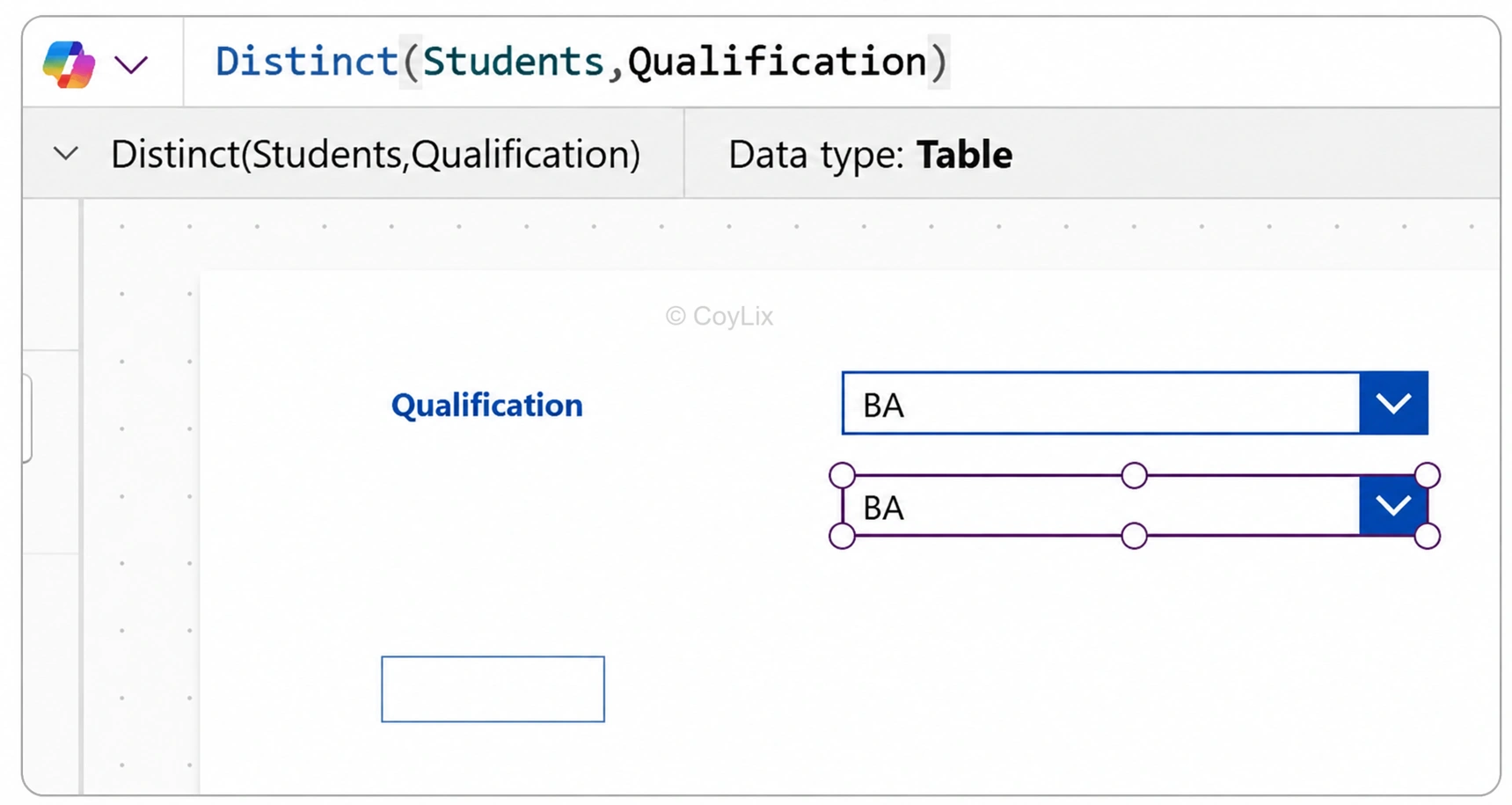
  , you’ll see how a dropdown list with repeated qualification values (like BA, B.Tech, etc.) can be cleaned up using the Distinct() function.The steps shown are:
- Create a dropdown with a column that contains duplicates
- Apply the Distinct() function in the dropdown’s Items property
Distinct(Students, Qualification)Power Apps automatically shows only unique values in the dropdownWhen selecting a value, you can display it in a label using:
DropdownQualification.Selected.Value
Why Use Distinct() function?
- To build clean dropdown lists
- To summarize and filter data
- To improve app usability and performance
 Pro Tip: