
Power Automate Performance Optimization: 12 Best Practices
Before we look at each technique, remember one important point: the best optimization depends on what is actually slowing down your flow. Reducing unnecessary work is often more useful than simply adding more actions or increasing concurrency.
1. Use Trigger Conditions
A flow should run only when there is a good reason for it to run.
For example, imagine that your company uses a SharePoint list to manage employee expense requests. You have a flow that sends an approval request when an expense exceeds ₹10,000.
Without a trigger condition, the flow may start whenever an item is created or modified, even when the expense does not meet your requirement. The flow then spends time checking the amount and may terminate without doing any useful work.
You can avoid these unnecessary runs by adding a trigger condition.
How it helps:
- Checks whether the specified condition is satisfied before the flow runs.
- Prevents unnecessary flow executions.
- Reduces wasted processing for records that do not meet your business requirements.
For example, a trigger condition could check whether the expense amount is greater than ₹10,000.
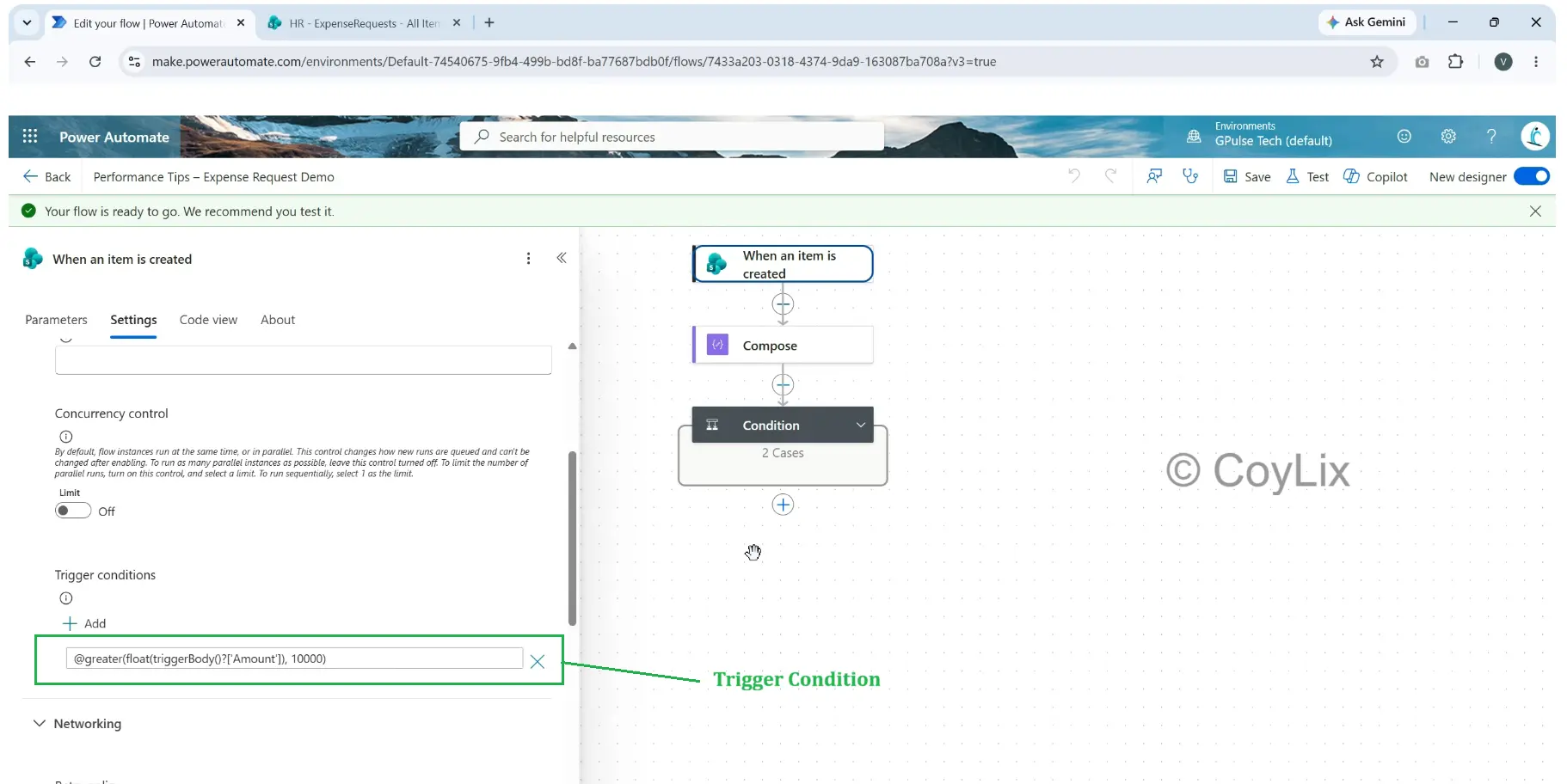
Remember that a trigger condition determines whether the flow starts. It is different from a Condition action inside the flow, which runs after the flow has already started.
2. Filter Data at the Source
One common performance problem is retrieving too many records and filtering them later.
Suppose you have a SharePoint list containing 5,000 expense requests. Your flow needs to process only requests that are pending and have an amount greater than ₹10,000.
One approach is to retrieve all the records and then use a Filter array action to find the matching items.
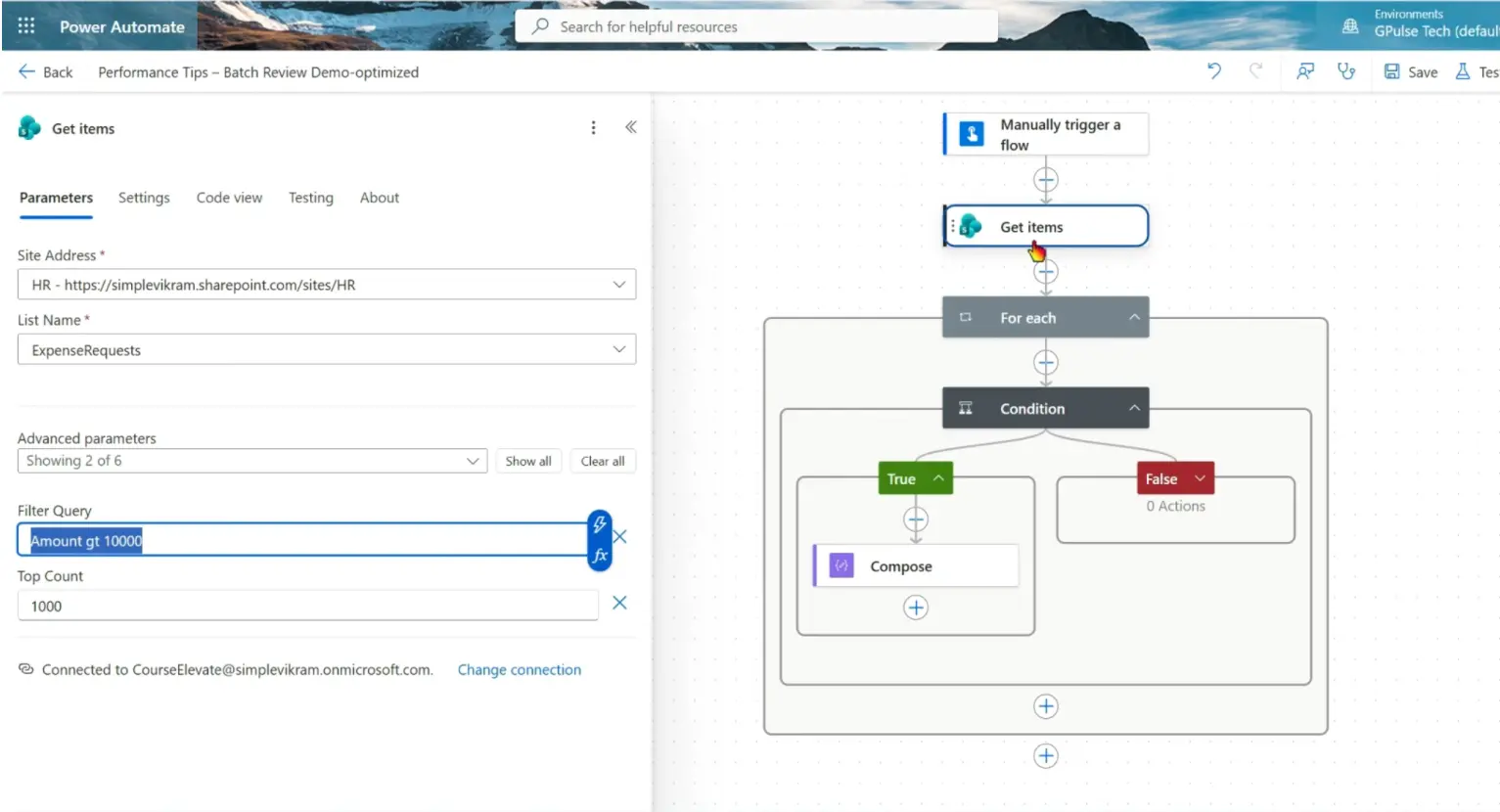
A better approach, when supported by the connector and query, is to use the Filter Query option in the SharePoint Get items action.
This allows SharePoint to filter the records before returning the results to your flow.
For example, your query might use conditions equivalent to:
- Amount is greater than 10000.
Instead of processing every record, your flow receives only the matching records.
Why this improves performance:
- Fewer records need to be processed.
- Fewer items may pass through subsequent loop iterations.
- The flow avoids retrieving data that it does not need.
Always verify that the column names, data types, and filter operators are supported by your data source and connector.

3. Retrieve Only Required Columns
Filtering records reduces the number of rows returned. But what if you need all those rows and only a few of their columns?
Consider a SharePoint employee list containing employee name, email address, department, location, phone number, joining date, and several other fields.
Suppose your flow only needs the employee name and email address. Retrieving every available column may provide more information than the flow actually uses.
You can use the Limit Columns by View setting in the SharePoint Get items action.
Here is the general approach:
- Identify the columns your flow actually uses.
- Create a dedicated SharePoint view containing those columns.
- Configure Limit Columns by View in Get items to use that view.
This helps you control which columns are returned.
Important: Limit Columns by View limits the columns, not the number of records. If you need fewer rows, use an appropriate Filter Query as well.
4. Use Parallel Branches
Power Automate normally executes dependent actions in sequence. However, not every action depends on the result of the previous action.
Imagine that you need to prepare a monthly business summary. Your flow must retrieve sales records and expense records before calculating the final summary.
If both data retrieval actions are independent, there is no need to wait for the sales query to finish before starting the expense query.
You can use parallel branches to run both actions at the same time.
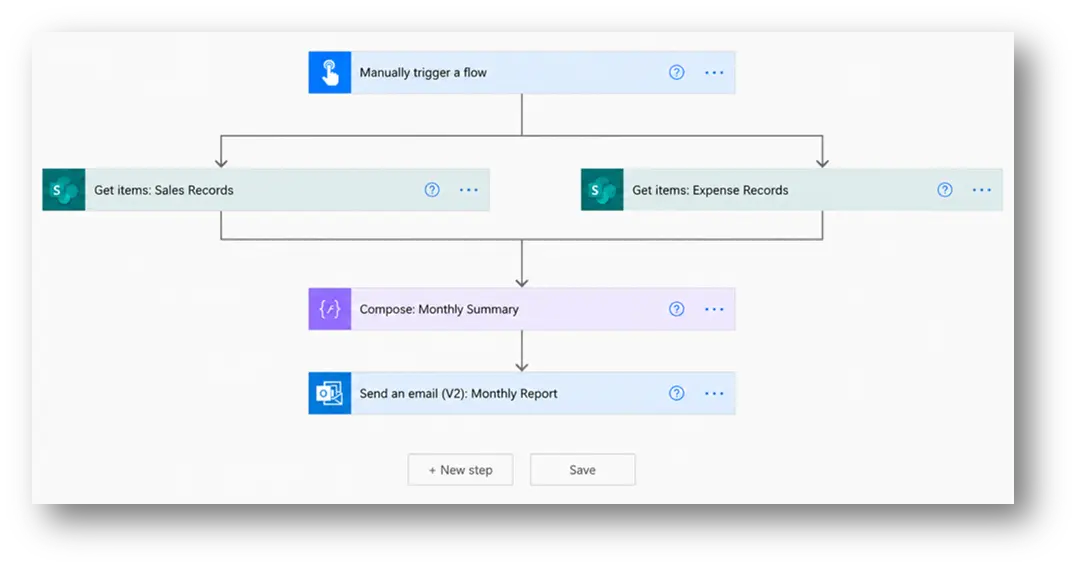
Example workflow:
- Branch 1: Retrieve monthly sales records.
- Branch 2: Retrieve monthly expense records.
- After both branches finish: Prepare the monthly summary using Compose.
- Final step: Send the summary by email.
The flow waits for both branches to finish before continuing to the next step.
This can reduce the total elapsed time when both actions take a meaningful amount of time and can safely run independently.
When should you use parallel branches?
Use them when actions do not depend on one another’s outputs. Do not run actions in parallel if one action needs data produced by another action.
5. Configure Apply to Each Concurrency
The Apply to each action processes items one at a time by default. When your flow needs to process many independent records, this can increase the total execution time.
For example, suppose your flow sends notifications for 100 employee records. If each notification can be processed independently, sequential processing may take longer than necessary.
You can enable concurrency control in the Apply to each action to allow multiple iterations to run simultaneously.
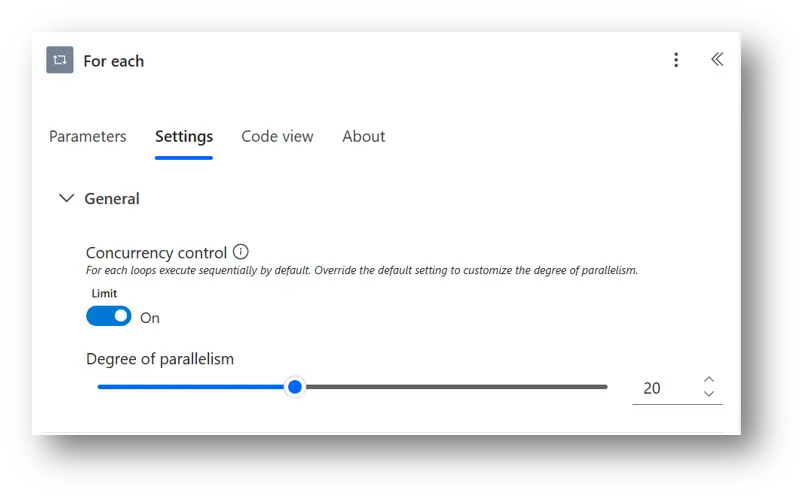
In the configuration described in this article, the concurrency degree can be set from 1 to 50.
However, higher concurrency does not automatically mean better performance.
Before increasing concurrency, consider the following:
- Connector limits: Too many simultaneous requests may trigger throttling.
- Shared variables: Concurrent iterations that update the same variable can produce unexpected results.
- Dependencies: Iterations must be independent for parallel processing to be appropriate.
- Nested loops: Enabling concurrency on an outer loop does not automatically make inner loops run concurrently.
Start with a suitable concurrency setting, test the flow, and compare the results.
6. Avoid Unnecessary Nested Loops
Nested loops can make a flow unnecessarily complicated and slow, especially when the inner loop processes a large collection for every item in the outer loop.
Imagine that you have two SharePoint lists:
- Employee Expense Requests
- Employee Directory
For every expense request, your flow loops through the entire employee directory to find the employee’s email address.
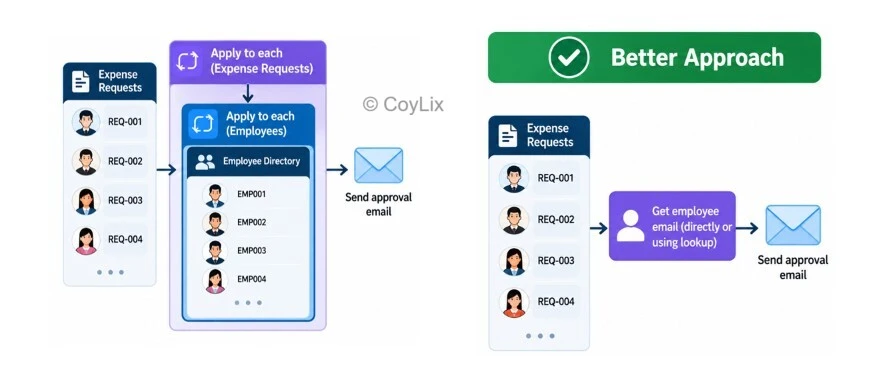
If you have 200 expense requests and 1,000 employees, repeatedly searching the employee directory can result in a large number of comparisons.
A more efficient design may be to retrieve the employee’s email address directly from the expense request, use an existing lookup value, or query the employee directory for the specific employee.
The appropriate solution depends on how your data is stored and which lookup options your connector supports.
Best practice: Before adding another Apply to each action, ask whether you really need to process the entire collection.
Reducing unnecessary iterations can make your flow simpler and easier to maintain.
7. Reduce Unnecessary Connector Calls
Every connector call adds another operation to your flow. Repeating the same request when the required information is already available can waste time and consume connector resources.
Consider an online store that receives hundreds of orders every day. A Power Automate flow retrieves the orders and creates invoices in an external accounting system.
Suppose several orders belong to the same customer. If the flow retrieves that customer’s details separately for every order, it may make the same request multiple times.
A more efficient design is to retrieve the necessary customer details once, where appropriate, and reuse the available data while processing the orders.
You can also consider bulk operations or batching when the connector or external system supports them.
Ways to reduce unnecessary connector calls:
- Reuse outputs from previous actions.
- Avoid retrieving the same information repeatedly.
- Retrieve only the data you need.
- Use supported batch or bulk operations where appropriate.
Be careful when reusing data: if the information can change during execution, confirm that the stored result is still suitable for the task.
8. Implement Error Handling and Retry Policies
Not every slow or unsuccessful flow is caused by inefficient logic. Sometimes an external API or connector temporarily fails, times out, or responds with an error.
For example, your flow sends invoice details to an external accounting system. The service is temporarily unavailable, and the request fails.
You can configure an appropriate retry policy so that the action can try again when a temporary failure occurs.
You can also use Configure run after to decide what should happen when a previous action succeeds, fails, times out, or is skipped.
For example, if the accounting API still fails after retries, your flow could log the error, notify the support team, or follow another appropriate recovery path.
How this helps:
- Handles temporary failures more gracefully.
- Reduces avoidable interruptions to business processes.
- Makes flows easier to troubleshoot and maintain.
Keep in mind that error handling primarily improves reliability. It does not necessarily make a successful flow execute faster. Poorly configured retries can also increase the total time taken by a failed run.
9. Prevent Unnecessary Trigger Loops
Have you ever created a flow that updates a SharePoint item and then unexpectedly triggers itself again?
This can happen when a flow starts after a record is modified and one of its own actions modifies that same record.
For example:
- A SharePoint item is updated.
- The update triggers the flow.
- The flow updates the same item.
- That update triggers the flow again.
If the flow does not have suitable safeguards, it can create repeated executions.
You can prevent this by designing your trigger conditions and processing logic carefully.
Recommended practices:
- Identify actions that can retrigger the same flow.
- Add suitable trigger conditions to avoid unnecessary runs.
- Check whether a record has already been processed.
- Avoid updating a record when no update is actually required.
A common solution is to maintain a processing status or another suitable indicator, provided the logic is designed to prevent repeated processing.
This reduces unnecessary executions and helps avoid wasted resources.
10. Manage Variables Wisely
Variables are useful in Power Automate when you need to store values, update them, or maintain information across multiple steps. However, not every calculation requires a variable.
Suppose you need to calculate the total price of an order.
You already have:
- Unit price
- Quantity
You could initialize a variable, assign a calculated value to it, and then use the variable in a later action. But if you only need the result once, you may be able to calculate it directly using an expression.
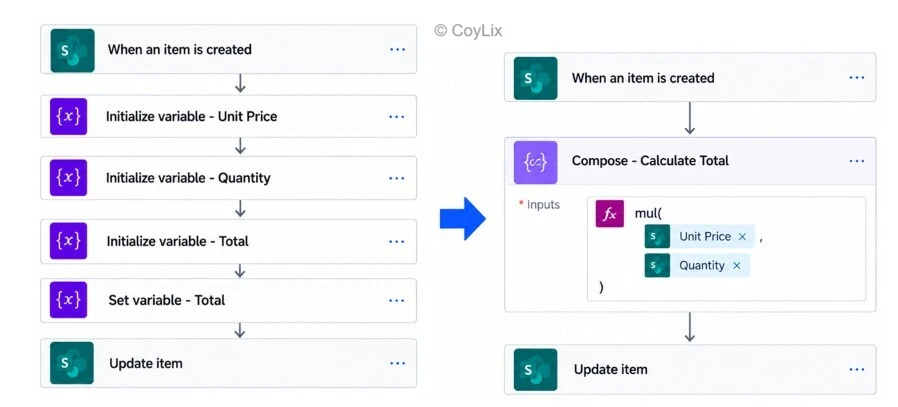
For example:
mul(variables('UnitPrice'), variables('Quantity'))
This expression multiplies the two variable values, assuming both variables have been initialized appropriately.
You can also use Compose when you want to calculate or prepare a value for use in subsequent actions.
Best practices:
- Avoid variables that do not serve a clear purpose.
- Reuse outputs from previous actions.
- Use expressions for straightforward calculations.
- Use Compose when it makes a calculation or intermediate value easier to understand.
Do not remove variables that are needed for accumulating values, maintaining state, or updating information throughout the flow. The objective is to keep the design simple, not to eliminate useful variables.
11. Identify Bottlenecks Using Run History
Before optimizing a flow, find out which part is actually taking the most time.
Changing actions without understanding the problem can add complexity without improving performance.
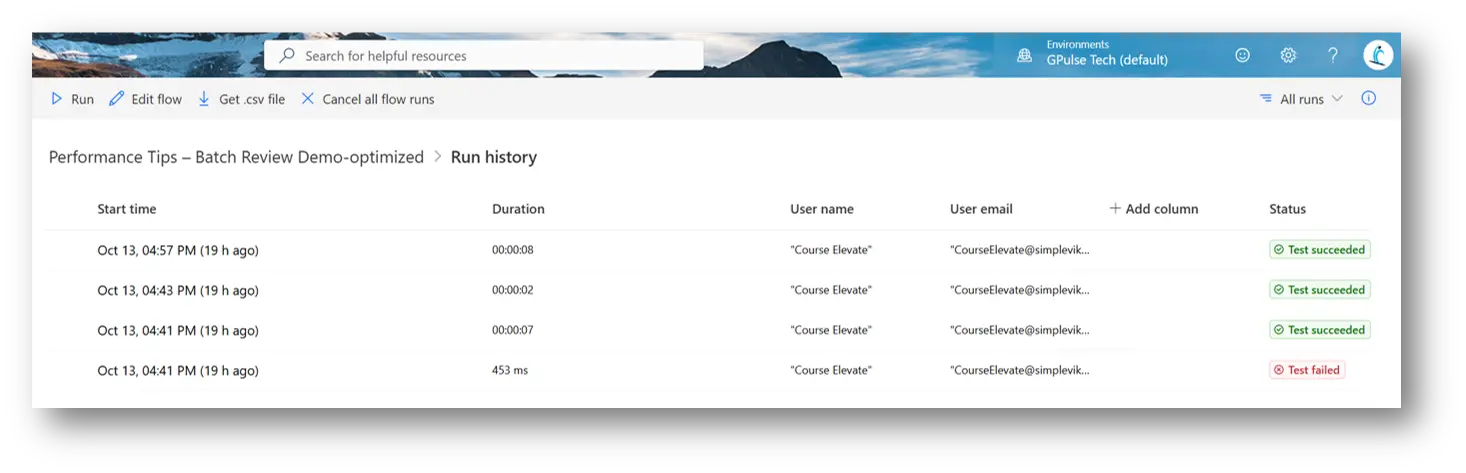
Power Automate run history helps you inspect individual runs, action statuses, durations, and available error details.
For example, your flow may contain these actions:
| Action | Example duration |
|---|---|
| Get items | 2 seconds |
| Apply to each | 45 seconds |
| Send email | 3 seconds |
These figures are illustrative, not measured results. In this example, the Apply to each section deserves further investigation because it accounts for most of the elapsed time.
You can inspect the actions inside the loop to identify repeated connector calls, unnecessary iterations, retries, or other bottlenecks.
A practical troubleshooting process:
- Open the flow’s run history.
- Select a run that took longer than expected.
- Inspect the duration of individual actions.
- Check for retries, failures, and connector issues.
- Optimize the action or section responsible for the delay.
- Run the flow again and compare the results.
For a meaningful comparison, use similar data volumes and conditions where possible.
The goal is to optimize based on evidence rather than guesswork.
12. Avoid Throttling
Power Automate connectors and the underlying services have limits on requests and processing. If your flow sends too many requests in a short period, the service may throttle them.
Throttling can cause requests to be delayed, retried, or rejected temporarily.
For example, imagine a flow that processes hundreds of records and sends several requests to the same external system for every record. If many requests run simultaneously, the external service may struggle to handle the load.
You can reduce this risk by designing the flow to make fewer unnecessary requests and by configuring concurrency carefully.
How to reduce throttling:
- Avoid duplicate API requests.
- Retrieve and reuse data when appropriate.
- Use supported batching or bulk operations.
- Configure concurrency based on the connector’s limits.
- Monitor failed runs and retry patterns.
- Check the documented limits for the connectors and services you use.
Remember that connector throttling and Power Automate’s own request or throughput limits are related but distinct issues. Check the relevant service documentation when investigating either problem.
Frequently Asked Questions
1. How can I improve Power Automate flow performance?
Start by checking your flow’s run history to identify slow actions. Then consider filtering data at the source, retrieving only required columns, reducing unnecessary loops and connector calls, and running independent actions in parallel. Test each change to confirm that it improves performance.
2. Does enabling concurrency make Power Automate flows faster?
It can, especially when the flow processes independent items or actions that can safely run simultaneously. However, concurrency can also cause throttling or problems with shared variables. Test the configuration and choose a suitable level for your workload.
3. What is the difference between Filter Query and Filter array?
Filter Query filters records at the data source when the connector supports the query. Filter array processes an array that has already been returned to the flow. Filtering at the source can avoid retrieving and processing unnecessary records.
4. How do I reduce the number of actions in Power Automate?
Reuse outputs from previous actions, remove unnecessary variables and assignment steps, avoid repeated data retrieval, and simplify nested loops. Use expressions or Compose where appropriate, but retain actions that are necessary for the logic and maintainability of the flow.
5. How do I find a slow action in Power Automate?
Open the flow’s run history and inspect the individual actions in a selected run. Compare their durations and look for retries, failures, repeated connector calls, or excessive loop iterations. Optimize the section that is causing the delay.
6. Why is my Power Automate flow running multiple times?
A flow may run multiple times because its trigger conditions are too broad, records are updated repeatedly, or an action modifies the same record that triggered the flow. Review the trigger, add appropriate safeguards, and check whether the record has already been processed.
7. Can error handling improve flow performance?
Error handling primarily improves reliability. Retry policies can help recover from temporary failures, while Configure run after lets you control what happens after a failure, timeout, or skipped action. However, retries may increase the total execution time when a service remains unavailable.
8. What causes throttling in Power Automate?
Throttling can occur when a flow exceeds the applicable request limits of Power Automate, a connector, or an external service. Reduce unnecessary calls, configure concurrency carefully, and monitor retries and failed runs to identify the source of the problem.
9. Should I use parallel branches or Apply to Each concurrency?
Use parallel branches when you have a small number of independent actions that can run at the same time. Use Apply to Each concurrency when you need to process multiple independent items simultaneously. The right choice depends on your flow’s structure and the dependencies between its actions.
10. Does reducing the number of actions always improve performance?
Not necessarily. Removing unnecessary actions can simplify a flow, but the number of actions alone does not determine execution time. A single slow connector call may take longer than several simple actions. Use run history to identify the real bottleneck.
Conclusion
Power Automate performance optimization is not about making every flow complicated or enabling concurrency everywhere. It is about reducing unnecessary work and choosing the right design for your business requirements.
Start with these 12 practices:
You do not need to apply every technique to every flow. Start by identifying the actual bottleneck, make one improvement at a time, and compare the results.
Want to learn Power Automate through practical projects?
Check out the Power Automate Career Accelerator by Coylix.
It covers expressions, approvals, AI integration, error handling, and 10 real-world business automation projects, along with interview preparation for Power Automate developer roles.
Explore the course here: https://coylix.com/power-automate-career-accelerator/