
Top Model-Driven Apps Interview Scenarios
1. A user should only see records they created, except managers who should see all records — how do you configure this?
You achieve this by using Security Roles with different access levels and assigning them to the correct users.
Step-by-step Interview Answer
1. For normal users (staff)
- Open the appropriate Security Role.
- For the required table (for example: Cases, Leads, Requests):
- Set Read = User level
- Set Write, Append, Append To, Assign, Share as needed at User level.
- This ensures they only see the records they created.
2. For managers
- Create or modify a Manager Security Role.
- For the same table:
- Set Read = Organization level
- Set Write / Append / Assign according to their permissions.
- This gives them visibility of all records in the environment.
3. Assign roles
- Assign the User role to staff.
- Assign the Manager role to managers.
- If needed, users can have multiple roles — Dataverse applies the highest permissions.
Real Example
For a Tickets table:
- Support Agents → Read = User (they see only their own tickets)
- Support Manager → Read = Organization (sees all tickets across the team)
Key Takeaway
Staff get a role with User-level permissions. Managers get a role with Organization-level permissions. Dataverse automatically merges roles and shows the highest access.
2. A form has too many fields; users complain it’s slow. How would you improve performance?
Think of a buffet with 50 dishes—you only need 5, but everything is served at once, slowing you down. A form with too many fields works the same way—load only what’s needed.
To optimize performance in a large form:
1. Reduce Fields on Initial Load
- Show only essential fields on the main form.
- Move less-used fields to tabs or collapsible sections that load on demand.
2. Use Conditional Visibility
- Hide fields unless relevant.
- Example: show Credit Limit only if Customer Type = Account.
- This reduces rendering time and clutter.
3. Split Forms by Role
- Create role-based forms so each user sees only what they need.
- Example: Sales form vs. Support form.
4. Optimize Subgrids and Related Records
- Avoid loading heavy subgrids automatically.
- Use Quick View forms or load subgrids only when needed.
5. Minimize Client-Side Scripts
- Reduce JavaScript running on form load.
- Move non-critical logic to asynchronous events or Power Automate.
6. Remove Unnecessary Business Rules
- Too many rules can slow down form rendering.
- Combine logic where possible.
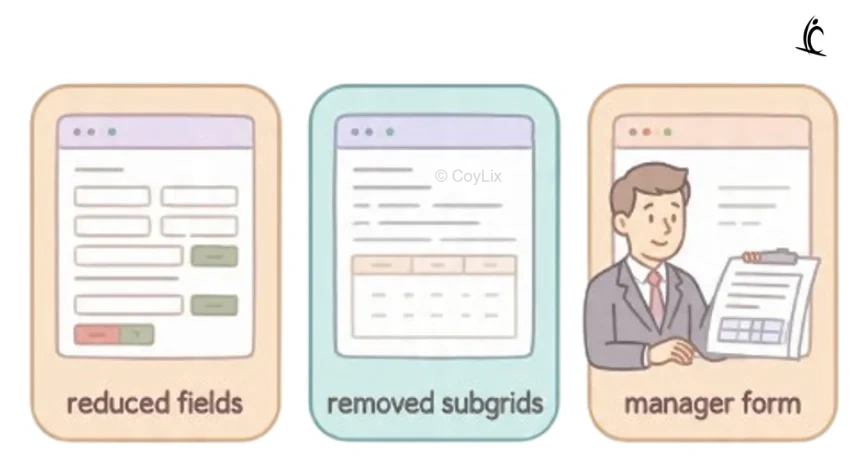
Real Example
A Ticket form had 70 fields and 3 subgrids.
- Moved non-essential fields to additional tabs
- Removed 2 subgrids from main tab
- Created a dedicated manager form
Form load time dropped significantly.
Main Takeaway
Performance improves when you load fewer fields, use conditional visibility, split forms by role, and optimize scripts and subgrids.
3. You need to trigger validation before moving to the next BPF (Business Process Flow) stage — how would you implement this?
Think of airport security. You can’t move to the boarding gate until your documents are checked. Similarly, in a BPF, you need validation before moving to the next stage.
Explanation
- Business Rules can’t stop stage movement — they only show/hide fields or set values.
- To enforce validation before stage change, use JavaScript on the BPF stage change event.
Implementation Steps
- Attach a script to the OnStageChange event of the BPF.
- In the script, check required conditions (mandatory fields filled, values valid).
- If validation fails, prevent stage transition using event.preventDefault() or show an error message.
Server-side Option
- Use a Plugin on BPF entity (for example ProcessStage change) to validate and block save if conditions fail.
Example
Imagine a Loan Approval BPF. Before moving from Document Verification to Approval stage, you must ensure all required documents are uploaded.
Add JavaScript on OnStageChange to check document fields. If any are missing, show an alert and stop the stage change.
Main Difference / Takeaway
Use JavaScript or Plugins for pre-stage validation — Business Rules alone can’t block stage movement.
4. How would you implement a custom button that calls an external API in a Model-Driven App?
There are two practical ways to do this:
1. Command Bar Button + JavaScript
- Add a custom button using the Modern Command Designer.
- Attach a JavaScript function that calls the external API.
- Update fields or show notifications based on the API response.
Pros
- Fast and real-time.
- Good for simple public APIs or instant UI updates.
Cons
- Not ideal for secure APIs (can’t store secrets in client JS).
- Harder to maintain for complex workflows.
2. Command Bar Button + Power Automate Flow (Recommended)
- Create a flow that calls the external API using HTTP or a Custom Connector.
- Trigger the flow from the button.
- Flow updates the record after receiving the response.
Pros
- Secure authentication.
- Easier to maintain and extend.
- Works well for multi-step server-side logic.
Cons
- Slight delay because it runs asynchronously.
Example
A Get Credit Score button can:
- JavaScript: call API instantly and fill the score field.
- Flow: call API securely and update the record.
Key Takeaway
Use JavaScript for fast UI actions, but use Power Automate for secure, reliable API calls.
Also review Microsoft AI ecosystem.
5. You need to show a read-only summary of related data on the main form in modern driven apps — which feature will you use?
- In model-driven apps, sometimes you need to show related records without letting users modify them.
- The feature for this is Subgrid in Read-Only Mode.
- It pulls related data (like child records) onto the main form but locks editing.
- Perfect for summaries, dashboards, or compliance scenarios.
Example
Imagine you have a Customer form and want to show all their past orders.
You add a read-only subgrid of Orders on the Customer form — users can view order details but can’t change them.
Main Difference / Takeaway
Use a read-only subgrid when you need visibility of related records without giving edit access.