Power Apps Canvas App Interview Questions
1. How do you navigate between screens in Power Apps and pass data to another screen?
In Power Apps, navigating between screens is done using the Navigate() function. This function not only allows you to switch screens but also lets you add transition effects and pass data.
watch this video for more details.
Syntax:
Navigate(TargetScreen, Transition [, UpdateContextRecord])
Parameters:
TargetScreen – The screen you want to navigate to.
Transition (optional) – Defines the animation effect during navigation.
ScreenTransition.None → No animation
ScreenTransition.Fade → Fade effect
ScreenTransition.Cover → Cover effect
UpdateContextRecord (optional) – A record that lets you pass variables to the target screen.
Example:
Navigate(
   Screen3,
   ScreenTransition.Fade,
   { UserName: "Rahul" }
)
👉 In this example:
The user is navigated to Screen3
The screen transition effect applied is Fade
A variable UserName = “Rahul” is passed to Screen3
Key Takeaway for Interviews:
The Navigate() function is one of the most common functions in Power Apps. It’s important to understand not just how to switch screens, but also how to pass context variables for dynamic, data-driven apps.
2. What types of apps can be built using Power Apps?
Power Apps allows you to build different types of apps based on business needs.
The main types are:
1) Canvas Apps
Canvas apps give you full control over the UI. You design the screens by dragging and placing controls. You can create mobile friendly apps with rich user experience.
2) Model-Driven Apps
These apps are built on Dataverse and focus on data and business processes rather than design.
The app layout is automatically generated based on the data model.
3) Portal Apps (Power Pages)
These apps are used to create external-facing websites. Here users outside the organization can interact with data securely.
Commonly used for customer portals, partner portals, and public forms
3. What is the difference between a Model-driven app and a Canvas app?
Canvas apps are UI-driven and highly customizable apps. Model-driven apps are data-driven and built on Dataverse. Below are the key differences.
Canvas App
- You design the app screen by screen using drag-and-drop.
- You have full control over the UI and layout.
- Best for custom user experience and mobile-friendly apps.
- Works with many data sources like SharePoint, Excel, SQL, and Dataverse.
Model-Driven App
- The app is built around data stored in Dataverse.
- UI is automatically generated based on tables, relationships, and forms.
- Best for complex business processes and role-based applications.
- Less UI flexibility, but strong business logic and security.
| Feature | Canvas App | Model-Driven App |
| How it’s designed | You design the screens first | You design the data first |
| UI flexibility | Full freedom over layout and look | Limited layout control |
| Data sources | Works with many sources | Uses Dataverse only |
| Best suited for | Custom UI and mobile-friendly apps | Process-heavy business apps |
| Speed to build | Quick to get started | Takes more setup, but well-structured |
Forms & UI
4. What is a Form in Power Apps and what are its types?
A Form in Power Apps is a control used to display, create, or edit records from a connected data source like SharePoint, Dataverse, or SQL Server. Forms automatically generate fields based on the selected data source and help users interact with structured data easily.
Types of Forms in Power Apps
1. Display Form (Read-Only)
A Display Form is used when users only need to view information. It prevents editing and is commonly used in approval screens, profile pages, or summary views where data should not be modified.
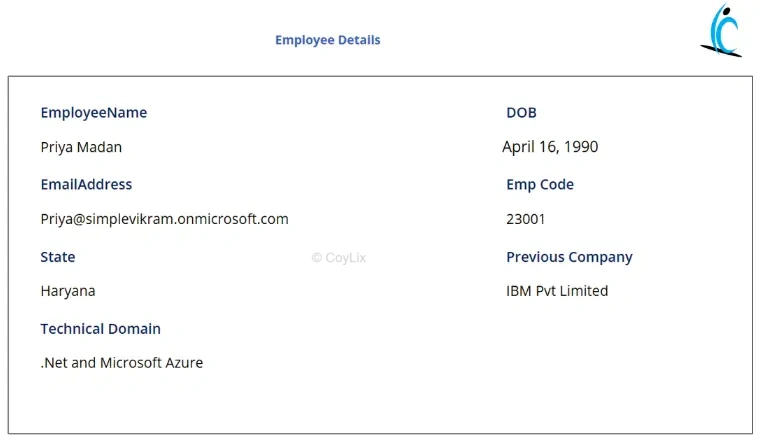
Example of a Display Form showing employee record details in read-only mode.
2. Edit Form (Create or Update)
An Edit Form allows users to add new records or update existing ones. It includes input controls like text boxes, dropdowns, and date pickers, and works with functions like SubmitForm() to save changes to the data source.
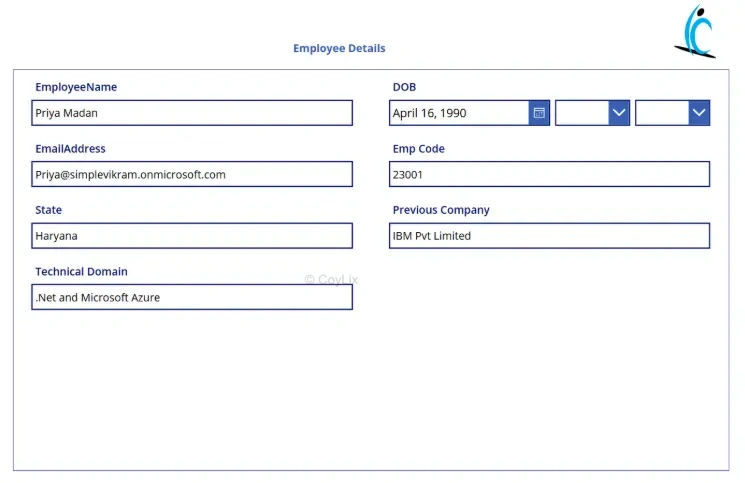
Example of an Edit Form used to create or update employee details.
5. What are the different form modes in power apps?
In Power Apps, forms have different Form Modes that control how a form behaves — whether users are creating, editing, or simply viewing data.
There are three main form modes:
1. FormMode.View
- The form is populated with an existing record.
- User cannot modify any fields (read‑only).
How to switch to View Mode
ViewForm(Form1);
2. FormMode.Edit
- Form loads an existing record.
- User can edit fields.
How to switch to Edit Mode
EditForm(Form1);
3. FormMode.New
- Form fields contain default values, usually blank.
- Used to create new records.
How to switch to New Mode
NewForm(Form1);
App Behavior & Lifecycle
6. How do you integrate Power Apps with Power Automate?
Power Apps integrates with Power Automate by allowing you to trigger flows directly from within the app.
You can connect a flow to an action like a button click. When the user clicks the button, the flow gets triggered.
For example, a user action can start a flow to send an email, trigger an approval, or process data in the background.
You can also pass data from Power Apps to the flow and get results back if needed, using the Run() function. This makes it easy to automate tasks as part of your app’s workflow.
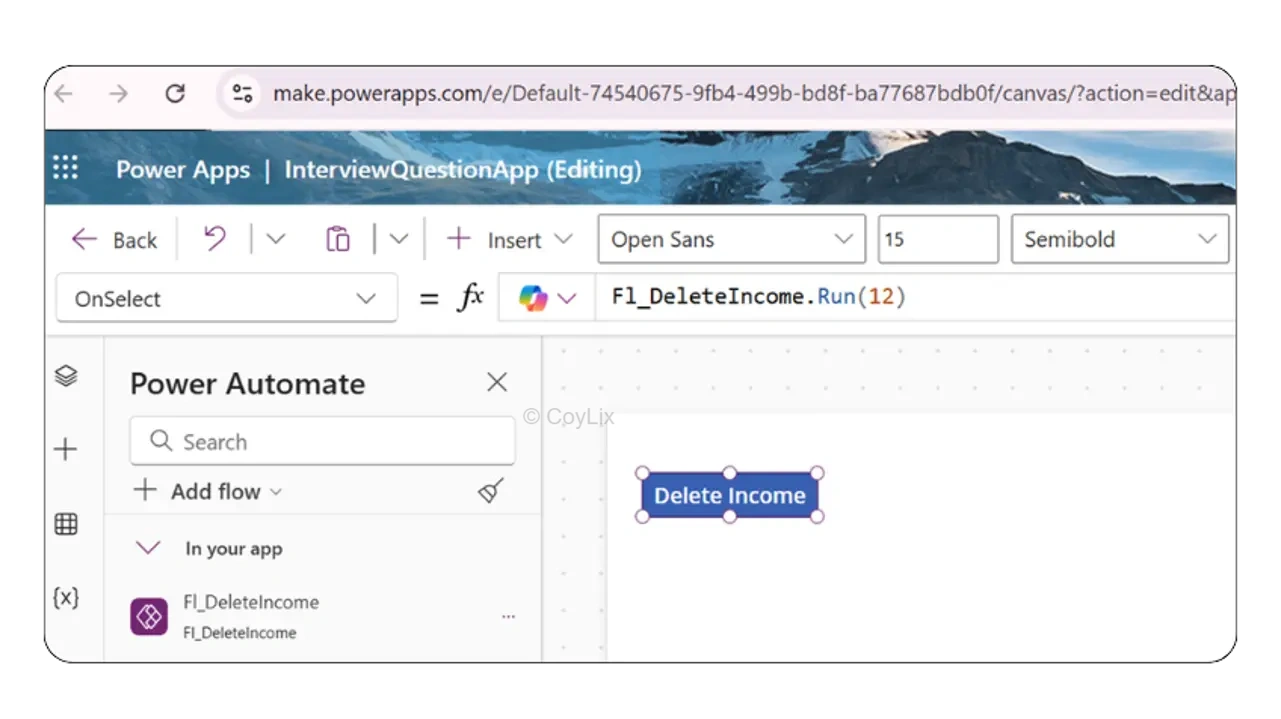
Now if you look at this screen…
you can see a button in Power Apps connected to a flow using the Run() function.
Flow name is FL_DeleteIncome, Parameter 12 is passed in Run method.
So when the user clicks that button,
the flow gets triggered and Income with ID 12 is deleted from the system
7. Describe the Power apps life cycle.
The Power Apps application lifecycle is a structured process that defines how apps are planned, developed, tested, deployed, and maintained across environments.
Planning
Understand business requirements, define app objectives, choose the right app type (Canvas, Model-driven, or Portal), and outline data and integration requirements.
Environment Setup
Set up separate environments (Dev, Test, Prod) and configure security roles , environment variables and DLP policies.
App Development
Build the app using Power Apps Studio, leveraging Dataverse, Power Fx and implement component library for libraries for reusability.
Source Control & ALM
Use solutions (managed/unmanaged), manage versions with Git and implement ALM using Power Platform CLI, Azure DevOps, or GitHub Actions.
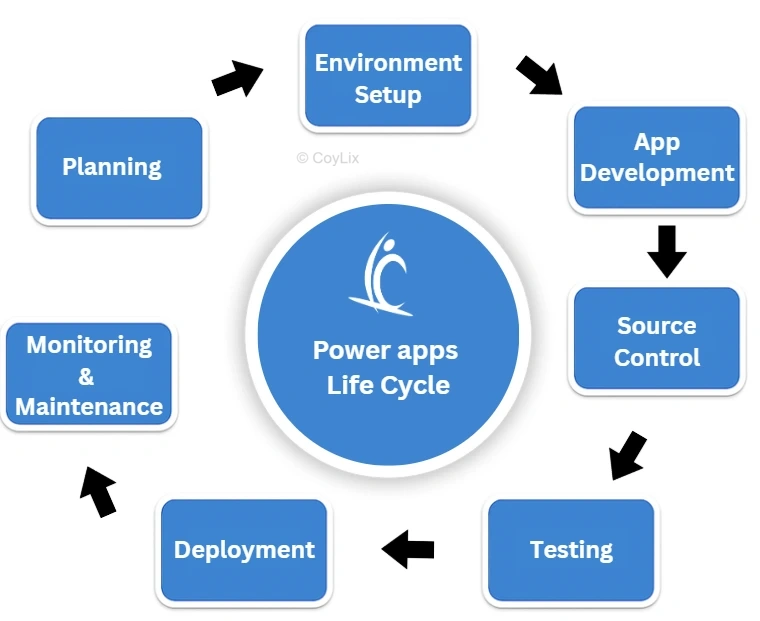
Testing
Conduct unit testing, integration testing, and UAT to ensure the app meets functional and performance expectations.
Deployment
Move solutions across environments using managed solutions and CI/CD pipelines. Ensure versioning and rollback strategies are in place.
Monitoring & Maintenance
Monitor app health, usage, and errors using Power Platform Admin Center and analytics tools. Plan for updates and improvements.
Decommissioning
When retiring an app, archive data, notify users, and ensure compliance with data retention policies.
App Usage / Deployment
8. How can you distribute a canvas app with all the employees in an organization?
Sharing a canvas app is like broadcasting a company announcement—you don’t call each employee individually.
You send it to the whole group at once
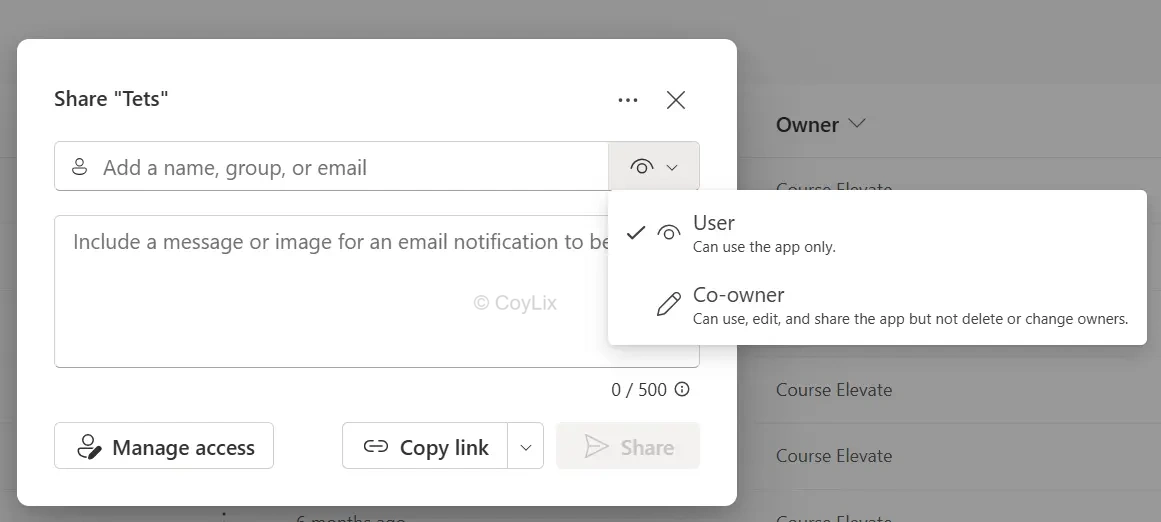
How to distribute a Canvas app to all employees
- Publish the app after building it.
- Share it with Azure AD security groups instead of individual users.
- Assign environment roles and ensure proper licensing (per app or per user).
- Optionally, pin the app in Teams or embed it in SharePoint for easy access.
Avoid sharing with “Everyone” unless governance policies allow it.
Example: An expense reporting app
- Add the ‘All Employees’ Azure AD group in the app’s share settings.
- Employees see the app in Power Apps or Teams without manual invites.
Key Takeaway
Use Azure AD groups for bulk sharing—faster, secure, and easier than adding users one by one.
UI Components (VERY IMPORTANT)
9. What is the Difference Between a Container and a Group in Power Apps?
What is a Group?
A Group in Power Apps is a simple way to visually organize multiple controls together. They are virtual objects without any inherent property.
One feature of a group is their ability to allow batch updates of their controls properties within them when selected.
However, can also be achieved by selecting multiple controls using the Ctrl key.
Down Sides:
1. One downside of the group is that selecting a control within a group automatically selects the entire group. This can lead to a frustrating user experience for developers. That’s the reason groups are not recommended as a standard approach to organize controls.
2. They do not affect layout or responsiveness.
So 👉 Think of Groups as a design-time convenience.
What is a Container?
A Container is more powerful — it allows you to control the layout of child elements.
• Containers support responsive design.
• Controls inside a container adjust automatically based on properties like direction, alignment, and flexible width/height.
• Common container types: Container, Horizontal container, Vertical container .
👉 Think of Containers as a dynamic layout manager.
Example:
If you place three buttons in a Horizontal Container, they align automatically in a row.
If the screen resizes, the buttons can shrink, grow, or wrap depending on the container’s properties.
Lets have a side by side comparison
| Feature | Group | Container |
| Purpose | Organizes controls for easier movement/resizing. | Manages layout and positioning of child controls. |
| Responsiveness | ❌ Not responsive (static positioning). | ✅ Supports responsive design (flexible layouts). |
| Best For | Keeping related controls together during design time. | Creating apps that adapt to different screen sizes and devices. |
| Performance Impact | Minimal (just grouping). | Slightly more overhead, but enables responsive design. |
⚡ Pro Tip: In modern Power Apps development, Containers are recommended over Groups if you’re building apps for multiple devices or screen sizes.
Performance Awareness (Basic)
10. What happens when Power Apps hits data row limit?
Analogy
Imagine reading a book where only the first few pages are visible and the rest are locked. You think you’ve read the whole story — but most of it is missing.
Explanation
- Power Apps has a row limit for non-delegable queries (default 500, maximum 2,000).
- When this limit is reached, Power Apps stops retrieving additional records.
- Any filter, search, or calculation runs only on the loaded rows.
- As a result, some data may be missing from the app view.
- Users may not realize that the dataset is incomplete.
Example
Suppose your app connects to a SharePoint list containing 20,000 records. If the query is non-delegable, Power Apps might load only the first 2,000 records. When a user searches for a value that exists beyond those 2,000 rows, the app may incorrectly show “No records found.”
Key Takeaway
When Power Apps hits the row limit, it does not show an error. Instead, it silently works with partial data — which can lead to inaccurate results.
Canvas App Behavior / Runtime Understanding
11. How to detect whether your canvas app is running in Power Apps Studio or Player
When building apps in Power Apps, it’s important to know whether your app is currently running in Power Apps Studio (the editor) or in Power Apps Player (the runtime used by end users). This distinction allows you to create different behaviors for developers and end users which makes your app easier to manage.
Why Does This Matter?
Being able to detect the environment gives developers extra flexibility. For example:
🛠️ Safe testing – try out features that aren’t ready for production without affecting end users.
👥 User role simulation – mimic how different users will interact with your app during development.
🔐 Admin-only options – keep sensitive tools or debug buttons available only in Studio.
The Host Object to the Rescue
Power Apps provides the Host object, which contains information about where the app is running. Using this, you can check if your app is currently in Studio or Player.
A simple way to implement this is through a Named Formula so write following code in App.Formula property.
isAppInDesignMode = StartsWith(Host.Version, "PowerApps-Studio");
This formula will return true when the app is running in Studio and false when it’s in the Player.
Lets have some real use case for this :
When testing in Studio, most features run smoothly because you’re in a developer-friendly environment. But once the app is published and opened in Player, users may face issues. By detecting whether the app is running in Studio or Player, you can handle these cases gracefully. For example:
- In Studio → Always show the feature so developers can test.
- In Player → If the feature fails, show a clear notification and provide a fallback option (e.g., upload a file instead of using the camera, or enter location manually if GPS is blocked).
✅ This way, developers still get full flexibility during testing, while users get a reliable alternative instead of hitting errors.
Data & Connection
12. How does Power Apps interact with external systems using connectors?
Power Apps interacts with external systems using connectors, which act as a bridge between the app and the data source.
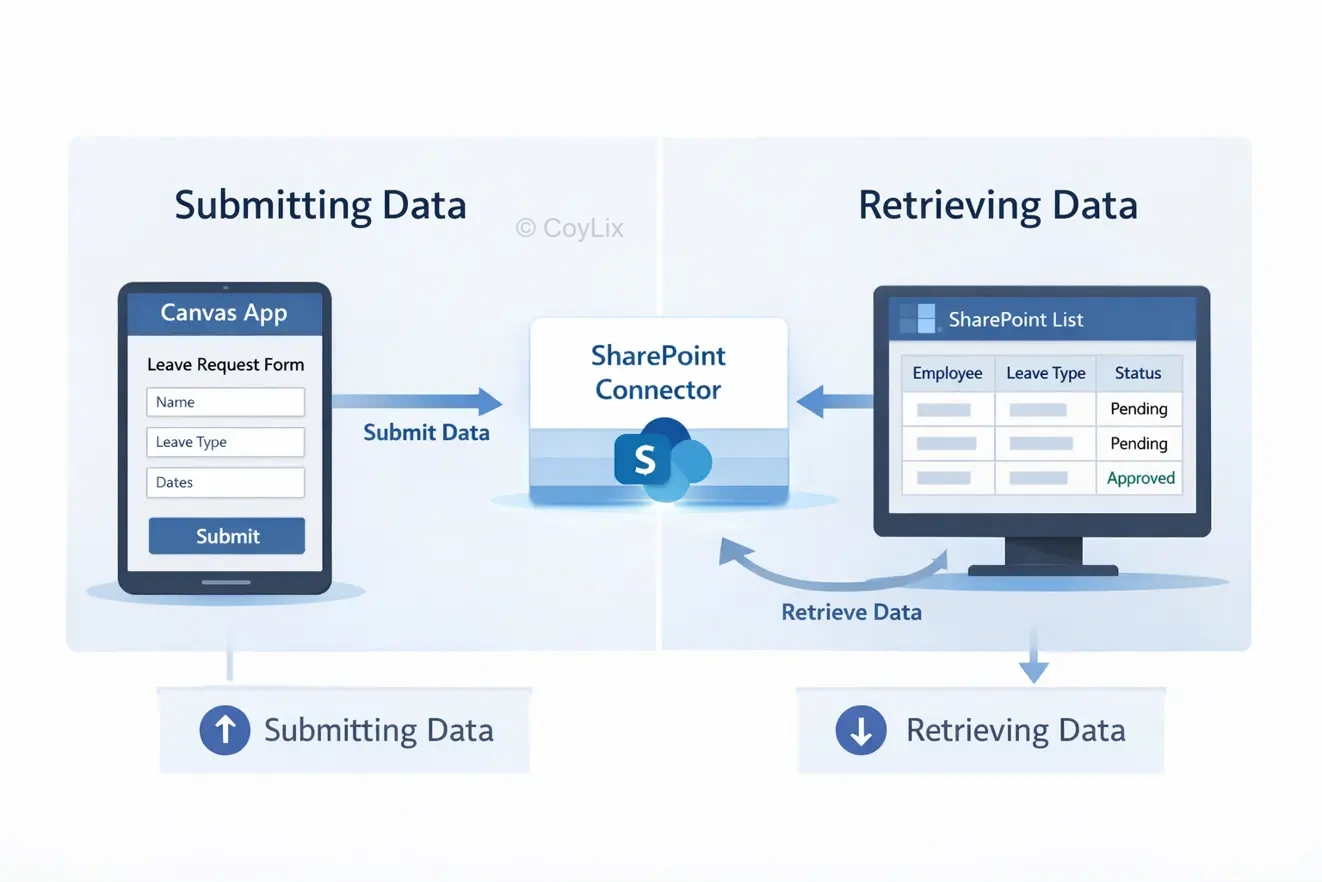
For example, in a leave request app, when a user submits a form, the data is sent to SharePoint using a connector — this is the push operation.
The data gets stored in the SharePoint list.
When the app loads again or refreshes, it pulls the updated data back from SharePoint using the same connector.
So, connectors handle both sending and retrieving data, making it easy for the app to communicate with external systems without needing complex backend logic.
13. What are connectors in Power Apps and what are their types?
Connectors in Power Apps allow the app to connect with external data sources and act as a bridge between the app and the data.
- Standard connectors – Used for common services like SharePoint, Outlook, and Teams, which are widely used in business applications.
- Premium connectors – Used for more advanced and enterprise-level scenarios, such as SQL Server and Dataverse.
- Custom connectors – Created when you need to connect with external APIs or systems that are not available by default.
These connectors make it easy to work with different data sources and build real-world applications without writing complex integrations.
Data Source Understanding / Runtime Understanding
14. In what scenarios is Dataverse better than SharePoint?
Dataverse is a better choice when your application becomes more complex.
For example, if you need to manage relationships between multiple tables, Dataverse supports relational data, while SharePoint has limitations in this area.
It also performs better with large datasets and provides more scalability as your app grows.
Another advantage is security, as Dataverse offers advanced role-based access control.
It also allows you to implement business rules and logic directly within the data layer, making it more suitable for enterprise-level applications.
15. What limitations make SharePoint unsuitable for large-scale apps?
SharePoint works well for small to medium applications, but it has limitations when used for large-scale solutions.
It does not handle relationships between multiple data tables effectively, which makes complex applications harder to manage.
As the data grows, delegation limits can cause Power Apps to process only a limited number of records, leading to incomplete results.
You may also notice performance issues when lists become large or when the app includes more logic.
In terms of security, SharePoint provides less control compared to Dataverse, and it is not ideal for handling complex business logic, which makes it less suitable for enterprise-level applications.