
1. Power Apps Security Interview Questions: What is Authentication in Power Apps?
Authentication is the process of verifying the identity of a user before allowing access to an application.
Let’s understand this with a simple flow in Power Apps.
When a user tries to access a Power App, they are first required to sign in using their Microsoft work or school account. This is the first step where the system identifies who the user is.
Once the user enters their credentials, Microsoft Entra ID (formerly known as Azure Active Directory) verifies the identity of that user. This verification ensures that the user is valid and belongs to an authorized organization.
After successful verification, Power Apps allows the user to open and interact with the application.
So in simple terms, authentication ensures that only verified users can access the app.
- User signs in using Microsoft work or school account
- Identity is verified through Microsoft Entra ID
- User is granted access to the Power App
This is one of the most basic Power Apps security interview questions asked in interviews.
2. How does Power Apps authenticate users?
Power Apps authenticates users using Microsoft Entra ID (formerly known as Azure Active Directory), which acts as the central identity provider.
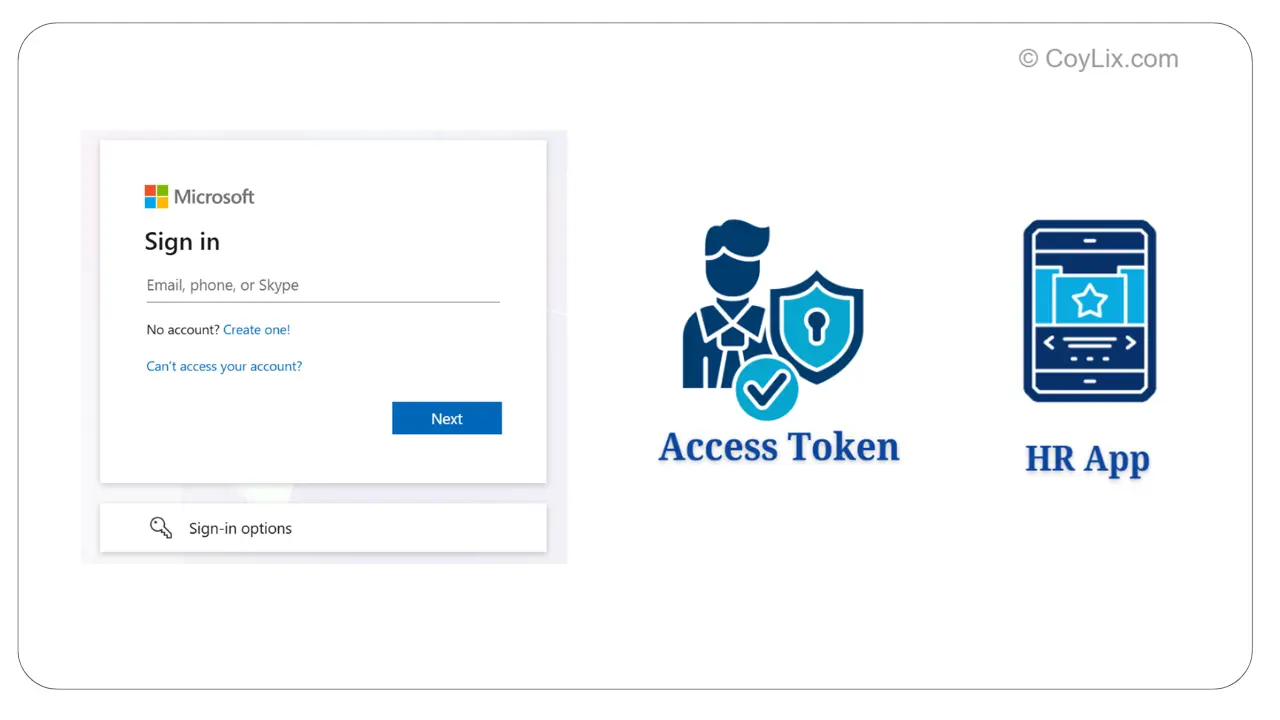
Let’s understand this step by step through the authentication flow.
- Power Apps uses Microsoft Entra ID, previously known as Azure Active Directory, as its identity provider.
- The user signs in Power apps using their Microsoft work or school account.
- Microsoft Entra ID verifies the identity of the user.
Once the identity is confirmed, a secure access token is issued. - Power Apps then uses this token to securely access services such as SharePoint, Dataverse, or SQL Server.
As a result, the user’s password is never directly shared with the application.
3. What is the difference between authentication and authorization?
Authentication and authorization are two different security steps, and both are essential for securing a Power Apps application.
Authentication is the first step. It verifies who the user is. This is typically done when the user signs in using their Microsoft account, and their identity is validated through Microsoft Entra ID.
Once the user’s identity is confirmed, the next step is authorization.
- Authentication → Verifies who the user is
Authorization determines what the user is allowed to do inside the application after they have been authenticated. It defines permissions such as whether the user can view data, edit records, or access specific features.
- Authorization → Determines what the user can do
Example:
Consider a company HR application. When an employee logs in, authentication verifies their identity.
After that, authorization decides their access level:
- HR Manager → Can edit employee records
- Employee → Can only view their own details
4. How does Power Apps integrate with Azure Active Directory?
Power Apps integrates directly with Microsoft Entra ID (formerly Azure Active Directory) to manage user identity and access.
Microsoft Entra ID handles everything related to login and security. It provides:
- User authentication
- Identity verification
- Security policies
- Single Sign-On (SSO)
When a user opens a Power App, the login request is automatically sent to Microsoft Entra ID.
Entra ID verifies the user’s identity. Once verified, the user gets access to the app based on their permissions.
Real Example:
In most companies, employees use the same login for Outlook, Microsoft Teams, SharePoint, and Power Apps.
This works because all these services use Microsoft Entra ID, allowing users to sign in once and access everything.
5. Power Apps Security Interview Questions: How do you implement Multi-Factor Authentication (MFA)?
This is one of the most commonly asked Power Apps security interview questions, especially for real-world scenarios.
Multi-Factor Authentication (MFA) means adding an extra step to verify a user’s identity during login.
Key Point:
- MFA is NOT configured inside Power Apps
- It is managed in Microsoft Entra ID
So whenever a user logs into a Power App, MFA is automatically enforced based on Entra ID settings.
Ways to Enable MFA
- Security Defaults → Quick setup for all users
- Conditional Access → Advanced and flexible (commonly used)
Implementation (Using Conditional Access)
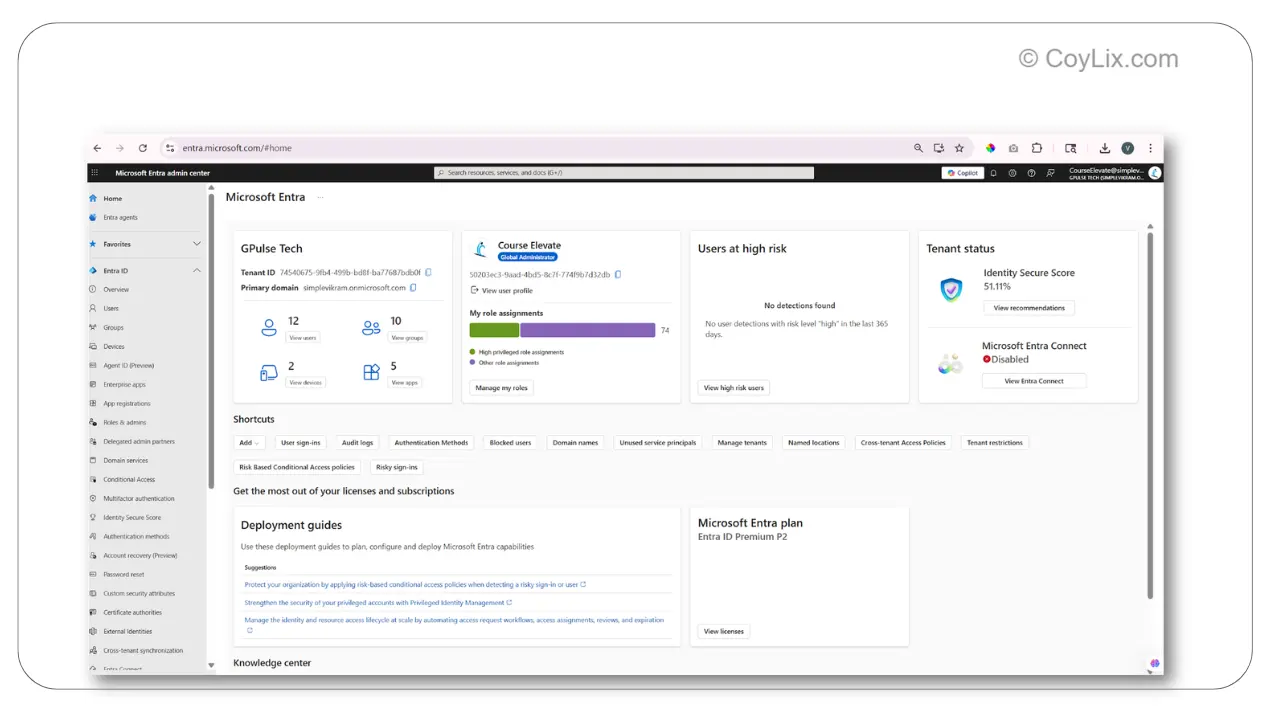
Follow these steps in Microsoft Entra Admin Center:
- Open Microsoft Entra Admin Center
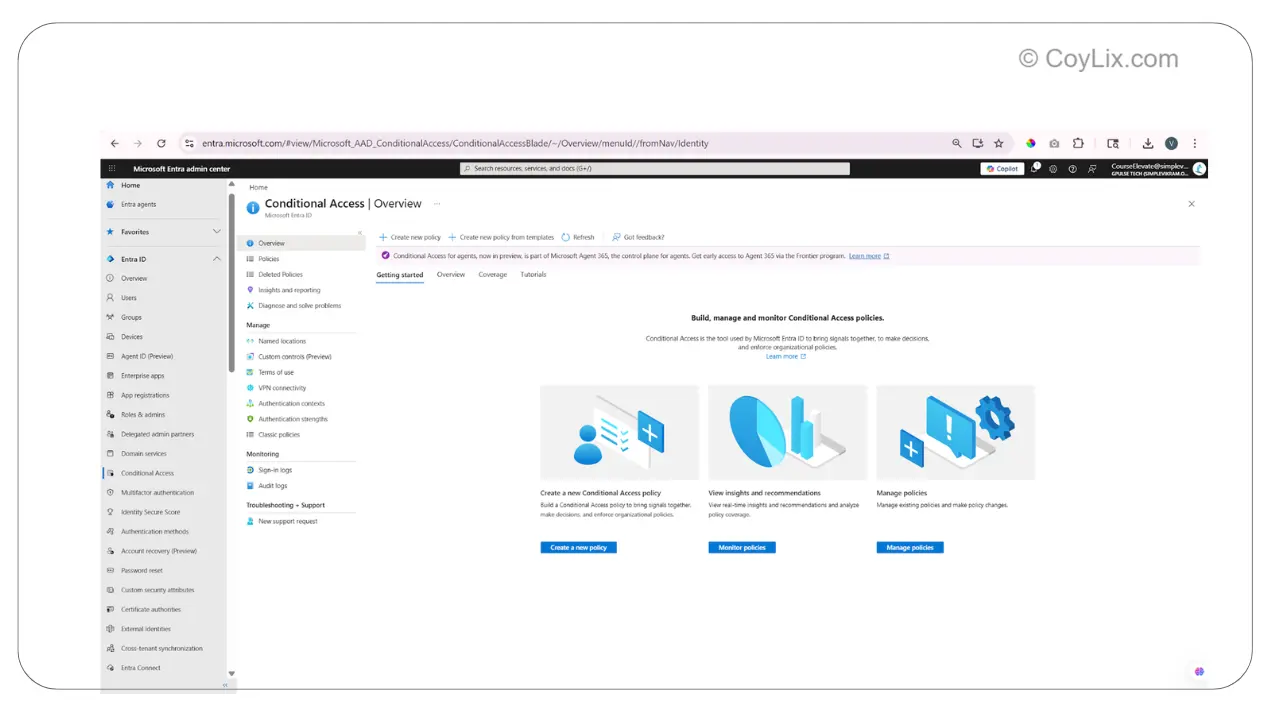
- Go to Conditional Access
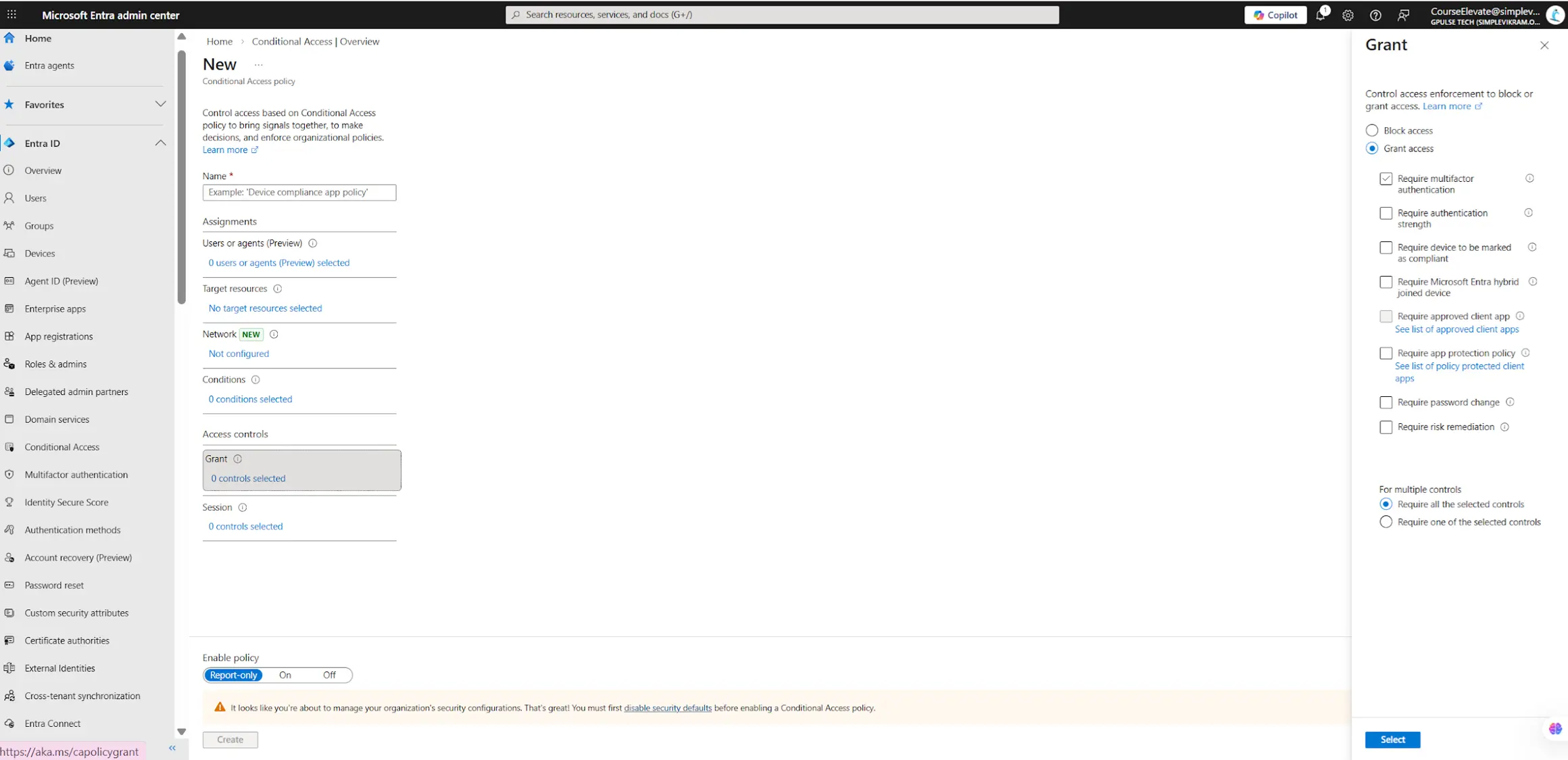
- Create a new policy
- Select “Require multi-factor authentication”
- Enable the policy
Verification Methods
- Microsoft Authenticator app
- SMS / Phone
- Security key
The most commonly used method is the Microsoft Authenticator app, where users approve a notification on their phone.
What happens during login
- User enters email and password
- Completes verification (Authenticator / SMS)
- Access is granted
For example, a user logs into a Power App, enters credentials, and then approves the login request using the Authenticator app.
Final Note
Power Apps automatically enforces MFA during login based on Microsoft Entra ID configuration.
6. What authentication methods are supported in Power Platform?
Power Platform primarily uses Microsoft Entra ID (formerly Azure Active Directory) for authentication.
This is the system that verifies the user’s identity when they sign in to services like Power Apps, Power Automate, or Dataverse.
Along with Entra ID, Power Platform supports modern authentication protocols and identity capabilities.
Main Authentication Methods
- Microsoft Entra ID Authentication
Primary identity provider used across Power Platform - Single Sign-On (SSO)
Users sign in once and can access multiple services like Power Apps, Power Automate, Teams, and SharePoint without logging in again - OpenID Connect (OIDC)
Modern authentication protocol used to verify user identity, built on top of OAuth 2.0 - OAuth 2.0
Used for secure API access and service-to-service communication
So in simple terms, Microsoft Entra ID handles identity, while protocols like OpenID Connect and OAuth 2.0 ensure secure access.
Authentication for External Integrations
When Power Platform connects to external systems using connectors or custom connectors, different authentication methods can be used depending on the API.
- OAuth 2.0
- API Key
- Basic Authentication
- Microsoft Entra ID authentication
Example:
If a custom connector is calling an external REST API, it may require:
- API key in the request header
- OAuth access token
- Username and password authentication
This flexibility allows Power Platform to securely integrate with both modern and legacy systems.
Understanding these methods is important for Power Apps security interview questions related to integrations.
7. How do you authenticate external users in Power Apps?
External users in Power Apps are authenticated using Microsoft Entra ID B2B. This allows people outside your organization, like vendors or partners, to access your apps securely.
Step 1: Enable External Collaboration
The first step is to enable external collaboration in Microsoft Entra ID.
Go to the Entra Admin Portal. Under External Identities, you will find external collaboration settings. This is where you control how external users are invited and what access they get.
- Enable guest user invitations
- Allow invitations to any domain
This ensures that users in your organization can invite external users, and users with any email address can be added as guest users.
Once this is configured, your tenant is ready to invite external users.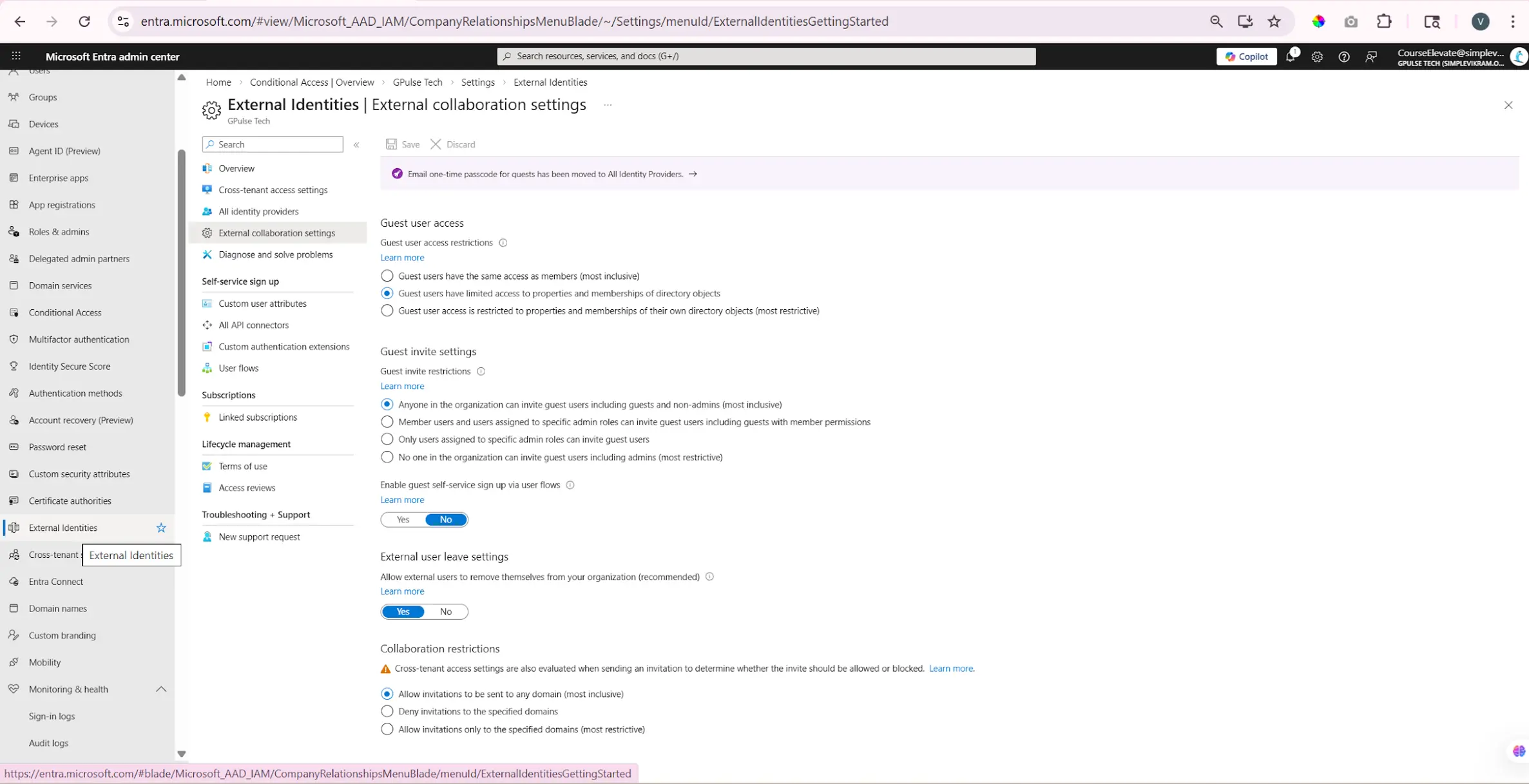
Step 2: Share the App with External User
After enabling external collaboration, go to Power Apps and open your app.
- Click on Share
- Enter the external user’s email
- Send the invitation
Step 3: External User Access
The external user will receive an email invitation.
- User accepts the invitation
- Signs in using their own account
- Gets access to the app
Access Control
Once the user is added:
- They are assigned as a guest user
- They have limited permissions
- They can only access what is shared with them
Example
A common example is a vendor portal built using Power Apps.
External vendors are invited as guest users using Microsoft Entra ID B2B. They log in using their own accounts and can update only their own information.
8. What is Azure AD B2B and How Does it Work with Power Apps?
Azure AD B2B (Business-to-Business) is a feature in Microsoft Entra ID that allows you to invite external users, such as partners or vendors, to access your Power Apps.
Instead of creating new accounts in your organization, these users can log in using their own company credentials.
How It Works
- External users are invited as guest users
- They use their own organization login credentials
- No need to create new accounts in your tenant
- Access can be granted or removed easily
This makes it easy to collaborate with users outside your organization while still maintaining security.
Benefits
- No account duplication
- Easy access management
- Secure authentication handled by their home organization
- Access can be tracked and audited
Example
Consider a company that has internal employees and also works with external vendors.
- The vendor is invited as a guest user
- The vendor logs in using their own company account
- The vendor gets access to the Power App
This allows organizations to securely collaborate with external users without managing separate credentials.
9. What is Role-Based Access Control (RBAC) in Power Apps?
Role-Based Access Control (RBAC) is a security model used to manage permissions in Power Apps.
Instead of giving permissions to individual users, you create roles, assign permissions to those roles, and then assign users to those roles.
This makes access management much easier and scalable.
How RBAC Works
- Create roles
- Assign permissions to roles
- Assign users to roles
Once a user is assigned to a role, they automatically get all the permissions defined in that role.
Key Benefit
- Change the role once → affects all users with that role
- Easy to scale from a few users to large teams
RBAC in Power Platform
RBAC helps define who can do what across Power Apps, Dataverse, and other Power Platform resources.
Permissions can be assigned to:
- Users
- Groups
- Applications
Example
In an HR Power App:
- HR Manager → Can edit employee data
- HR Staff → Can view employee data
- Employee → Can view their own profile
This approach ensures that access is controlled properly without managing permissions for each user individually.
10. Power Apps Security Interview Questions: How do you implement role-based security in Power Apps?
This is a key Power Apps security interview question that tests real implementation knowledge.
Role-based security in Power Apps can be implemented in different ways depending on the type of app and complexity.
The most common and recommended approach is using Dataverse security roles, but other methods are also used in real scenarios.
Approaches
- Dataverse security roles (Recommended)
- Azure AD groups (User management)
- SharePoint / Dataverse + formulas (Canvas Apps)
- Conditional logic inside Power Apps
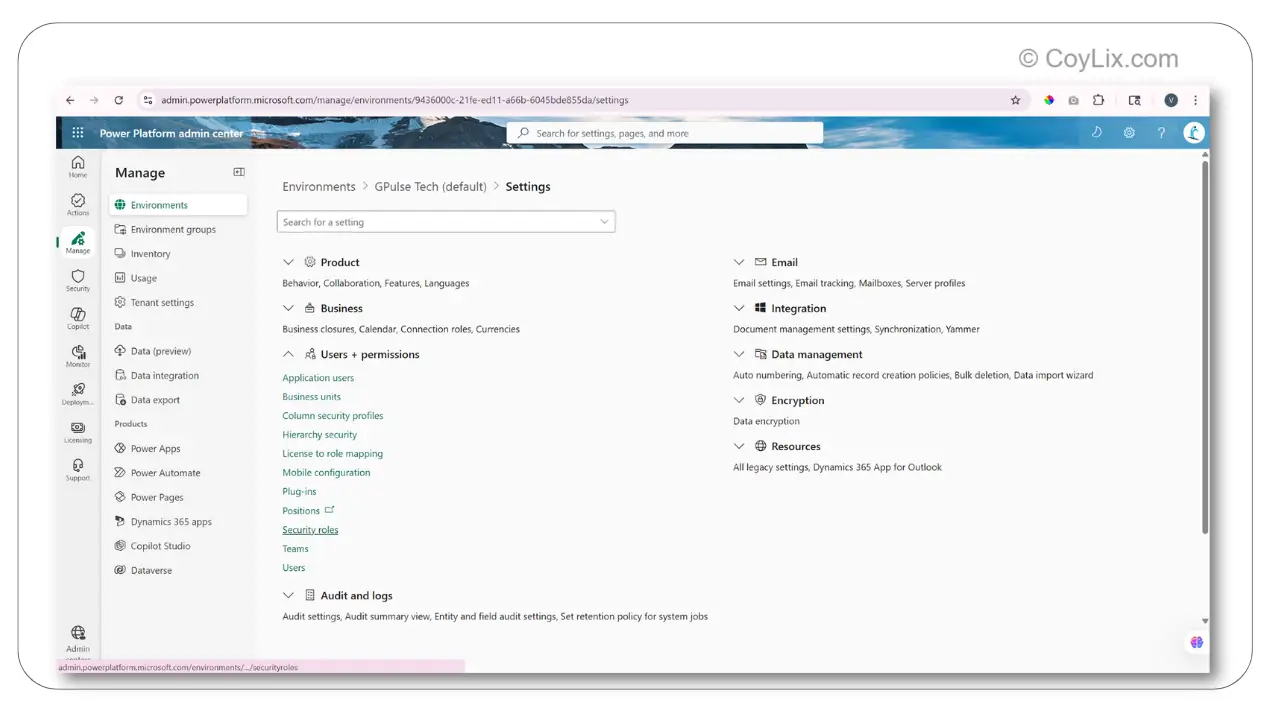
Approach 1: Dataverse Security Roles (Model-Driven Apps)
This is the most commonly used and scalable approach.
- Create a new security role in Power Platform Admin Center
- Set permissions like Create, Read, Update, Delete
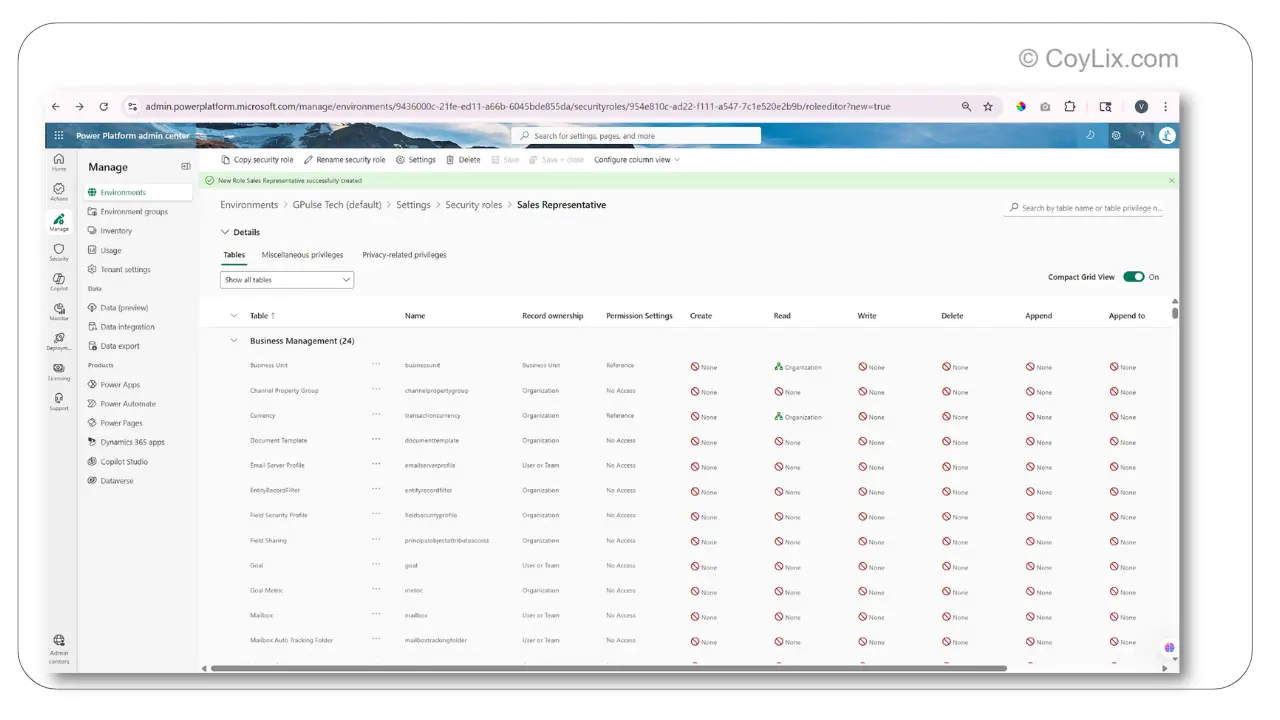
- Define access level (User / Business Unit / Organization)
- Assign the role to users
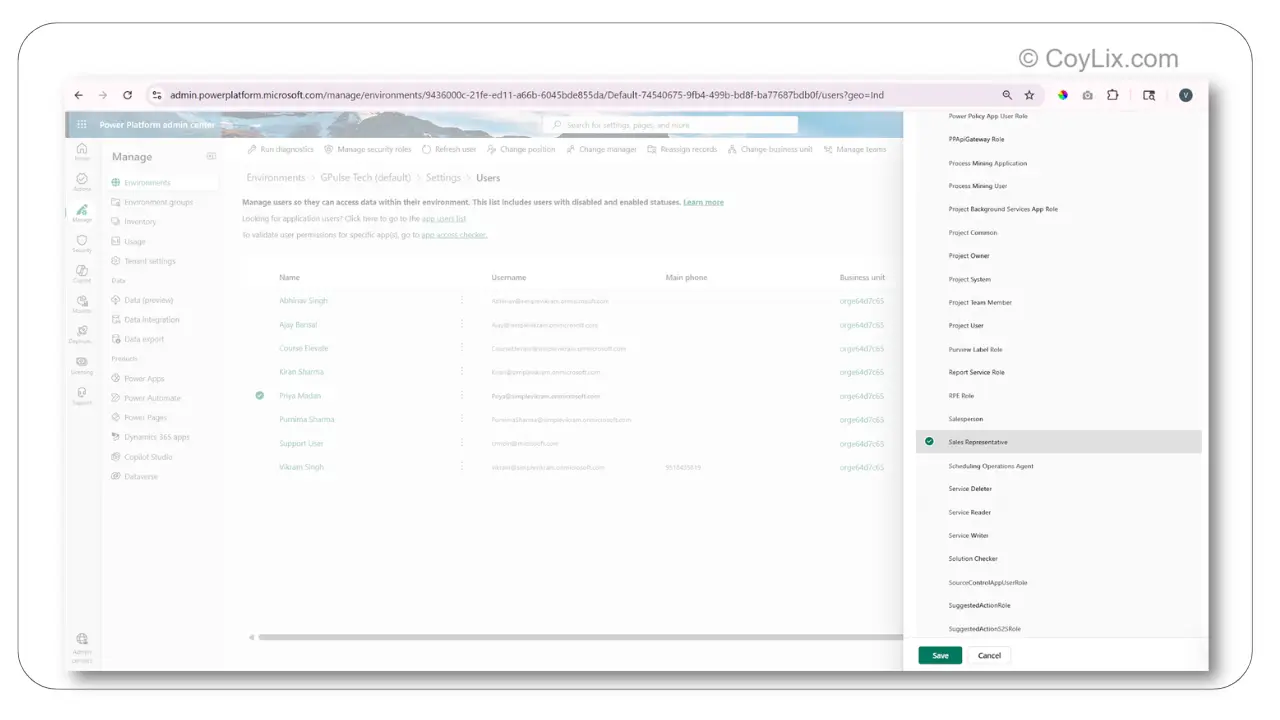
Once assigned, users can access data and perform actions based on their role.
Approach 2: Azure AD Groups (Scalable)
This approach is useful for managing large teams.
- Create a group in Microsoft Entra ID
- Add users to the group
- Assign security role to the group
This removes the need to assign roles individually.
Approach 3: Canvas Apps (Using Data Source)
In Canvas Apps, roles can be stored in SharePoint or Dataverse and used in formulas.
Set(varRole, LookUp('RolesList', Email = User().Email, Role))
You can then control UI or navigation based on the role.
Approach 4: Conditional Logic
If(User().Email = "manager@company.com",
   Navigate(AdminScreen),
   Navigate(EmployeeScreen)
)
This method works for small apps but is not scalable.
Better approach: Use Dataverse security roles instead of hardcoding logic.
In real-world applications, Dataverse security roles combined with Azure AD groups provide the most scalable and maintainable solution.
11. What is the Difference Between App-Level Security and Data-Level Security?
App-level security and data-level security control access at two different levels in Power Apps.
App-level security controls who can access the app and what features or screens they can see.
Data-level security controls which data records a user can see or modify inside the app.
Difference
- App-Level Security → Controls access to app and screens
- Data-Level Security → Controls access to data records
Example
Consider a sales or HR application:
- App-level security decides whether a user can access an Admin screen
- Data-level security decides whether the user can see specific records like another employee’s data
Key Understanding
- App-level security is broader (feature-level control)
- Data-level security is more detailed (record-level control)
Both are used together to ensure users can access only what they are allowed to see and do.
This is a common concept asked in Power Apps security interview questions to test access control understanding.
12. How do you Restrict Users from Accessing Specific Screens in Power Apps?
You can restrict users from accessing specific screens in Power Apps using different approaches depending on the type of app.
Method 1: Visibility Conditions (Canvas Apps)
In Canvas Apps, the common approach is to control screen visibility using roles and variables.
Step 1: Store User Role in Variable
Set(varRole,
 LookUp('RolesList', Email = User().Email, Role)
)
Step 2: Control Screen Visibility
"System Administrator" in varRole.Name
Step 3: Result
- Admin user → Screen visible
- Regular user → Screen hidden
This ensures that only users with the required role can access specific screens.
Method 2: Security Roles with Views (Model-Driven Apps)
In Model-Driven Apps, screen-level access is controlled using security roles and views.
- Assign security roles to specific views
- Control which users can see which views
Example – Sales App:
- Sales Manager → Can see “All Accounts” and “My Accounts”
- Sales Rep → Can see only “My Accounts”
This approach ensures that users only see the data and screens relevant to their role.
13. How do you Implement Record-Level Security?
Record-level security controls which data records a user can see and modify in Power Apps.
It is implemented using security roles and access levels in Power Platform.
This ensures that users only see the data they are allowed to access.
How it is implemented
- Use security roles to define permissions
- Use business units to organize users
- Assign users to roles and business units
- Verify access based on assigned roles
Access Levels
- Organization Level
User can see all records
Example: CEO can see all accounts - Business Unit Level
User can see records within their department
Example: Regional manager sees only their region data - Business Unit + Child Business Unit
User can see data from their unit and sub-units
Example: VP sees regional and territory data - User Level
User can see only their own records
Example: Sales rep sees only their own opportunities
These access levels help control how much data each user can access based on their role in the organization.
Record-level security is a key topic in Power Apps security interview questions for real-world implementations.
14. How do you Restrict Users from Viewing Certain Data Records?
To restrict users from viewing certain data records in Power Apps, you must understand one key rule.
Important Rule:
- Permissions are cumulative
- The highest access level always wins
This means if a user already has Organization-level access, you cannot restrict specific records—they will still see all data.
Key Approach
Always start with restrictive access and then give additional access when needed.
- Do NOT give broad access first and try to restrict later
- Start with minimum access (User level)
Correct Implementation
- Step 1: Set Read access to User level (not Organization)
- Step 2: Share records when needed
To share a record:
- Open the record
- Click Share
- Grant Read or Write access
Methods to Restrict Data
- Record Ownership
Users can see only their own records - Business Units
Users can access data within their department - Field-Level Security
Sensitive fields (like salary) can be hidden
This approach ensures that users only see the data they are allowed to access, while still maintaining flexibility when sharing is required.
15. Power Apps Security Interview Questions: How does Power Apps handle data security with external data sources?
When Power Apps connects to external data sources like SharePoint or SQL, it does not store user credentials.
Instead, it uses Microsoft Entra ID and runs based on the identity of the logged-in user.
This means the app accesses data using the user’s permissions, not a shared account.
How it works
- Power Apps uses Microsoft Entra ID for authentication
- The app runs as the logged-in user
- Credentials are not stored inside the app
- The external system controls data access
So, security is enforced at both the application level and the data source level.
Example (SharePoint)
- User logs into Power App
- Microsoft Entra ID verifies identity
- SharePoint checks user permissions
- User sees only the data they are allowed to access
So even though the app is the same, different users will see different data based on their permissions in the external system.