
Beginner

Intermediate

Expert

Scenario Based

Review the All Piller page

2104 Views
Facebook
Twitter
LinkedIn
WhatsApp

150+ Power Automate Interview Questions and Answers

Welcome to the ultimate resource for Power Automate interview questions and answers. Our goal is to create a library of **150+ carefully curated questions** that cover everything from Power Automate basics to advanced and expert-level scenarios. This page is constantly updated with fresh and relevant  interview questions asked in real interviews. Whether you are just starting out or aiming for senior roles, you’ll find step-by-step answers, practical examples, and up-to-date explanations to help you succeed in your Power Automate interview preparation. Bookmark this page and revisit often to access the latest updates.

For deeper technical insights, you can also explore the official Microsoft Power Automate documentation to strengthen your understanding of core concepts.  Bookmark this page and revisit often to access the latest updates.

Free Power Automate Interview Questions E-Book


Table of contents

Basic Power Automate Interview Questions

Intermediate Power Automate Interview Questions

Advance Power Automate Interview Questions

Power Automate Real-World Interview Scenarios

Updated Oct 26, 2025 — Latest improvements added to the Power Automate interview question set.
Check back soon for more real interview questions and answers.
1. How would you describe Power Automate in simple words?An Essential Interview Question

Power Automate is a cloud-based automation tool from Microsoft. It’s a digital assistance that helps you automate your repeating tasks. It uses a visual designer with pre-built connectors and triggers to create flows.

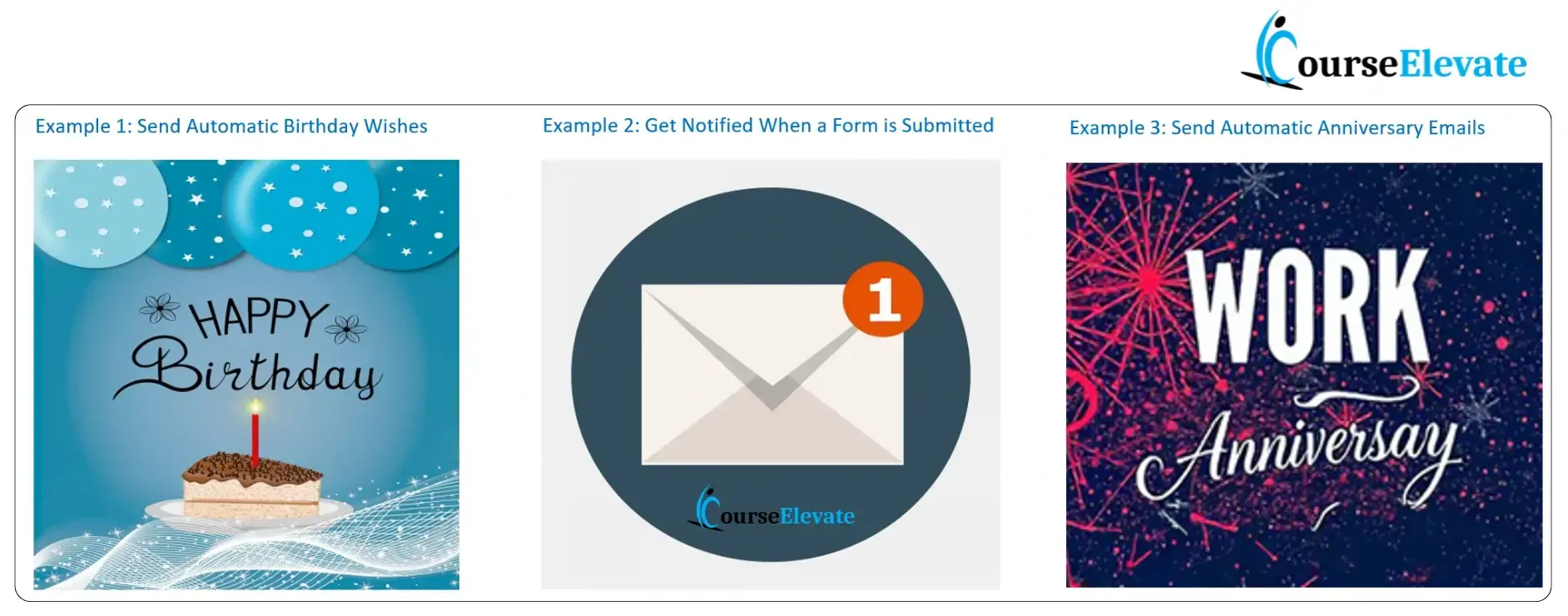
Following are the examples:
Power Automate Interview Questions - CourseElevate

  • Send Automatic Birthday Wishes – Power Automate can automatically send personalized birthday emails without manual effort.
  • Get Notified When a Form is Submitted – It instantly alerts you via email or message when someone submits a form.
  • Send Automatic Anniversary Emails – It helps send scheduled anniversary or work milestone emails to employees automatically.


2. Can you give an example of a simple flow?

Yes, here’s a practical one. For an HR team, I created a flow that:

  • Starts when a candidate submits a job application form.
  • Automatically adds their details into SharePoint List.
  • Sends a personalized email to candidate confirming that their application has been submitted.

This may sound simple workflow, but it saved the HR hours every week because they no longer had to do these steps manually.

3. What are the triggers in Power Automate?

A trigger is the event that starts your flow. Without a trigger, the flow won’t know when to run.

There are 3 types of triggers in Power Automate.

  • Manual Triggers – Flow starts only when a user manually triggers it, e.g user clicks on a button to generate the PDFs.
  • Automated Triggers – Flow starts automatically when an event happens. E,g When a new email arrives in Outlook then save email attachment to OneDrive.
  • Scheduled triggers – Flow starts at a specific time or on a recurring schedule. E.g. schedule a flow to run every morning at 9 AM to send daily reports.
    diagram


4. What are actions in Power Automate?

Actions are the steps to perform when flow is triggered. Each action performs the specific operation.

For example

  • “Send an email (V2)” action is used to send an email from the flow. You need to provide details like recipient’s address, subject, and body of the email.
  • Post a message in Teams that a new task entry has been added in the Microsoft Planner.
  • Copy a file to SharePoint library.

5. Can you share one example that combines trigger and action?

Here’s one of real example that explains both concepts clearly:

  • Trigger: When a new file is uploaded to a SharePoint library.
  • Action: Automatically send a Teams notification to the project manager with the file link.

In just a few clicks, you’ve connected two apps (SharePoint and Teams) without writing a single line of code. That’s the real magic of Power Automate.

6. How does Power Automate connect to different apps?

Power Automate connect with different apps using connectors. These connectors act like bridges between your flow and the app or service.

These connectors come with ready-made triggers and actions which makes it easy to automate tasks without writing code.

To set up a connection, you usually performs following steps:

  • Search for the app or service you want to connect to (for example, SharePoint, Twitter, or Salesforce).
  • Authenticate the connector with your account credentials.
  • Use the available triggers and actions to design your flow.

Some connectors are standard, included with your Power Automate license, while others are premium and may require additional licensing. If an app doesn’t have a pre-built connector, you can also create a custom connector to connect via its API.

You can watch below video to create custom connectors in Power Platform

7. What types of flows are available in Power Automate?

There are six types of Power Automate flow.

1. Automated Cloud Flow
2. Instant Cloud Flow
3. Scheduled Cloud Flow
4. Describe It to Design It
5. Desktop Flow (RPA)
6. Process Mining

Click on below button to watch detailed blog on the types of Power Automate Flow.

View Detailed Answer

8. How can you loop through a list of items in Power Automate?

In Power Automate, you can loop through a list of items using the Apply to each control. This control iterates over each item in an array list. Within Apply to each you can add action on each item.

Let’s have an example

You have a SharePoint list of student names.
â€ĸ Get items → fetches all students.
â€ĸ Apply to each → goes through each name one by one.
â€ĸ Inside the loop, add an action (like Compose) and pick the Title field.

You can fetch the title with below formula

item()?['Title'] 

If your list has Amit, Priya, John → the flow will run 3 times:

â€ĸ First: Amit
â€ĸ Second: Priya
â€ĸ Third: John

👉 in short: Apply to each = process every item in your list, one at a time.

9. What are connectors in Power Automate?

In Power Automate, connectors act like bridges that allow your flows to interact with different apps, services, and data sources.
Think of connectors as ready-made plugs – they make it possible for Power Automate to talk to apps like Outlook, SharePoint, Excel, Microsoft Teams, Twitter, OneDrive, SQL, and hundreds more without needing any code.

Example

Imagine you want to post a Teams message every time a new item is added to a SharePoint list:

â€ĸ SharePoint connector → detects when a new item is added.

â€ĸ Microsoft Teams connector → sends a message in a Teams channel with the item details.

This way, your team instantly gets notified without you having to check the SharePoint list manually.

Types of Connectors

1. Standard Connectors

2. Premium Connectors

3. Custom Connectors

Here are the list of available connectors from Microsoft website 

10. What’s the difference between a standard and premium connector?

In Power Automate, connectors are classified as Standard or Premium based on their availability and licensing requirements.

Standard Connectors

These connectors are included with your Microsoft 365 subscription. You don’t need to pay extra to use them. They cover common Microsoft services and popular apps. Example: SharePoint, OneDrive, Outlook, Teams

Premium Connectors

These connectors require an additional license or plan. These are usually enterprise-level apps or services that need advanced integration. Example: Salesforce, Adobe PDF Services, SAP.

11. How does Power Automate differ from Power Apps?

This is a very common interview question, and it’s important to answer it clearly because many beginners get confused between the two.

Power Automate is all about automation.

It helps you connect different apps and services so that repetitive tasks run automatically. For example When a new file is uploaded to OneDrive → Send a Teams notification to the project team.


Power Apps is all about building applications.

It allows you to create custom apps (web or mobile) without writing heavy code. These apps can capture data, show dashboards, or even integrate with Dataverse and other systems.:


Real-world example where they work together:

A custom Leave Request app where employees can submit requests, and managers can approve or reject them.
In the Leave Request App built in Power Apps. When a request will be submitted from power apps, then Power Automate will be kicked in to send approval emails to managers and update the SharePoint list.

Here

  • Power Apps handled the form and interface.
  • Power Automate handled the workflow

1. Describe a situation where you would use a ‘Do Until’ loop instead of a simple loop in Power Automate?

In Power Automate, we normally use Apply to Each when you want to loop through a list of items.

But sometimes, we don’t know how many times you need to repeat a step—you just want to keep going until a certain condition is met. That’s where the Do Until loop comes in handy.

Example

Suppose you want to create a flow when someone approves the holiday? Or someone approves the expense report. In Practical scenarios this do until loop is combined with delay function.

So once work flow performs some task say sending an email, then pause for some time say 1hr, 2 hr or a day/week then try again.

Key take Away

We use Do until loop when we don’t know the exact number of Iterations but we know the condition that should end the loop.

Do untill Loop in Power Automate - CourseElevate

2. How do you share a flow with someone else?

You can share a flow in different ways, depending on your purpose:

  • Notifications → Add emails/Teams users to alerts without sharing the flow.

  • Send a Copy → Share flow logic; recipient gets their own version.

  • Export as Package (.zip) → Move flows between environments or share externally.

  • Co-owner Access → Collaborate directly, but share only with trusted people.

  • Save As → Create your own duplicate for testing or backup.

I’ve written a detailed answer on this topic so that In Interview you can explain this in depth. Click the button below to learn more.

View Detailed Answer

3. How do you monitor your Power Automate flow?

Monitoring Power Automate flows ensures your automation runs smoothly and helps you quickly identify issues when something goes wrong. Here are the main ways to keep track of your flows:

1. Run History (Power Automate Portal)

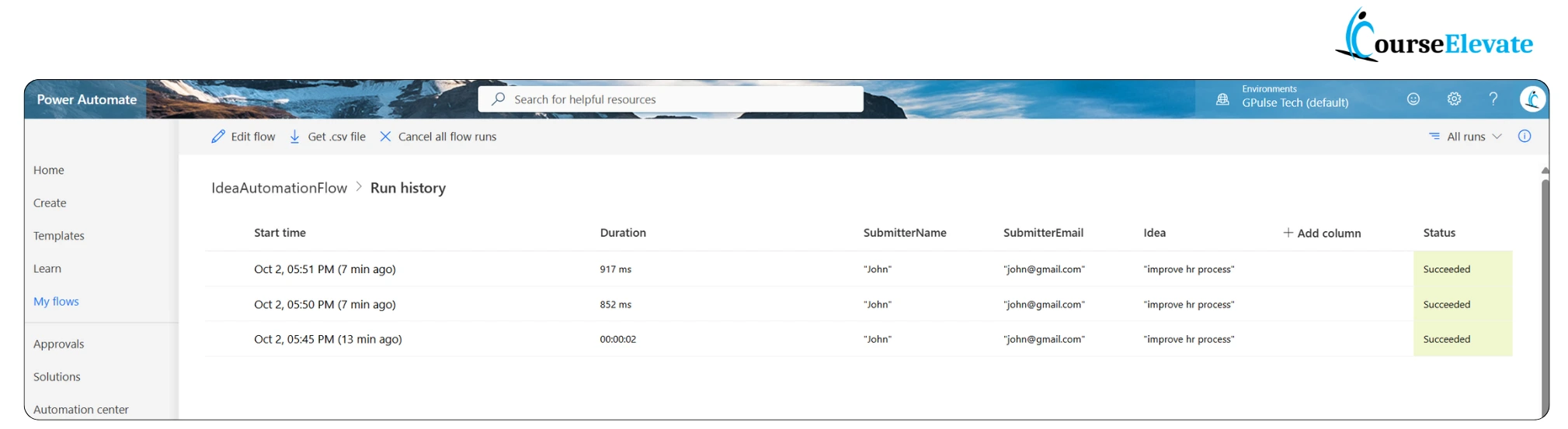
  • Navigate to Flow → Run History to view each execution.

  • You’ll see:

    • Date and time the flow started

    • Total run duration

    • Input parameters passed

    • Final status (Success or Failure)

  • This is the most common way to troubleshoot specific flow runs.

Power Automate Interview Questions-flow-run-History

2. Analytics Tab

  • Found in the flow’s Details page, the Analytics tab provides built-in dashboards.

  • You can review:

    • Usage trends (last 7, 14, or 30 days)

    • Error rates

    • Performance bottlenecks

  • Perfect for spotting recurring issues or measuring adoption.

3. Power Platform Admin Center

  • Ideal for administrators managing flows across environments.

  • Provides an overview of:

    • Failed runs at scale

    • Connector usage

    • Environment-level capacity insights

4. Notifications & Alerts

  • Enable email or mobile app notifications for flow failures.

  • This allows you to get alerts instantly without manually checking run history.

5. Center of Excellence (CoE) Kit

  • Larger organizations often deploy the Power Platform CoE kit.

  • It sets up advanced monitoring, automated alerts, and governance dashboards.

  • Helpful for proactively managing hundreds of flows across teams.

 Summary

In real-world scenarios, the right monitoring option depends on your role:

  • Run History & Analytics → best for makers tracking individual flows.

  • Admin Center & CoE Kit → best for IT admins managing environments.

  • Notifications → best for quick, proactive alerts.

 By combining these tools, you can ensure your Power Automate flows remain reliable, scalable, and error-free.

4. If a flow fails, how do you figure out the reason?

Troubleshooting a failed flow means identifying the failing step, understanding the cause, and applying the right fix.

Basic steps to follow

  • Run history & logs: Locate the failing step and check error messages.
  • Error details: Often point to fixes like expired connections or invalid inputs.
  • Recent changes: Verify if updates to flow, connectors, or environment caused the issue.
  • Input data: Confirm values are correct and complete.
  • Connectors & permissions: Ensure services are available and connections valid.
  • Testing: Run smaller parts or test data to isolate the issue.
  • Monitoring tools: Use analytics/alerts for recurring errors.

I have written detailed steps on this. Click the link below to learn detailed answer on this.

View Detailed Answer

5. How do variables work in Power Automate, and how are they used to pass data between actions?

In Power Automate, variables act as temporary storage to hold and reuse values across different actions in a flow.

Key Points

  • Initialization: Use the Initialize variable action to define a variable’s name, type (String, Integer, Boolean, Array, Object), and optional default value.
  • Update or Append: Variables can be updated using Set variable or expanded using Append to variable (for strings/arrays).
  • Usage: Once initialized, a variable can be referenced in conditions, loops, or action inputs, avoiding repeated calculations or data fetches.
  • Best Practices: Initialize variables early, use them only when needed (e.g., counters, aggregations), and keep scope in mind for efficiency.

Example
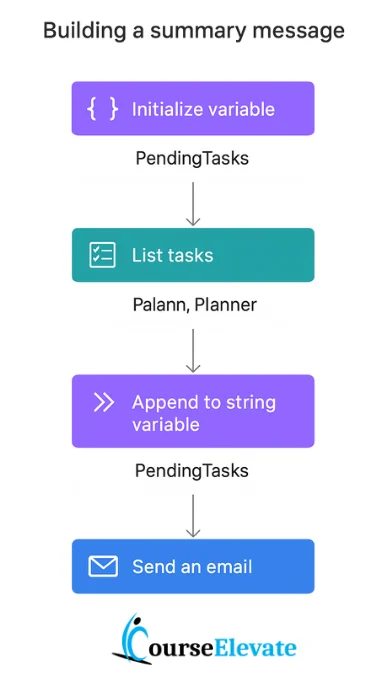
A common use case is collecting pending tasks into a string variable during a loop, then inserting that variable into an email body to send a clean summary.

Summary
Variables make flows more dynamic, reusable, and efficient by enabling data sharing between actions.

Working with Variables in Power Automate

6. How do you use the Terminate action and Configure Run After?

These are your emergency exits and backup plans.

Terminate: Ends the flow with a status—Success, Failure, or Cancelled. Useful when you want to stop the flow early.

Configure Run After: Lets you run actions based on the outcome of previous steps (e.g., only if it fails).

Think of it like a train journey:

â€ĸ Terminate is like pulling the emergency brake. You stop the flow immediately and decide how it ends—success, failure, or cancelled.

â€ĸ Configure Run After is like setting up a backup route. If one train track is blocked (an action fails), you switch to another track (run a different action).

Real-Life Example: Payment Processing Flow

Let’s say you’re building a flow that processes payments via an API:

1. The flow calls the payment API.
2. If the API call fails, you use Configure Run After to Log the error in SharePoint & Send a failure notification.
3. Then, you use Terminate to stop the flow and mark it as Failed, so it doesn’t continue with further steps like sending a receipt.

7. How do you use the HTTP action to make REST API calls?

If you’re integrating Power Automate with external systems, knowing how to use the HTTP action is essential. It’s your gateway to the outside world—whether you’re sending data to a shipping service, retrieving customer info from a CRM, or updating records in a third-party app.

The HTTP action is your gateway to the outside world. It’s like sending a letter to a service and getting a reply.

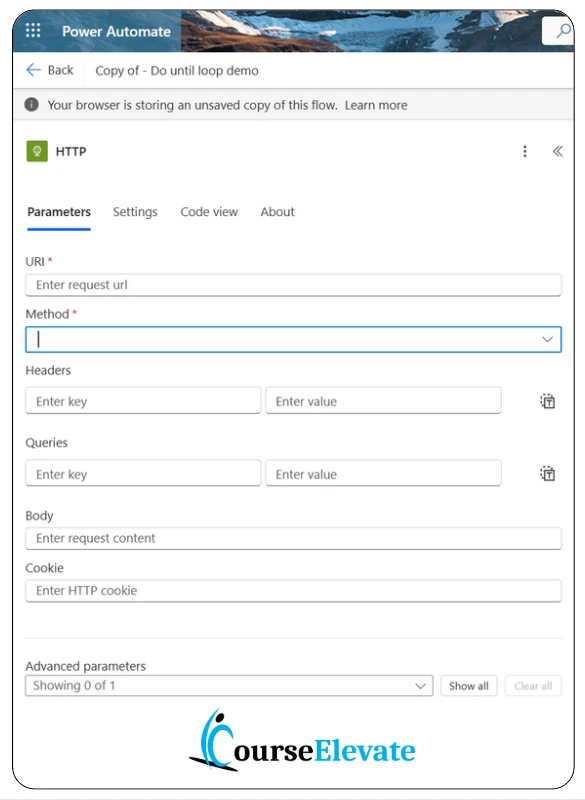
Steps:

â€ĸ Choose method (GET, POST, DELETE, PATCH etc.)
â€ĸ Add URL
â€ĸ Set headers (e.g., Content-Type, Authorization)
â€ĸ Add body (for POST/PUT)

Real-Life Example: Shipping API Integration

Let’s say you run an e-commerce store. When a customer places an order:

1. A flow is triggered.
2. It uses the HTTP action to send order details to a shipping API.
3. The API responds with a tracking number.
4. The flow sends an email to the customer with their tracking info.

HTTP Rest API - Power Automate Interview Questions - CourseElevate

8. What is the role of concurrency control in loops?

Power Automate gives you the option to process multiple items in a loop simultaneously, which can speed up your flow—but it comes with trade-offs.

Benefits of using Concurrency Control:

â€ĸ Faster execution: Multiple items are processed at the same time.
â€ĸ Efficient for large datasets: Ideal when you’re looping through hundreds or thousands of items.
â€ĸ Better performance: Reduces overall flow runtime.

Concurrency control in power automate - Interview Question

How to Enable Concurrency Control
1. Click on the loop (Apply to Each) in your flow.
2. Go to the Settings (gear icon).
3. Turn on Concurrency Control.
4. Set the Degree of Parallelism (e.g., 5, 10, 50).

This number controls how many items are processed at the same time.

Real-Life Example: Email Campaign Flow

Let’s say you’re sending emails to 500 customers:

â€ĸ Without concurrency: The flow sends one email at a time—it could take hours.

â€ĸ With concurrency enabled (set to 10): The flow sends 10 emails at once, reducing the time significantly.

But if your email service has a limit (e.g., 100 emails per minute), you might want to keep the concurrency low to avoid throttling.

Concurrency control example - CourseElevate

9. How do you manage flow versions and deployments across environments?

Managing flows across environments is like managing code across dev, test, and production. You need proper structure for this.

Best Practices:

â€ĸ Use Solutions: Package flows inside solutions. This allows export/import between environments.

â€ĸ Environment Variables: Replace hardcoded values (like URLs or credentials) with environment variables.

â€ĸ Version Control: Keep a changelog or use naming like v1.2 – Added retry logic to maintain proper versions.

â€ĸ Test Before Deploying: Always test in a sandbox before pushing to production environment.

Manage flow versions in Power Automate - CourseElevate

Real-Life Example:

We built a document approval flow for HR. It was first deployed in a dev environment, tested with dummy data, and then moved to production using a managed solution.

10. What is the difference between Compose and Initialize Variable?

Compose: is a lightweight action which can be used to store a value or the result of an expression temporarily. It’s ideal when:

  • You need to store a value temporarily.
  • You don’t need to update the value
  • You don’t need to provide its data type

Initialize Variable creates a named variable with a defined type (String, Integer, Boolean, Array, Object). It’s useful when:

  • You need to update the value later.
  • You want to reference it across various steps
  • You are working with loops or conditional logic

Comparison between Compose and Initialize Variable

Feature Compose Initialize Variable
Naming Required ❌ No ✅ Yes
Can Update Value ❌ No ✅ Yes
Type Specification ❌ No ✅ Yes (String, Integer, etc.)
Ideal For One-time use, expressions Reusable, updatable data
Performance Impact ✅ Lightweight âš ī¸ Slightly heavier
Example Used to store a one-time value or expression result, like price * 0.1 for calculating a discount. Used to create a named value that can be updated later, like TotalAmount to accumulate order totals in a loop.

11. How do you use the Filter Array action effectively?

Filter Array helps you work efficiently with large datasets by extracting only the data you actually need.

How to use:

To use it, simply set your conditions, combine multiple rules if required, and always test using real sample data.

Real-Life Example:

In a flow that handles employee records, I use Filter Array to pick only those whose contracts end this month. Then, I send them renewal reminders automatically.

12. How do you handle null or empty values in a flow?

Think of null values like potholes in a road—if you don’t watch out, your flow might crash.

How to Handle Them:

  • Use empty() to check if a field is blank.
  • Use coalesce() to give a backup value if something is missing.
  • Add a condition before using any data that might be null.

Real-Life Example:

In a birthday email flow, I check if the DateOfBirth field is empty. If it is, I skip the age calculation to avoid errors.

13. How do you structure a flow for readability and maintainability?

Think of your flow like a well-organized kitchen. If everything is labelled and grouped, then cooking becomes very easy. The same goes for Power Automate.
Here’s how I structure flows:

  • Use Scopes: Group related actions (e.g., “Data Preparation”, “API Call”, “Error Handling”) into scopes. It makes the flow visually clean and logically segmented.
  • Add Comments: Use the “Add a note” feature to explain why an action exists, especially if it’s doing something complex.
  • Consistent Naming: Name actions clearly, like Get Customer Record instead of Get items 2.
  • Avoid Deep Nesting: Too many nested conditions or loops make flows hard to debug. Keep it simple wherever possible.

Real-Life Example:

In a leave approval flow, I group actions into Request Validation, Approval Logic, and Notification. This helps future developers (or even me) understand the flow instantly.

FAQs

Power Automate is a cloud-based service that lets you create automated workflows between your favorite apps and services. It helps you synchronize files, get notifications, collect data, and automate repetitive tasks without extensive coding

Power Automate focuses on automating processes and workflows (the 'doing'), while Power Apps is for building custom user interfaces and applications (the 'interacting'). They often work together, with Power Apps triggering Power Automate flows.

A Trigger is an event that starts a flow (e.g., a new email arrives), acting as the 'when'. An Action is a specific task the flow performs after a trigger or another action (e.g., sending a notification), acting as the 'what to do'.

Common uses include automating approval processes, getting notifications for important events, synchronizing files between cloud services, collecting data from forms, and integrating various apps to streamline business operations.

Watch The Videos

Leave a Reply

Your email address will not be published. Required fields are marked *

Scroll to Top