

Sharing a flow in Power Automate is a common interview question and also an essential skill for real-world projects. Whether you are collaborating with colleagues, delivering a flow to a client, or simply sending notifications to stakeholders, Power Automate provides multiple ways to share flows securely.
In this guide, I’ll walk you through the different methods to share a flow, the risks involved, and when to use each approach.
1. Add People to Notifications (No Sharing Required)
Sometimes, when someone asks you to “share a flow,” what they really mean is: “Can another person get notified when this flow runs?”
In this case, you don’t need to give them access at all. You can just add their email address or Teams account in the notification step of your flow. For example, if a flow sends an email when a document is approved, simply add the other person’s email as a recipient.
👉 Best for: When the requirement is just to notify someone about flow actions without giving edit rights.
2. Send a Copy of the Flow
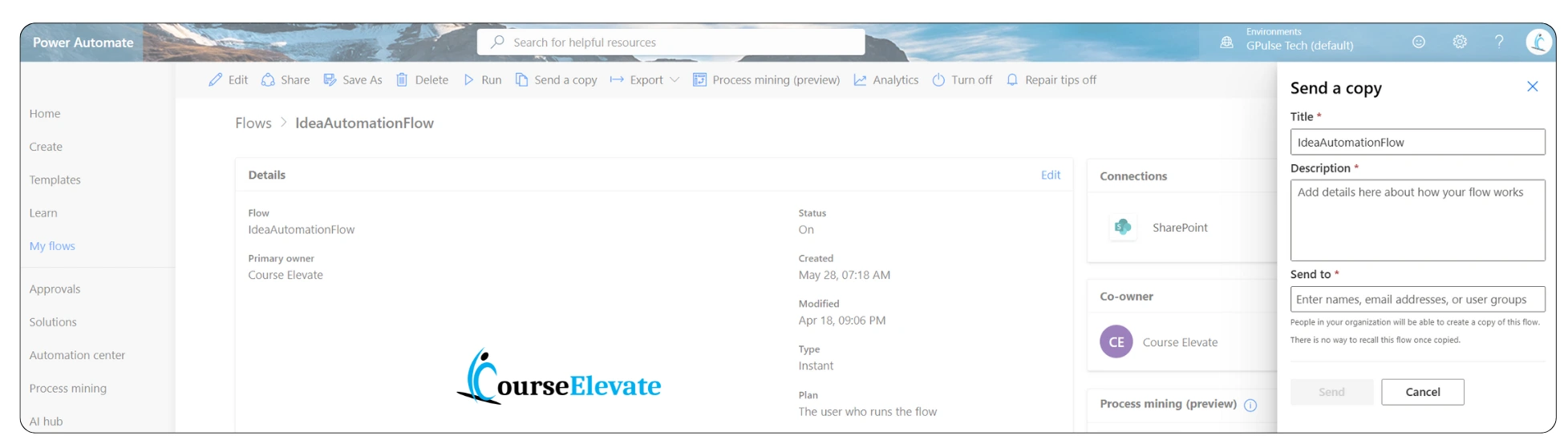
If you want to share the logic of your flow without exposing your personal connections (like Outlook or Gmail), you can use the Send a Copy option.
Here’s how it works:
-
Open your flow and select Send a copy.
-
Provide a title, description, and the recipient’s email.
-
They will receive a duplicate version of your flow.
⚠️ Remember: Before sending, always review and remove personal connectors. Power Automate will usually warn you if sensitive connections exist.
👉 Best for: Sharing flow templates or logic in a safe way.
3. Share a Flow- Export as a Package (.zip File)
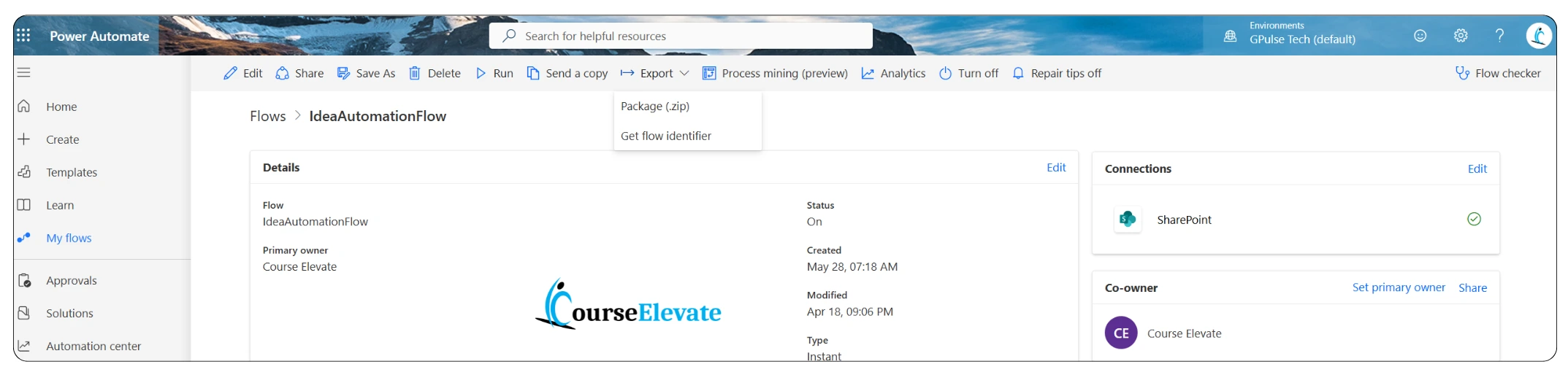
Another option is to export your flow as a package. This creates a .zip file that another person can import into their environment.
Steps:
-
Go to your flow → Export → Package (.zip).
-
Share the file with your colleague.
-
They can import it and run it independently.
The flow becomes separate from yours, meaning changes on their end won’t affect your original.
👉 Best for: Migrating flows across environments (Dev → Test → Production) or sharing with external users.
4. Share a flow as a Co-Owner
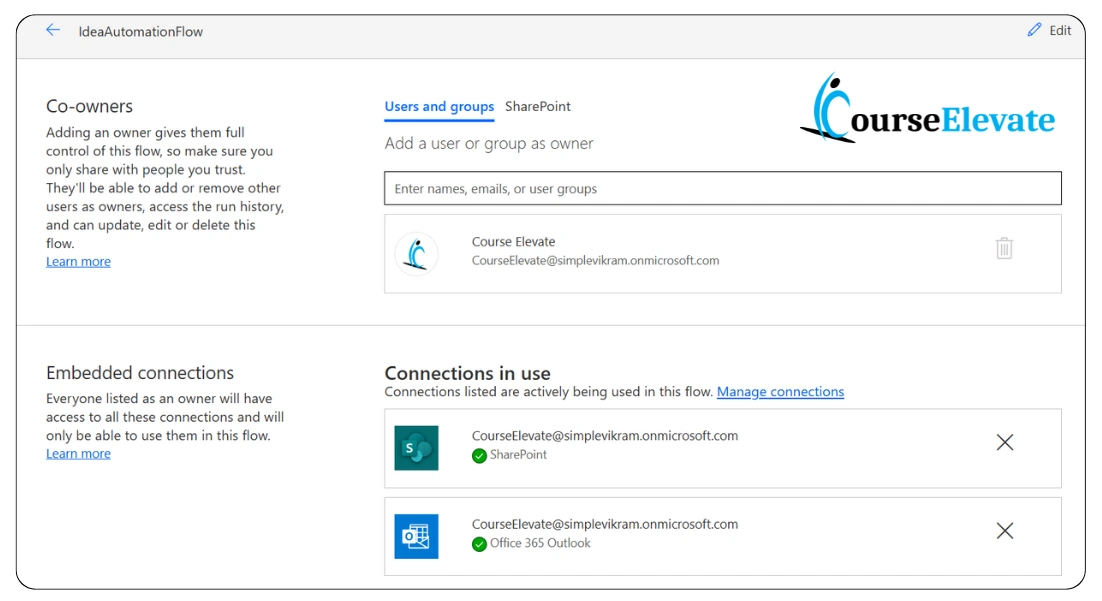
If you need to work collaboratively on the same flow instance, you can add someone as a co-owner.
When you do this:
-
They get full control over the flow.
-
Both of you share the same connections (like Outlook, Excel, or Gmail).
-
Any changes made affect the live version.
-
They can even remove you from the flow.
⚠️ Risks: Since co-owners have complete access, this option should only be used with teammates you trust fully.
👉 Best for: Teams that need to collaborate and maintain the same flow together.
5. Save As (For Personal Use)
If your goal is not to share, but to create a copy for yourself, you can use the Save As feature.
Steps:
-
Open the flow → Select Save As.
-
Give it a new name.All Custom Code

-
A duplicate is created (turned off by default).
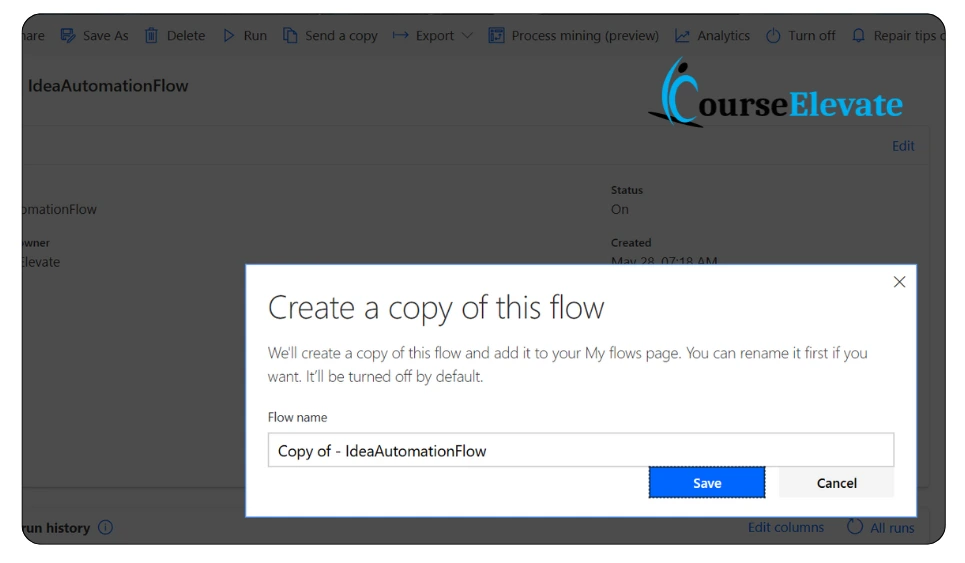
This allows you to make modifications safely without breaking the production flow.
👉 Best for: Testing, experimenting, or keeping backups of flows.
Best Practices for Sharing Flows in Power Automate
-
Use notifications when only alerts are required.
-
Choose Send a Copy or Export package for templates and migration.
-
Assign Co-owner rights only to trusted collaborators.
-
Always review and clean up connections before sharing.
-
Use Save As to create safe testing environments.
Final Thoughts
So, how do you share a flow with someone else in Power Automate? The answer depends on the purpose. If you just want to send alerts, use notifications. If you’re handing over logic, send a copy or export it. For full collaboration, add a co-owner—but only when you fully trust the person.
By mastering these options, you’ll not only ace this Power Automate interview question, but also handle real-world collaboration securely and effectively.
Return to All Power Automate Qustions



