
These Power Apps delegation interview questions help developers understand how delegation works, why delegation warnings occur, and how to design scalable apps.
1. What is Delegation in Power Apps?
Delegation simply means assigning data processing work to the data source instead of Power Apps doing it locally.
Think about the warehouse example.
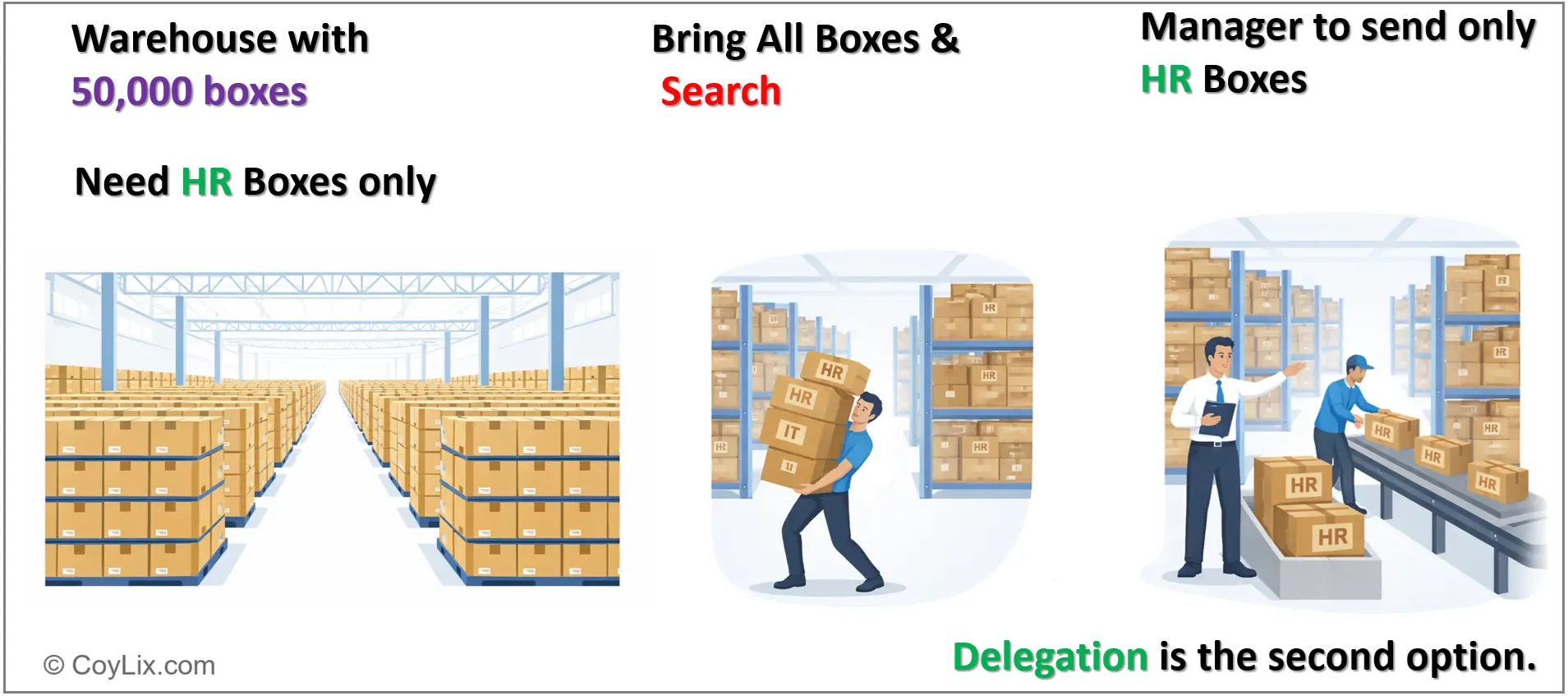
Delegation allows Power Apps to send filtering logic to the data source instead of processing all records locally- Coylix.
Imagine a warehouse with 50,000 boxes. If you want all boxes labeled “HR,” you can either bring all 50,000 boxes to your desk and search manually, or ask the warehouse manager to send only the HR boxes. Delegation is the second approach.
In Power Apps, when you write:
Filter(Employees, Department = "HR")
If this is delegable, the filtering happens on the server. The app receives only relevant records. If it is not delegable, Power Apps downloads a limited set of records and processes them locally.
That difference is critical. Delegation ensures scalability. Without it, large datasets produce incomplete results.
2. Why is Delegation Important?
Power Apps has local processing limits. It cannot handle very large datasets efficiently inside the client app.
If delegation works, the server filters the records before sending them. This reduces memory usage, improves speed, and ensures complete results.
If delegation fails, Power Apps processes only a limited number of records locally. In small datasets, you may not notice. But in production environments with thousands of records, this becomes a serious scalability issue.
Delegation is not just about avoiding warnings. It ensures:
- Correct data results
- Better performance
- Enterprise scalability
In interviews,
Always connect delegation to scalability and performance — not just technical behavior.
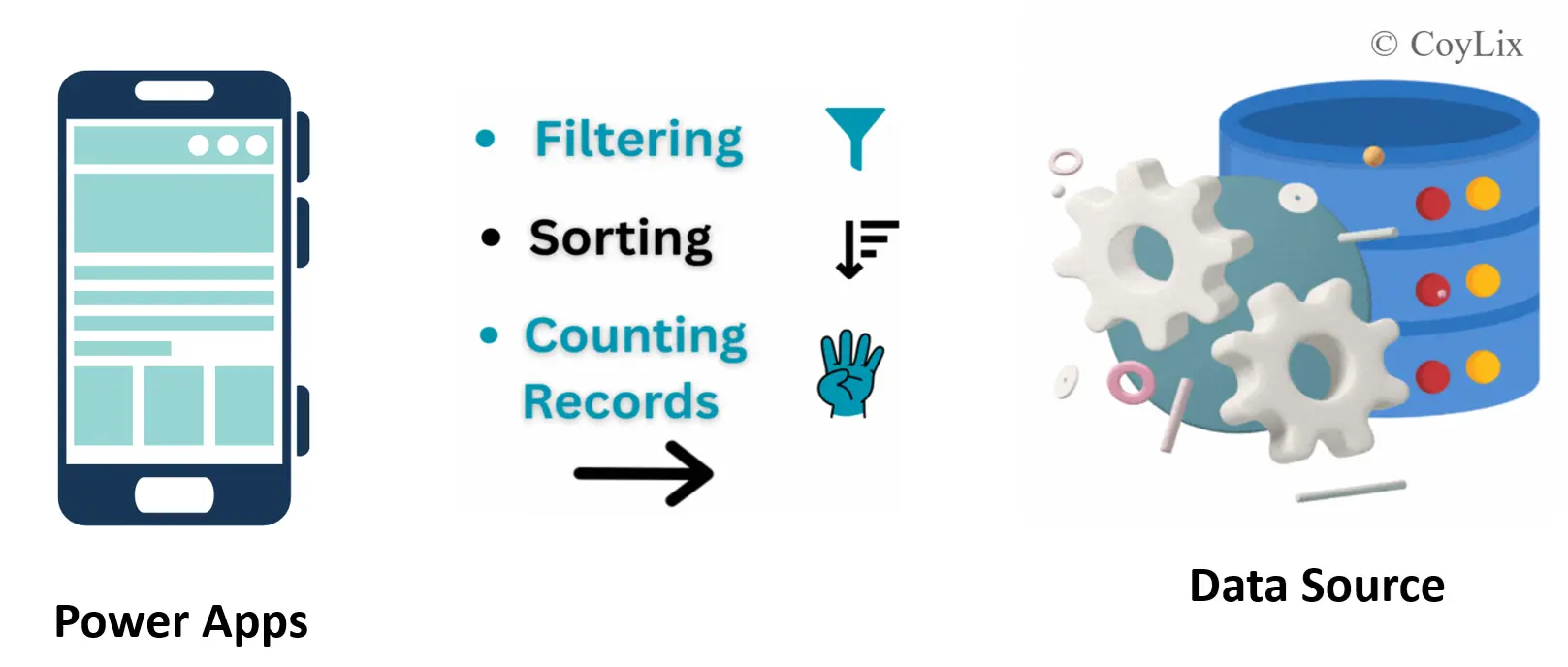
3. What is the Default Delegation Limit?
By default, Power Apps processes only 500 records locally. This can be increased to 2000 in App Settings.
However, increasing the data row limit does not fix delegation.
If a formula is non-delegable, increasing the limit only increases how many records are processed locally — it does not push logic to the server.
For example:
- Dataset = 10,000 records
- Data row limit = 2000
- Non-delegable formula → Only 2000 evaluated
The remaining records are ignored.
In interviews, make this clear:
Increasing the delegation limit is a temporary mitigation — not a solution.
4. What Happens When Delegation Fails?
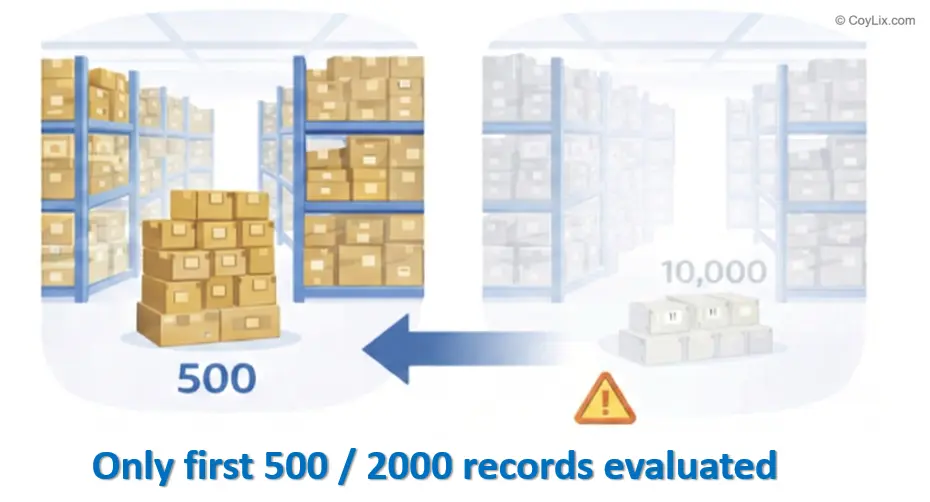
When delegation fails, Power Apps processes only the first 500 or 2000 records locally, depending on your data row limit setting.
Now imagine your SharePoint list contains 10,000 records. If your formula is non-delegable, Power Apps evaluates only the first limited set of records and ignores the rest. The app does not crash. There is no visible error. That is what makes this dangerous.
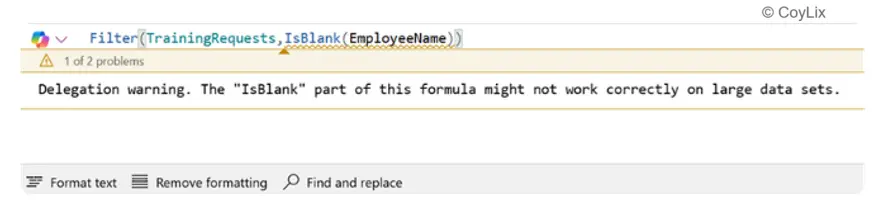
For example:
Filter(TrainingRequest, IsBlank(EmployeeName))
In SharePoint, IsBlank() is not delegable in certain scenarios. So Power Apps evaluates this condition locally. If relevant records exist beyond the delegation limit, they will not appear.
This is the delegation trap. Everything looks fine in testing. However, in production with large datasets, results become incomplete without obvious failure.
In interviews, explain that delegation failure leads to partial evaluation, not system failure.
5. What is a Delegation Warning?
A delegation warning appears as a blue underline in the formula bar along with a yellow triangle icon. It indicates that part of your formula cannot be delegated to the data source.
When you see this warning, it means some logic will execute locally inside Power Apps. The app may still run. However, only a limited number of records will be processed.
This is why delegation warnings should never be ignored in enterprise apps.
In small proof-of-concept apps, it may not cause visible issues. But in large production environments, this leads to incomplete filtering, missing records, and long-term reliability problems.
In interviews, say clearly:
Delegation warnings do not immediately break apps. They break scalability.
That shows architectural understanding.
 INTERMEDIATE LEVEL

6. Which Functions Are Non-Delegable in SharePoint?
Several functions do not support delegation in SharePoint. Common examples include:
- FirstN()
- Last()
- LastN()
- Choices()
- Concat()
- Collect()
- ClearCollect()
- Search()
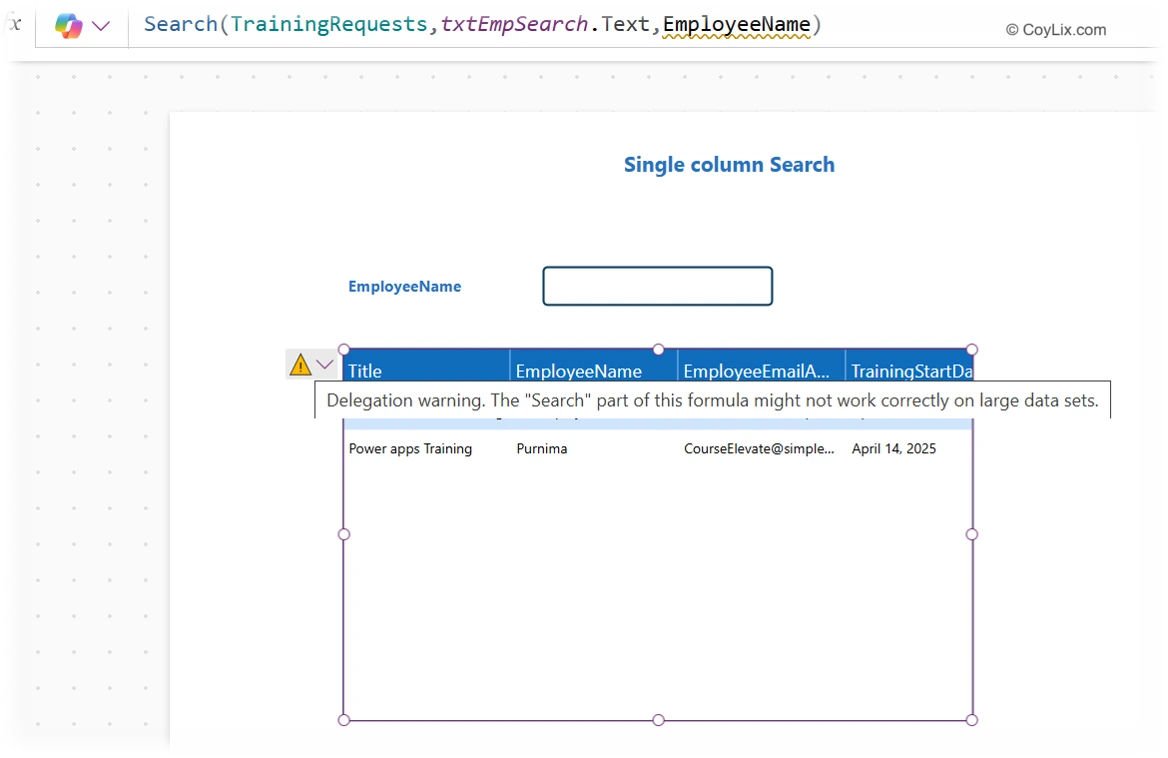
Let’s focus on a practical example:
Search(TrainingRequests, txtEmpSearch.Text, EmployeeName)
This works perfectly in small datasets. However, Search is not delegable in SharePoint. So Power Apps evaluates only the first 500 or 2000 records.
If your dataset grows, users may not see correct search results.
This is one of the most common delegation mistakes developers make. Therefore, understanding which functions are non-delegable is critical when working with large SharePoint lists.
Official Microsoft documentation on Power Apps delegation
7. What Are Delegable and Non-Delegable Functions in Power Apps?
Delegable functions push processing to the server. Non-delegable functions run locally inside the app.
Think again about the warehouse example. A delegable function asks the warehouse manager to scan the entire storage system. A non-delegable function asks you to manually check a limited section.
Functions like Filter(), Sort(), and logical operators such as And and Or are often delegable, depending on the data source.
However, functions like FirstN() or Search() (in SharePoint) may break delegation.
It is important to remember that delegation depends on three things:
- The function
- The operator
- The data source
In interviews,
Avoid saying “Filter is delegable.” Instead say: Filter is delegable if the data source and operator support it.
That sounds architect-level.
8. How to Replace a Non-Delegable Search in SharePoint?
Consider this formula:
Search(TrainingRequests, txtEmpSearch.Text, EmployeeName)
Search does not support delegation in SharePoint. Therefore, only limited records are evaluated.
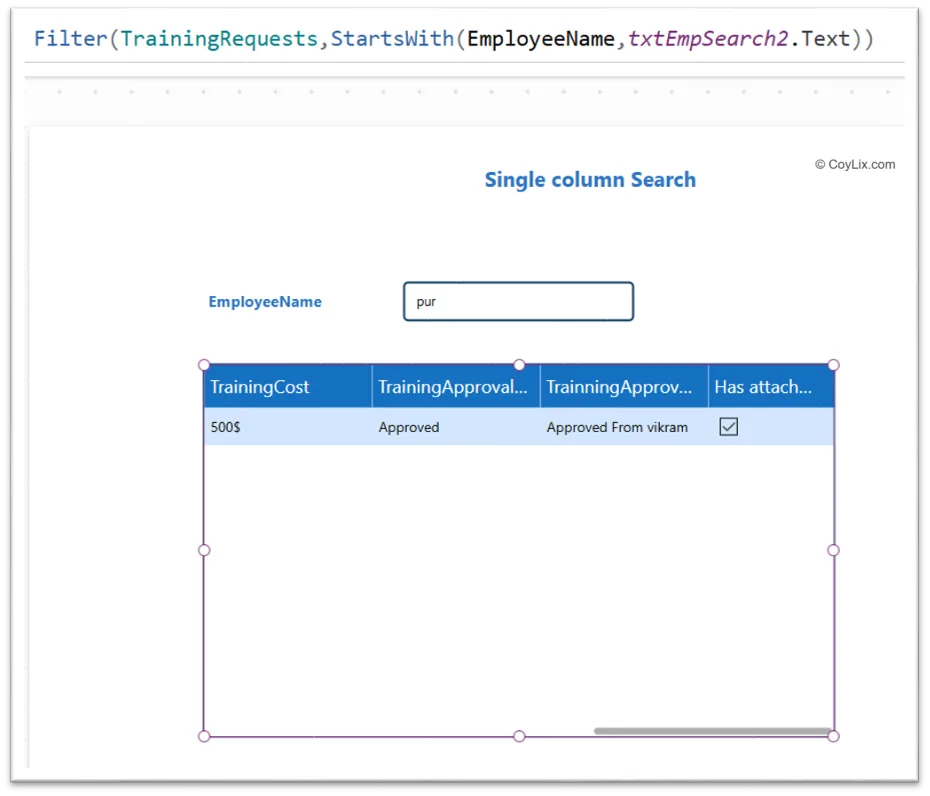
The delegable alternative is:
Filter(
TrainingRequests,
StartsWith(EmployeeName, txtEmpSearch.Text)
)
StartsWith supports delegation in SharePoint. This means the filtering happens on the server, and the full dataset is evaluated.
Although Search looks simpler, using StartsWith ensures accurate results in large datasets.
In interviews, clearly explain both versions and why one delegates while the other does not.
That shows practical understanding rather than memorized definitions.
9. What are the key factors that affect delegation in large datasets?
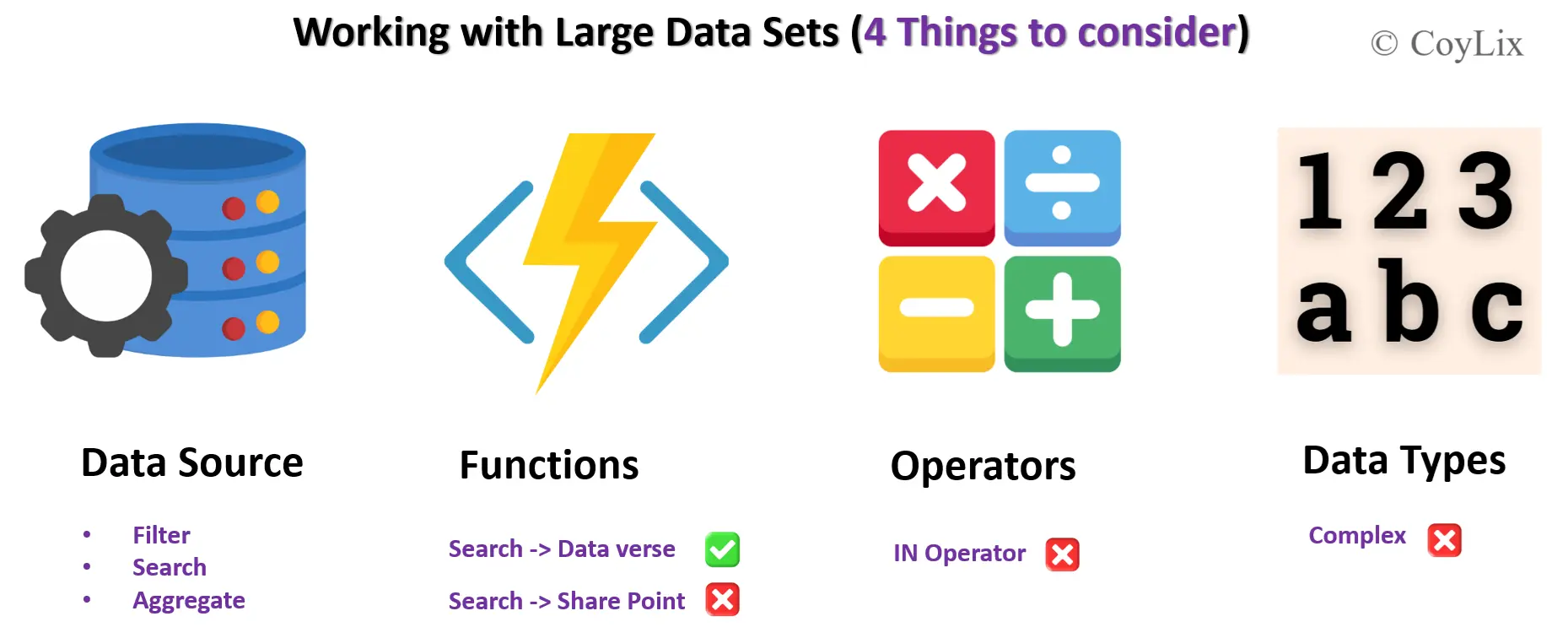
When working with large datasets, you must consider four key factors.
Data Source

Your data source must support delegation. If it does not, all queries are limited to the data row limit.
Functions

Some functions are non-delegable. For example, Search is delegable in Dataverse but not in SharePoint.
Operators

Even if a function is delegable, certain operators like In may break delegation.
Column Data Types

Filtering on complex or lookup columns may not delegate properly.
Therefore, delegation is not controlled by a single rule. It is a combination of data source capability, function support, operator usage, and column type.
Understanding these four pillars helps you design scalable apps from the beginning.
10. What Happens When a Delegation Warning Appears?
When a delegation warning appears, part of the formula runs locally. The app still works. However, only a limited dataset is evaluated.
This creates scalability risk.
The most important concept here is this:
- Warning does not mean immediate failure.
- Warning means future data risk.
As datasets grow, incomplete results become visible. In enterprise environments, that leads to business errors rather than technical errors.
In interviews, say this clearly:
Delegation warnings indicate partial evaluation and long-term reliability concerns.
That demonstrates architectural awareness.
ADVANCED LEVEL

These delegation interview questions are commonly asked in Power Apps technical interviews.
11. Why does delegation differ between SharePoint and Dataverse?
Delegation behavior differs because each data source has different server capabilities.
Dataverse is designed as a relational data platform. It supports more advanced delegable queries and operators.
SharePoint is list-based. Its query engine has limitations.
Think of two warehouses:
- One has advanced scanning systems.
- The other uses simpler list-based organization.
Therefore, the same formula may delegate in Dataverse but fail in SharePoint.
In interviews,
Always clarify that delegation depends on the data source architecture.
12. What Are SharePoint Delegation Limitations?
SharePoint supports delegation for many common operations, but it also has several limitations. Some functions and operators cannot be delegated, which means Power Apps may process only a limited number of records locally.
Common SharePoint Delegation Limitations
In operator is not delegable
Using the In operator inside a formula may break delegation when working with SharePoint.
Distinct() is not delegable
The Distinct() function cannot process large SharePoint datasets using delegation.
Search() is not delegable
The Search() function does not support delegation in SharePoint lists.
Limited aggregation support
Some aggregation operations such as complex counting or grouping may not delegate properly.
Complex lookup filtering
Filtering on lookup, person, or other complex column types may cause delegation issues.
Important Point
Delegation depends on the entire formula, not just the main function.
For example, Filter() is usually delegable. However, if you use a non-delegable operator like In inside the filter, delegation may fail.
That is why developers should always review the complete formula and data source capabilities when working with large SharePoint datasets.
Microsoft provides a full delegation support list here:
13. How does delegation impact performance?
Delegation plays an important role in the performance of Power Apps, especially when working with large datasets.
When delegation works properly, the data source performs the filtering and processing. Power Apps then receives only the required records instead of the entire dataset.
Benefits When Delegation Works
Faster loading time
The server processes the query and sends only relevant data to the app.
Reduced network traffic
Only a small amount of filtered data is transferred between the data source and Power Apps.
Lower memory usage
The app does not need to store or process large datasets locally.
Better mobile performance
Mobile devices have limited memory and processing power, so server-side processing improves the user experience.
When Delegation Fails
If delegation fails, Power Apps processes the data locally inside the app. In this case:
- Only the first 500 or 2000 records are evaluated.
- The app may become slower.
- Memory usage increases.
- Results may be incomplete or incorrect.
Key Insight
Delegation is not only about data accuracy. It also affects performance, scalability, and overall user experience in Power Apps.
14. What is the ForAll + Delegation Trap?
The ForAll + delegation trap occurs when developers try to process large datasets using the ForAll() function in Power Apps. The key thing to understand is that ForAll always runs locally inside the app. It does not support delegation.
This means ForAll() only processes the records that are already loaded in the app. By default, Power Apps loads only the first 500 records (or up to 2000 if the data row limit is increased). Any records beyond that limit are not included in the operation.
For example:
ForAll(Employees,
Patch(Employees, ThisRecord, {Status: "Approved"})
)
In this case, if the Employees data source contains thousands of records, the ForAll() function will update only the records that are currently loaded in the app. Records beyond the delegation limit will be ignored, which can lead to incomplete updates.
This becomes especially risky when performing bulk operations, such as updating statuses, sending notifications, or modifying large datasets. Developers may assume that all records are processed, while in reality only a small portion of the data is affected.
In interviews, it is important to explain that ForAll() should not be used for large dataset processing without a proper strategy, such as server-side logic, filtering the dataset first, or using Power Automate for large batch operations.
In interviews,
Explain that ForAll should not be used for large dataset updates without proper strategy.
15. What Are the workarounds for delegation issues in SharePoint? (Power Apps Delegation Interview Questions)
When delegation warnings appear, you can apply structured workarounds.
Reduce Dataset Size
Apply delegable filters first, such as date range, before applying non-delegable logic.
Replace Non-Delegable Functions
Instead of Search, use StartsWith.
Instead of IsBlank in some cases, compare with Blank() directly.
Create Server-Side Views
Create filtered SharePoint views or Dataverse views so the backend does the filtering.
Use Power Automate
Trigger a flow to perform server-side filtering and return JSON results to Power Apps.
These strategies shift processing away from the client and restore scalability.
SCENARIO LEVEL

This scenario appears frequently in Power Apps delegation interview questions.
16. Your SharePoint list has 10,000 records, but the Power Apps gallery shows only 500 records. What could be the reason?
This usually happens because of a delegation limitation in Power Apps.
When a gallery is connected to a data source like SharePoint, Power Apps tries to send filtering and sorting logic to the data source. If the formula supports delegation, the server processes the entire dataset and returns accurate results.
However, when the formula contains a non-delegable function or operator, Power Apps cannot push that logic to the data source. Instead, it downloads only a limited set of records and evaluates the formula locally inside the app.
By default, Power Apps processes only 500 records locally, although this limit can be increased to 2000 records in the app settings. Any records beyond that limit are ignored during evaluation. As a result, the gallery may show incomplete or incorrect data even though the data source contains thousands of records.
For example, if a formula uses a function like:
Search(TrainingRequests, txtSearch.Text, EmployeeName)
in a SharePoint data source, delegation fails because Search is not delegable in SharePoint. Power Apps then evaluates only the first portion of the dataset.
To diagnose this issue, developers should:
- Look for blue underlines and delegation warnings in the formula bar
- Check the Data row limit setting in the app configuration
- Review the delegation documentation for the specific data source
This scenario is very common in production environments, where datasets grow much larger than they were during development.
17. Why might a Power Apps app work correctly in development but fail or return incomplete results in production?
Smaller Dataset in Development
During development, the dataset is usually small. A SharePoint list or Dataverse table may contain only a few hundred records. Because of this, even non-delegable formulas appear to work correctly, since Power Apps can process all records locally.
Larger Dataset in Production
In production environments, datasets often grow to thousands of records. When the app uses a non-delegable function or operator, Power Apps processes only the first 500 records by default (or up to 2000 depending on the data row limit setting). Records beyond that limit are ignored, which leads to incomplete results.
Delegation Warnings Ignored During Development
Developers sometimes see delegation warnings (blue underline or yellow triangle) but ignore them because the app appears to work correctly during testing. When the dataset grows in production, those non-delegable formulas start returning incorrect or incomplete results.
Security Roles and Permissions
In development environments, developers often have full access to all data. In production, users may have restricted permissions based on security roles. As a result, the same app may return different results for different users.
Environment Configuration Differences
Production environments may have different settings, connectors, or data sources compared to development. For example, different SharePoint lists, environments, or service limits can cause formulas to behave differently.
Performance and Data Volume Issues
Large datasets in production can expose performance bottlenecks that were not visible during development. Queries that seemed fast with small datasets may become slow or incomplete when handling thousands of records.
18. When Should You Offload Logic to Power Automate? Power Apps Delegation Interview Questions
In some scenarios, Power Fx formulas alone cannot efficiently process large datasets due to delegation limitations. In such cases, developers can offload complex logic to Power Automate, which performs the processing on the server side.
Power Automate is particularly useful in the following situations:
Complex Filtering Requirements
Sometimes filtering conditions involve multiple criteria or unsupported operators that are not delegable in Power Apps. In these cases, a Power Automate flow can query the data source directly using server-side logic and return accurate results.
Non-Delegable Aggregation Operations
Certain aggregation functions such as complex grouping, distinct values, or advanced calculations may not support delegation in some data sources. A flow can perform these calculations on the server and send the results back to the app.
Large Dataset Processing
When working with very large datasets, Power Apps may hit delegation limits. Power Automate can retrieve and process the full dataset without the 500–2000 record evaluation limit.
Data Transformation or Business Logic
Sometimes data needs to be transformed, formatted, or combined from multiple sources before being used in the app. Power Automate is better suited for handling these kinds of background processes.
Typical Implementation Pattern
Developers usually implement this approach using the following flow:
Power Apps → Trigger Flow → Return JSON → Parse Collection
This ensures full server-side processing.
19. How Do You Design Apps to Avoid Delegation Issues?(
Power Apps Delegation Interview Question)
Avoiding delegation problems requires thinking about data processing and scalability from the beginning of the app design. Instead of fixing delegation warnings later, developers should design apps with delegation awareness from day one.
Choose the Right Data Source
Start by selecting a data source that supports delegation well. Platforms like Dataverse and SQL Server provide broader delegation support, while SharePoint has more limitations. Choosing the right data source early can prevent many delegation problems.
Keep Filtering Logic Simple
Use delegable functions such as Filter, StartsWith, and comparison operators whenever possible. Avoid complex formulas that require Power Apps to process data locally.
Avoid Non-Delegable Functions on Large Datasets
Functions such as Search, Distinct, or certain aggregation functions may not support delegation depending on the data source. When working with large datasets, try to replace them with delegable alternatives.
Avoid Nested AddColumns or Complex Transformations
Using functions like AddColumns, ForAll, or heavy transformations on large datasets can force Power Apps to process data locally. This increases the risk of incomplete results.
Test with Data Row Limit Set to 1
A useful testing technique is to temporarily set the data row limit to 1 in the app settings. If the gallery or results suddenly break or show incorrect data, it indicates that the formula is not delegable.
Fix Delegation Warnings Early
Delegation warnings should never be ignored during development. Fixing them early ensures the app will scale properly when the dataset grows in production.
Designing apps with these practices helps ensure accurate results, better performance, and scalable solutions.
20. When Is It Acceptable to Ignore Delegation Warning? (Power Apps Delegation Interview Questions)
In most cases, delegation warnings should not be ignored, especially in production apps. These warnings indicate that Power Apps may process only a limited number of records locally, which can lead to incomplete results.
However, there are a few controlled situations where ignoring a delegation warning may be acceptable.
Acceptable Situations
Small and guaranteed dataset
If the data source contains only a small number of records and is not expected to grow, local processing may still return correct results.
Internal admin tools
Some internal tools are used by a small group of administrators and work with limited data. In such cases, the risk of missing records may be low.
Proof of concept or testing
During early development or testing stages, developers may temporarily ignore delegation warnings while validating functionality.
Data already filtered at the source
If the data is already reduced using SharePoint views, SQL queries, or Dataverse views, the app may still work correctly with a smaller dataset.
Static reference data
Lists used for configuration, dropdown values, or lookup tables usually contain very few records, so delegation may not be critical.
Important Rule
Delegation warnings should never be ignored in enterprise or production apps with large datasets. When datasets grow, non-delegable formulas can return incomplete results.
In many cases, missing data is worse than a visible error, because users may trust incorrect information without realizing it.
Missing data is worse than visible errors.
That is the real delegation trap.
Learn next