
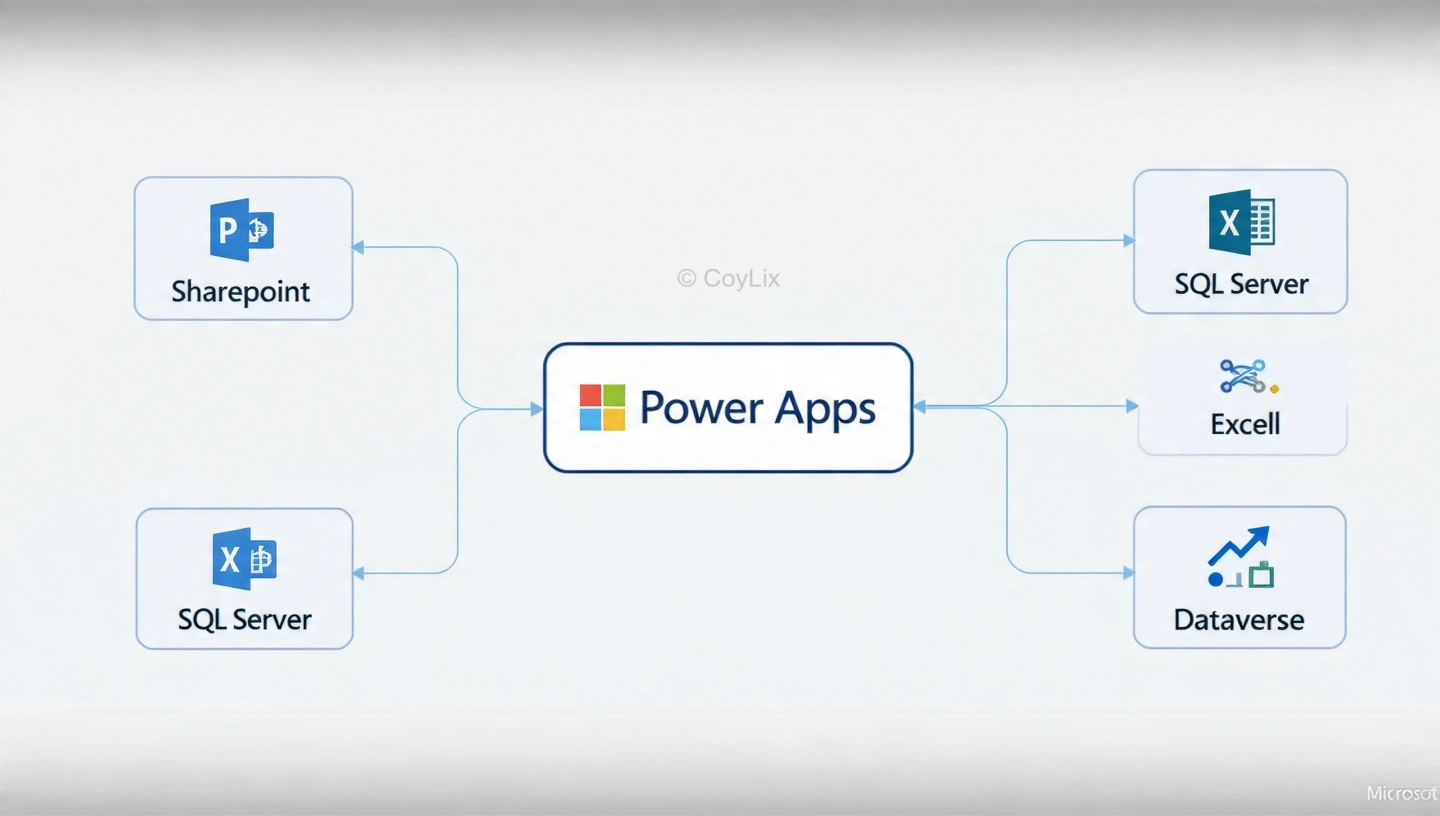
To connect Power Apps to data sources, you need to create a secure connection between your app and external systems like SharePoint, SQL Server, Excel, or Dataverse. Once connected, your app can read, update, and manage real business data.
Power Apps by itself does not store business data. It connects to external systems like SharePoint, Excel, SQL Server, or Dataverse. Once connected, your app can read, display, update, and manage real data.
In this guide, I’ll walk you through how to connect Power Apps to data sources, and also explain what happens behind the scenes so you understand the concept clearly.
What Does It Mean to Connect Power Apps to Data Sources?
Connecting a data source means creating a secure link between your app and an external storage system. After the connection is created, your app can use tables or lists inside galleries, forms, and other controls.
Power Apps supports many data sources, including:
- SharePoint
- Excel (OneDrive or SharePoint)
- SQL Server
- Dataverse
- OneDrive
- Third-party systems via custom connectors
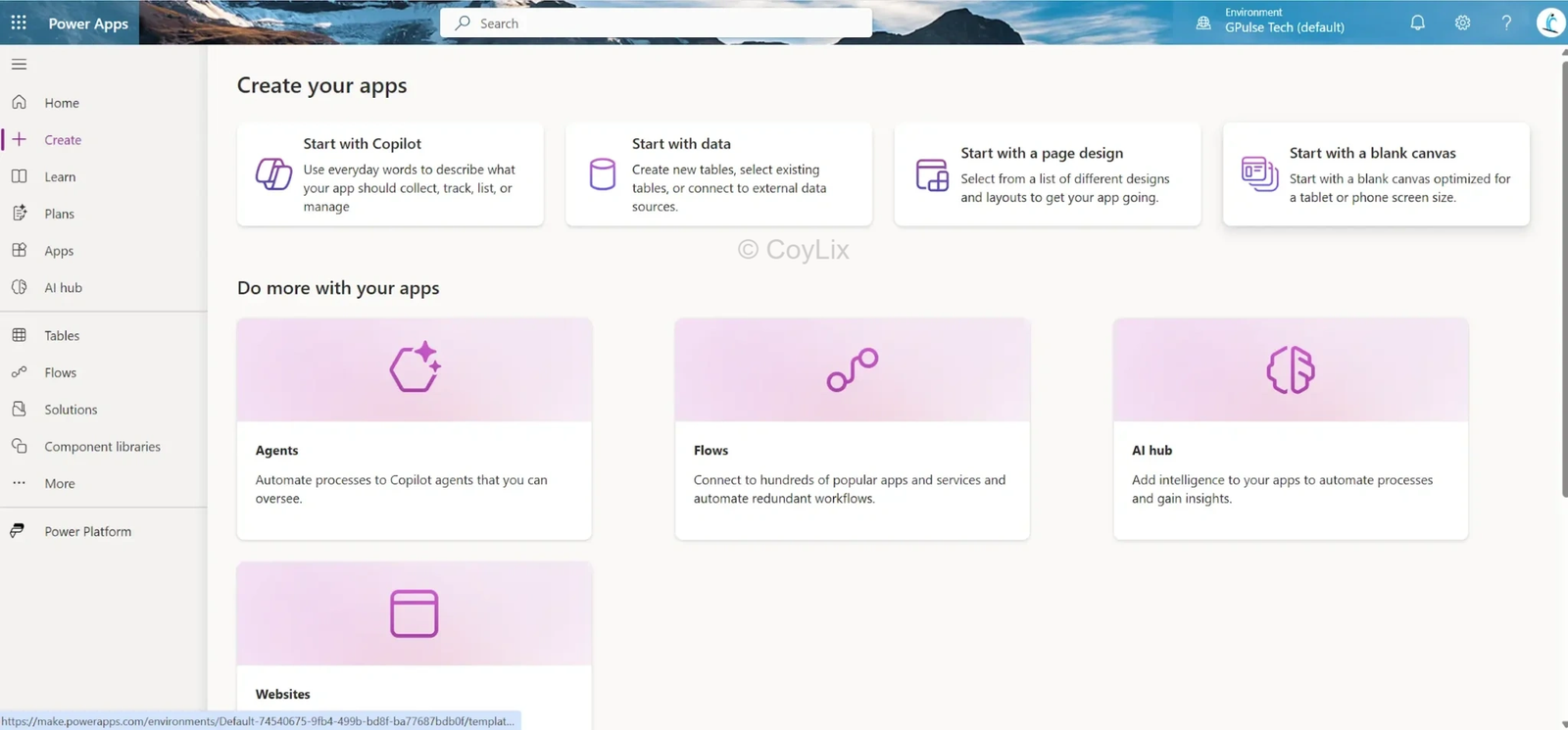
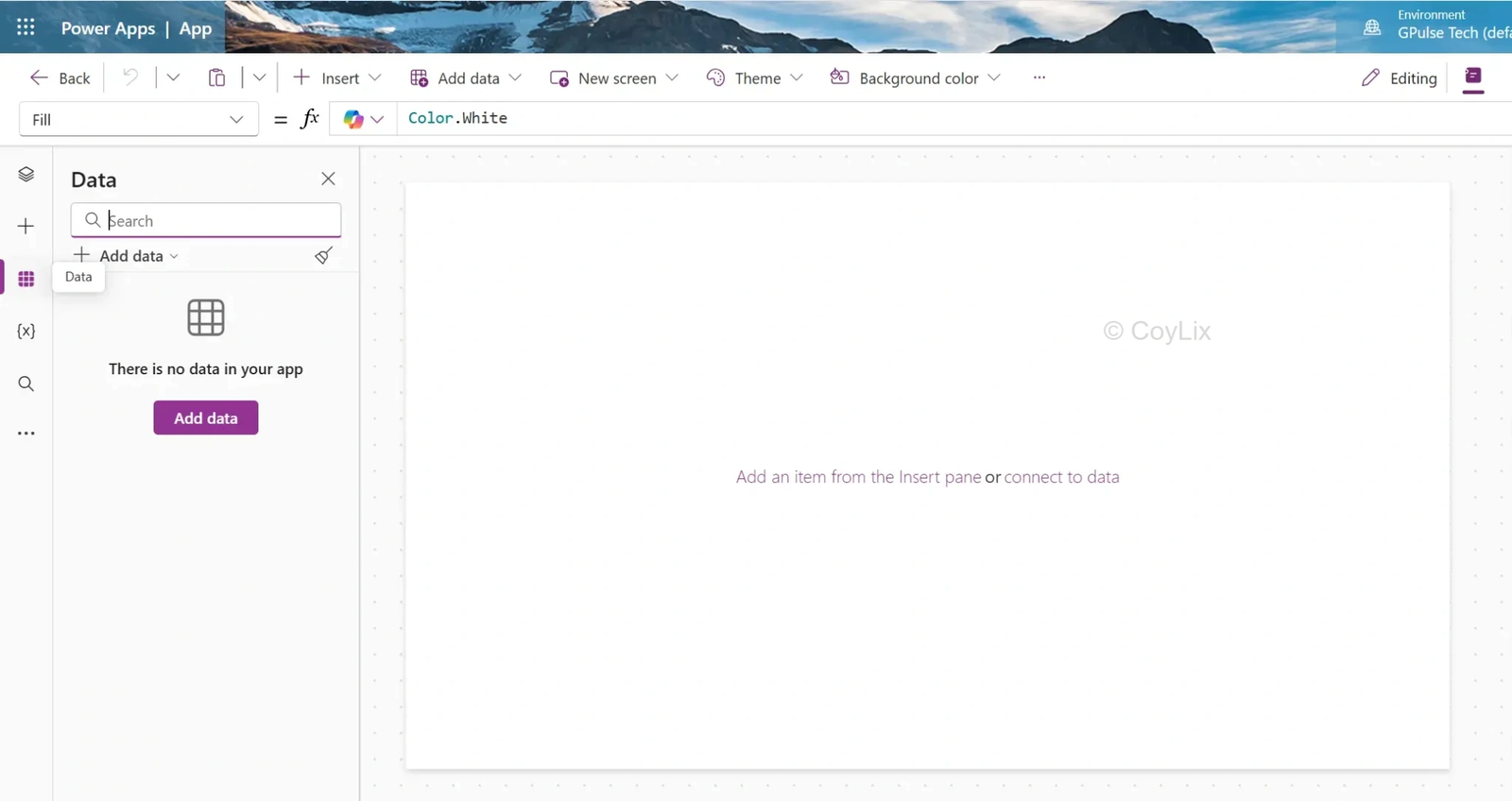
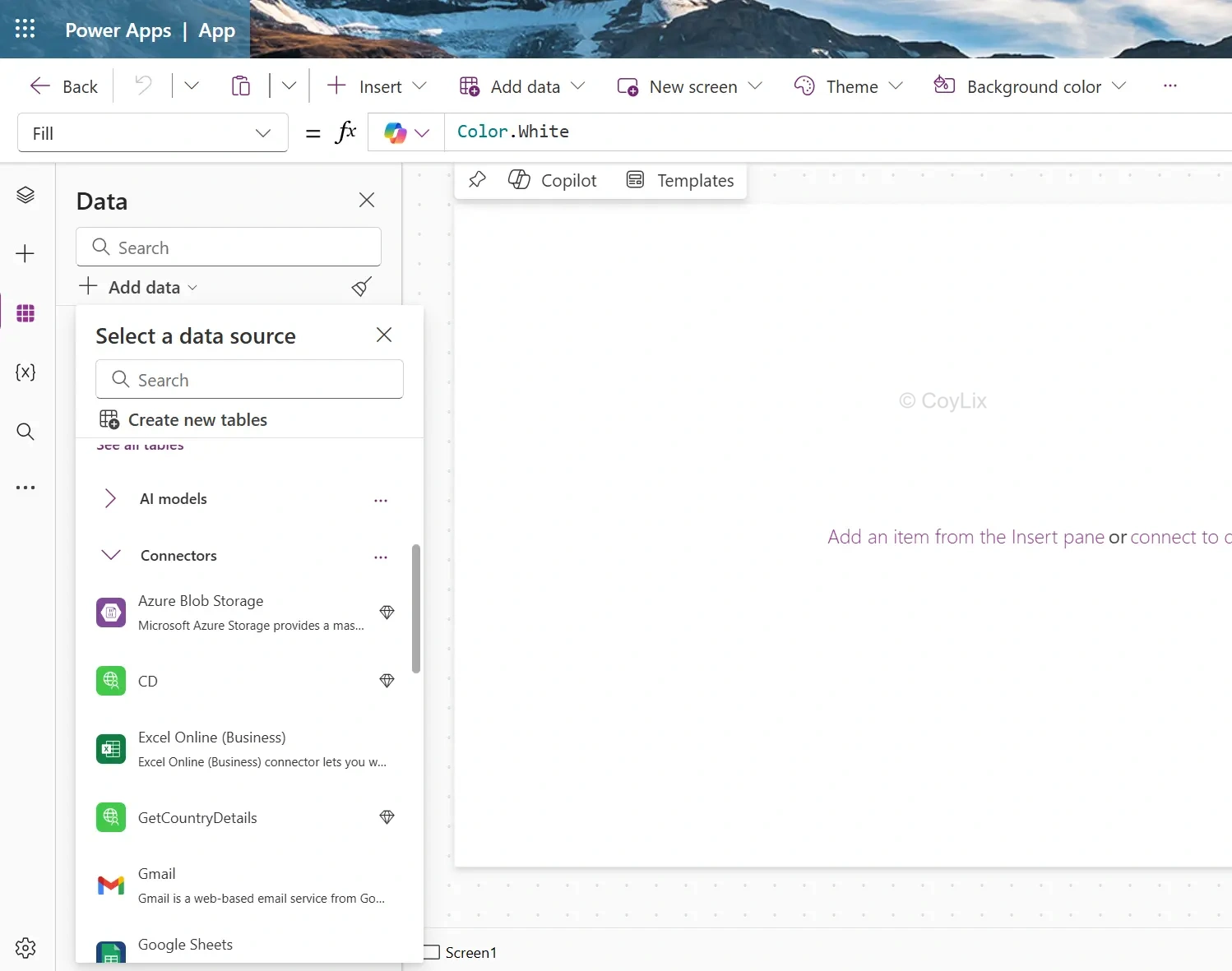
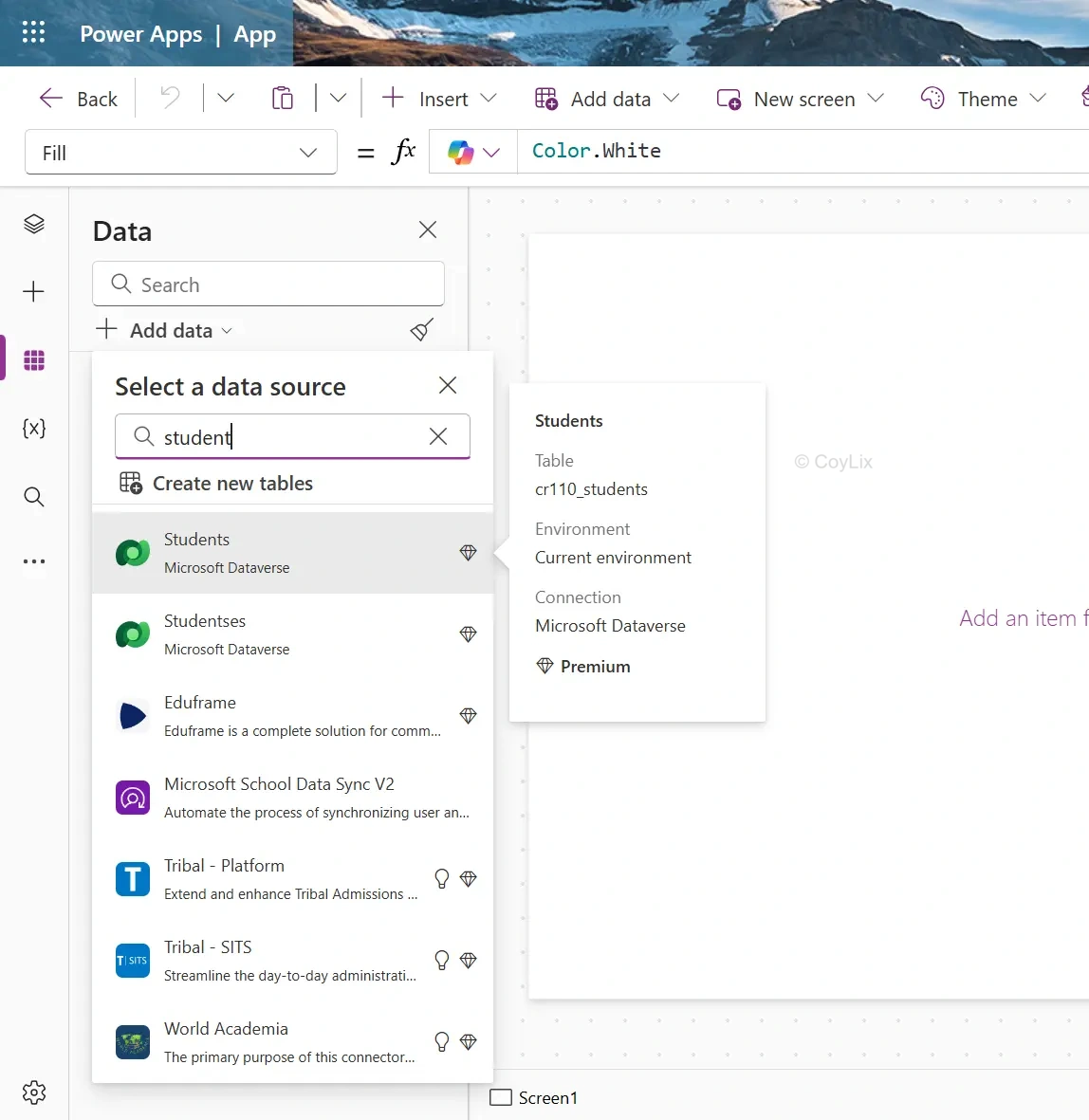
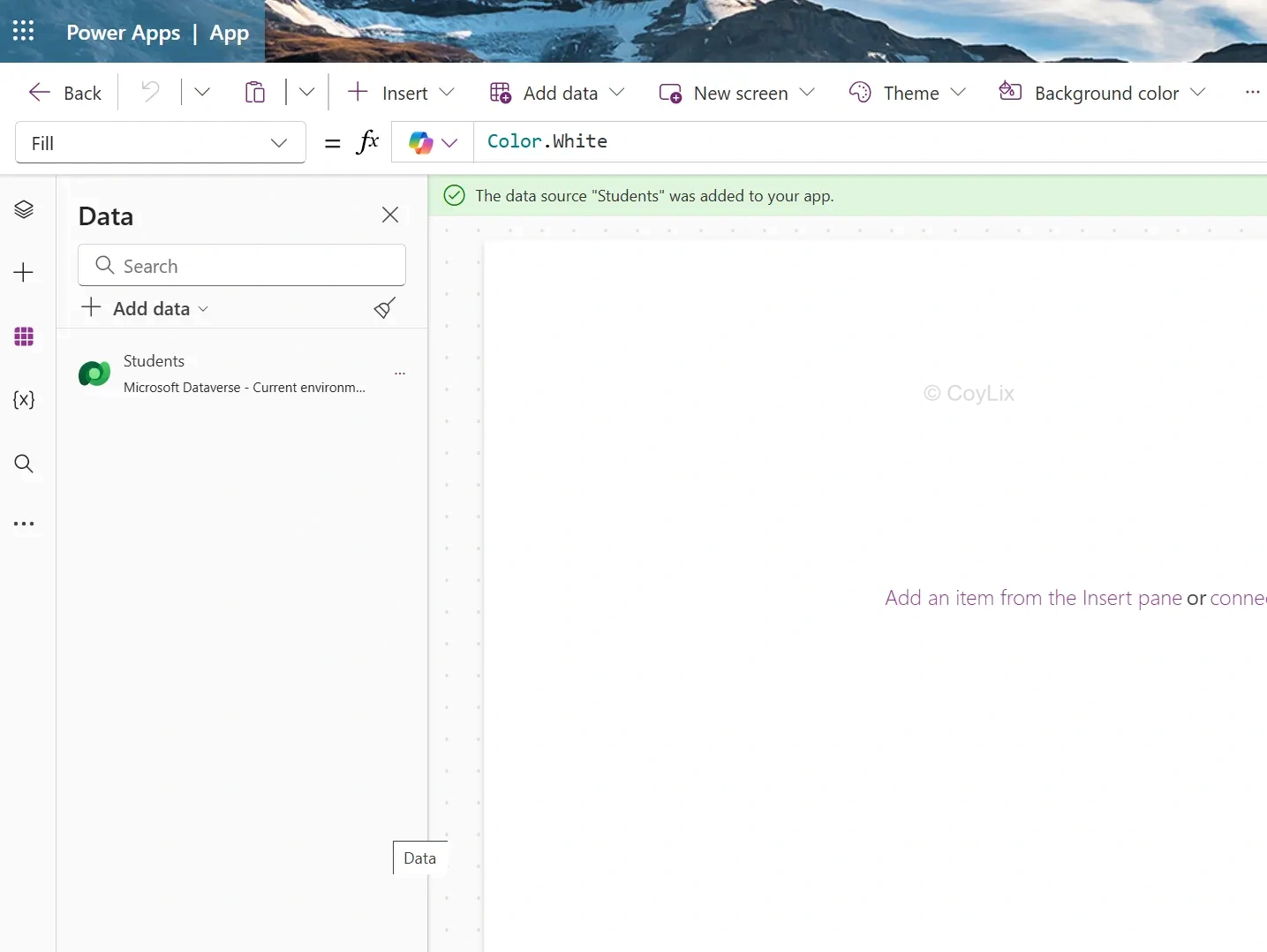
Step-by-Step: How to Connect Power Apps to Data Sources
What If Your Data Source Is Not Listed?
Sometimes, the connector you need is not available in the default list.
In that case, you have two options:
1.Use a Custom Connector
You can create a custom connector to connect to any REST API. This is useful for external systems that don’t have built-in support.
2. Use Power Automate
You can build a flow that retrieves or sends data, and then call that flow from Power Apps.
These methods allow you to extend Power Apps beyond standard connectors.
Important Things to Remember
Connecting to a data source is easy, but you should also think about:
- Delegation limits (especially with large data sets)
- Performance impact
- Authentication and security
- User permissions
In interviews, you may also be asked:
- What are common data sources in Power Apps?
- What is the difference between Dataverse and SharePoint?
- How does Power Apps handle large data sets?
So it’s good to understand both the steps and the concepts.
Read Microsoft documentation for more details
Learn and clear Power apps Interview