
Connectors in Power Apps are the bridge between your app and external data sources. In simple terms, connectors in Power Apps allow your app to talk to services like SharePoint, Dataverse, SQL Server, Excel, and even third-party platforms. In real projects, I’ve seen that understanding connectors early saves hours of confusion later. Many beginners build beautiful screens but forget that without the right connector, the app cannot fetch or store real business data. So, if you truly want to build practical business apps, mastering connectors in Power Apps is essential.
Watch this video for connector in power apps
Understanding Connectors in Power Apps
Connectors in Power Apps are prebuilt integrations that allow your app to connect to data sources and services without writing complex code.
Every Power Apps solution depends on data. Whether you build a Canvas App or a Model-driven App, the data must come from somewhere. This is where connectors in Power Apps play a central role.
Microsoft provides hundreds of connectors. Some are standard connectors like SharePoint and Excel. Others are premium connectors like SQL Server and Salesforce. Additionally, you can create custom connectors to connect to external APIs.
In Canvas Apps, you add connectors through the **Data panel**. Once connected, you can use Power Fx formulas like “Filter()”, “Patch()”, or “LookUp()” to interact with that data.
In Model-driven Apps, connectors work through Dataverse, which acts as the central data platform.
Simply put, connectors are what transform a static app into a working business solution.
Real-World Example
Let’s say your HR department stores employee leave requests in SharePoint.
You build a Canvas App where employees submit leave requests using a Form control. Behind the scenes, connectors in Power Apps connect your app to the SharePoint list.
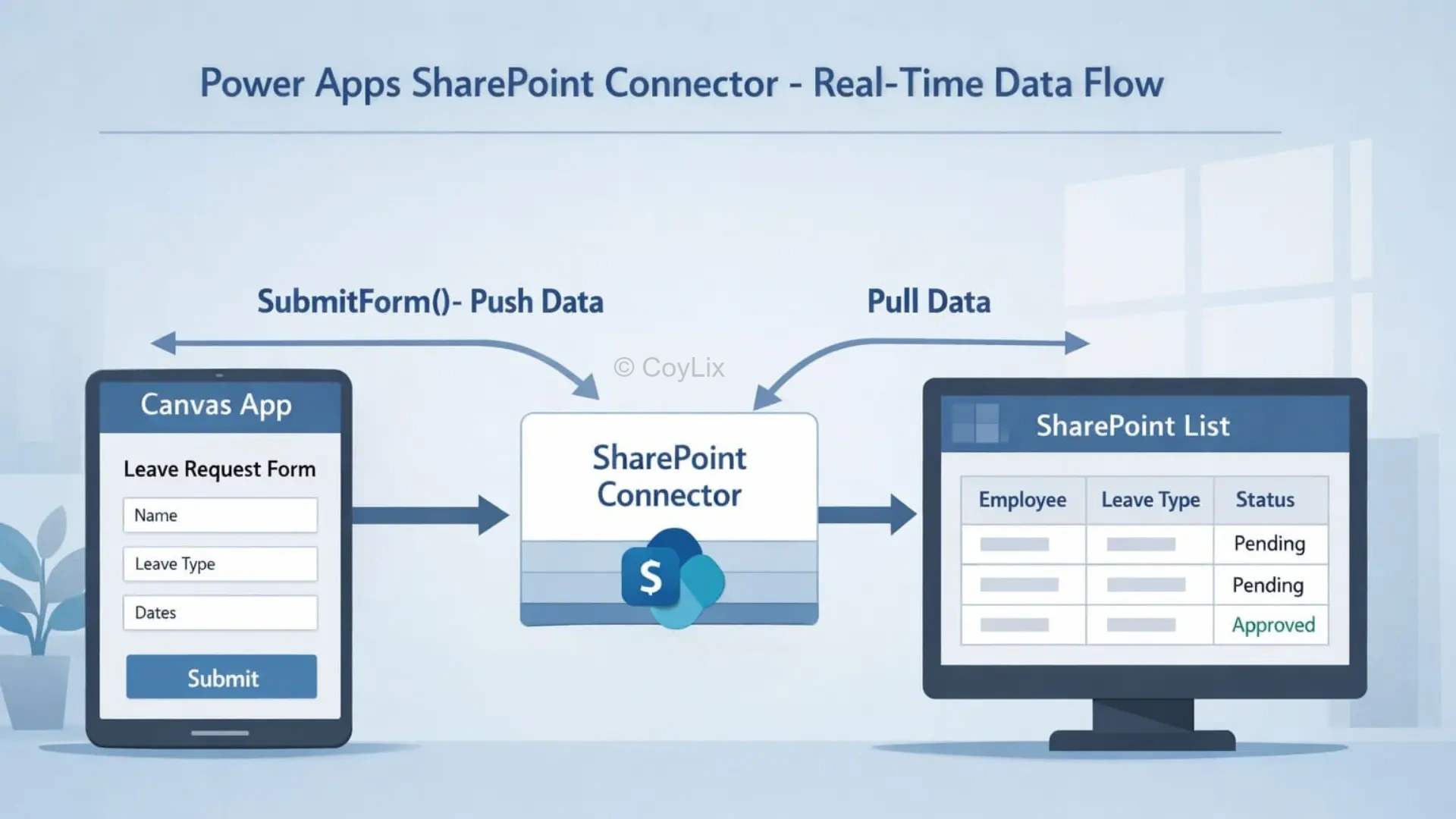
Here’s what happens:
- The SharePoint connector pulls existing leave data into a Gallery.
- When an employee submits a form, the “SubmitForm()” function pushes the data back into SharePoint.
- Managers can review requests in real time.
Without the SharePoint connector, the app would only collect data locally and wouldn’t save anything permanently.
In one of my projects, we connected Power Apps to SQL Server for inventory tracking. Because we used the right connector from the start, performance remained stable even with thousands of records.
That’s the power of choosing connectors wisely.
Step-by-Step Walkthrough
Here’s how you add connectors in Power Apps:
1. Open Power Apps Studio.
2. Create a new Canvas App.
3. On the left panel, click **Data**.
4. Select **Add data**.
5. Search for a connector (for example, SharePoint).
6. Authenticate and select your list or table.
7. Insert a Gallery or Form control.
8. Bind the control to your connected data source.
9. Test your app.
If you’re working with SQL Server or other premium services, ensure your license supports premium connectors.
Always test data loading speed after connecting, especially with large datasets.
Types of Connectors:
There are 3 types of connectors
- Standard Connectors: e.g. SharePoint, Outlook, Microsoft Teams
- Premium Connectors: SQL Server, Dataverse and Salesforce (require extra licensing)
- Custom Connectors: As per the project requirements.
Best Practices & Common Mistakes
- Choose the right connector based on your data volume.
- Check delegation support for the connector you use.
- Avoid mixing too many connectors in one small app.
- Use Dataverse for enterprise-grade apps.
- Secure connections properly with correct permissions.
- Test performance before publishing.
Expert Insights
From experience, many performance issues in apps are not due to formulas — they are due to poor connector selection. For example, using Excel as a data source for multi-user enterprise apps almost always leads to problems.
When I build scalable apps, I prefer Dataverse or SQL because connectors for these platforms handle larger datasets more reliably.
Another key insight: always review delegation documentation for each connector. Not all connectors support the same functions in Power Fx.
Interview Tip
If asked about connectors in Power Apps during an interview, don’t just define them. Mention that connectors allow integration with services like SharePoint, Dataverse, and SQL Server. Then explain how connector choice affects performance, delegation, and licensing. Interviewers appreciate candidates who understand real-world implications, not just definitions.
FAQ
Q: Are connectors in Power Apps free?
A: Some connectors are standard and included in basic licenses, while others are premium and require additional licensing.
Q: Can I create my own connector?
A: Yes, Power Apps allows you to build custom connectors to connect with external APIs. You can read this article for step by step guidance.
Q: Do connectors affect app performance?
A: Yes. Performance depends heavily on the data source, delegation support, and network speed.
These are the list of available connectors in power Apps from Microsoft website
Conclusion
Connectors in Power Apps are the foundation of every working app. Once you understand how they work and how to choose them wisely, building reliable business applications becomes much easier. Focus on data first — design comes second.
Visit here for more Power Apps Interview Questions