
Learn how to troubleshoot failed flows in Power Automate step by step. Discover tips, common errors, monitoring tools, and best practices for ensuring your flows run smoothly.
If you’ve worked with Microsoft Power Automate, you know that not every flow runs perfectly the first time. Troubleshoot Failed Flow in Power Automate is a critical skill for anyone automating business processes.
One of the most common Power Automate interview questions is: “If a flow fails, how do you figure out the reason?”
In this article, I’ll walk you through my step-by-step troubleshooting process. This is the exact approach I use when diagnosing and fixing failed flows in real-world scenarios.
1. Check Run History to Troubleshoot Failed Flow in Power Automate
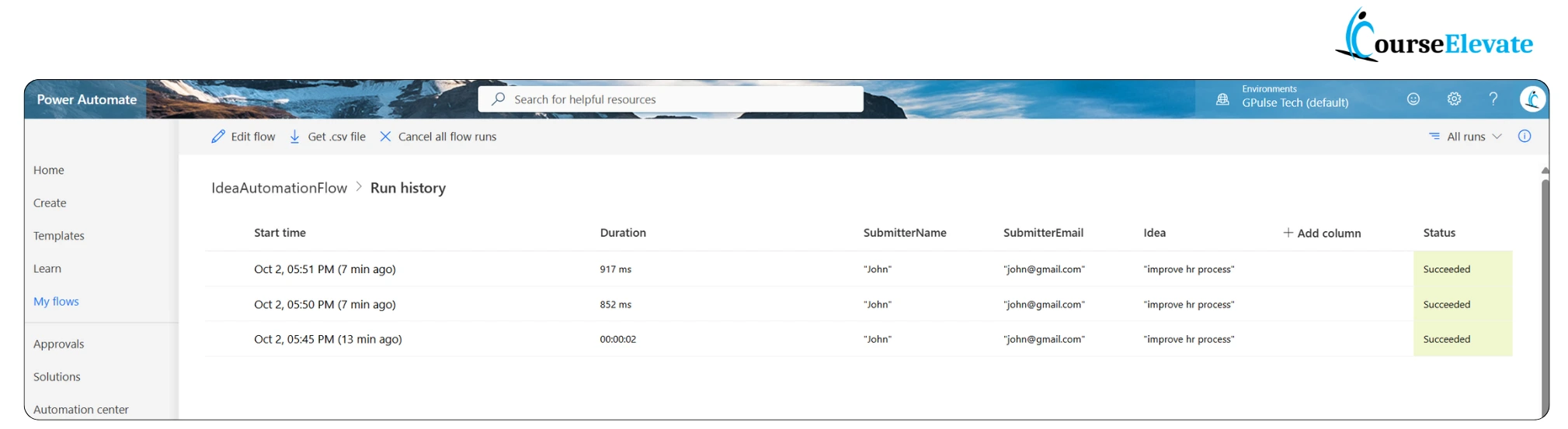
I always start by checking the Run History in the Power Automate portal. It shows a timeline of all flow runs with success or failure status. Most of the time, Run history and error logs provides the exact steps were flow failed.
Things I focus on:
- Date and time when the flow ran
- Run duration to spot timeouts
- Input parameters passed into the flow
- Step where the failure occurred
- Error messages explaining the cause
2. Read the Error Details Carefully
Many error messages suggest exactly what needs to be fixed.
For example:
- if “The connection has expired” → I will re-authenticate the connector (Outlook, SharePoint, etc.)
- if “Invalid input format” → I check that the data type being passed which matches flow expectations.
Reading the details saves a lot of time and prevents guessing.
3. Review Recent Changes
If a flow was working previously, I always try to look what has changed exactly which leads to flow error.
Possible reasons may be:
- Updates to the flow logic
- Changes to connectors
- Environment-level modifications or new policies
4. Validate Input Data
I will validate the input data provided to the flow. Because wrong or missing values often lead to failures. I will check for
- IDs, file paths, and dates exist.
- Mandatory fields are populated.
- Data formats (date, string, numbers) are correct.
- Testing with dummy or sample data often highlights the issue.
5. Check Connector Health and Permissions to Monitor and Troubleshoot Failed Flow in Power Automate
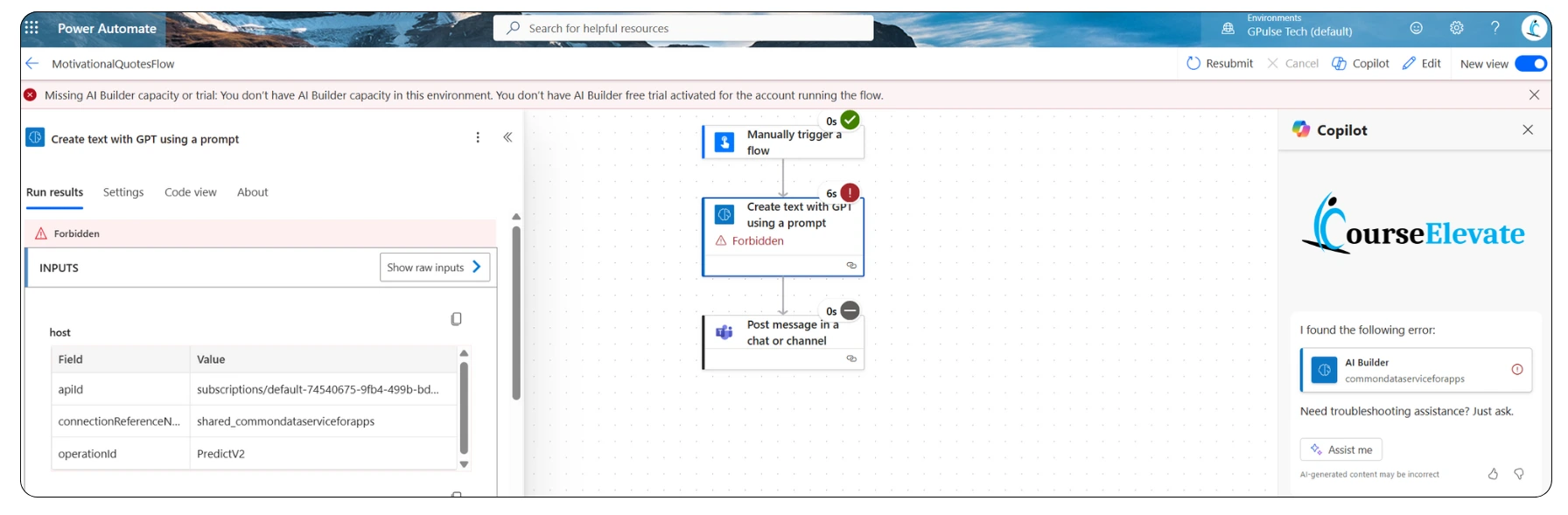
I will confirm that all services (like SharePoint, Outlook, AI builder or Dataverse) are available, connections aren’t expired, flow has the right access permissions and all the licenses are active.
For example: Motivational Quotes Flow (Mentioned below) stoped working automatically when AI Builder trial license got expired. Such license expiration and connections frequently cause unexpected failures.
6. Test in Smaller Parts
Instead of running the full flow, I will focus on the failing step and test it with sample data. This helps:
- Pinpoint the exact cause
- Reduce troubleshooting time
- Avoid affecting unrelated parts of the flow
7. Monitor Environment-Level Issues
Sometimes failures aren’t caused by the flow itself, Environment level issues can also be there. I will check for:
- API limits exceeded
- Throttling due to high request volumes
- Network outages
These issues often appear in error logs or require checking service health dashboards.
8. Use Built-in Monitoring Tools
Power Automate provides several monitoring options:
- Analytics tab → usage trends, error rates, and performance bottlenecks
- Notifications → email or app alerts for failed flows
- Center of Excellence (CoE) kit → advanced dashboards and automated alerts for large organizations
Key Takeaways
When a flow fails, I follow a structured approach:
- Check run history and error logs
- Read error messages for suggested fixes
- Review recent changes in flow or environment
- Validate input data
- Confirm connector health and permissions
- Test failing steps individually
- Consider environment-level issues
- Use monitoring and notifications for recurring problems
By combining these steps, you can troubleshoot faster, reduce downtime, and prevent future failures.
for more detail on troubleshooting Flow, follow this MSDN Documentaion.
Frequently Asked Questions (FAQs)
1. What are the most common reasons a flow fails in Power Automate?
- Missing or invalid input data
- Expired or invalid connectors
- API limits or throttling
- Changes in flow logic or environment
- Permissions or account issues
2. How do I fix connection errors in Power Automate?
- Re-authenticate connectors
- Check account permissions
- Ensure licenses are valid
- Test the connection with a simple action
3. Can I monitor multiple flows at once?
Yes, using:
- Power Automate Analytics for trends and errors
- Power Platform Admin Center for environment-wide monitoring
- CoE kit for dashboards and automated alerts
4. How do I prevent my flows from failing in the future?
Validate input data
- Use error-handling actions like Configure run after
- Enable failure notifications
- Monitor connectors and API usage
- Test flows incrementally
5. Is it necessary to check environment-level issues?
Absolutely. Even if your flow logic is correct, issues like throttling, API limits, or temporary outages can cause failures. Checking the environment ensures you aren’t overlooking these factors.
📌 Next Step: To know about how to share flow, check out my article on Sharing Power Automate Flows.