

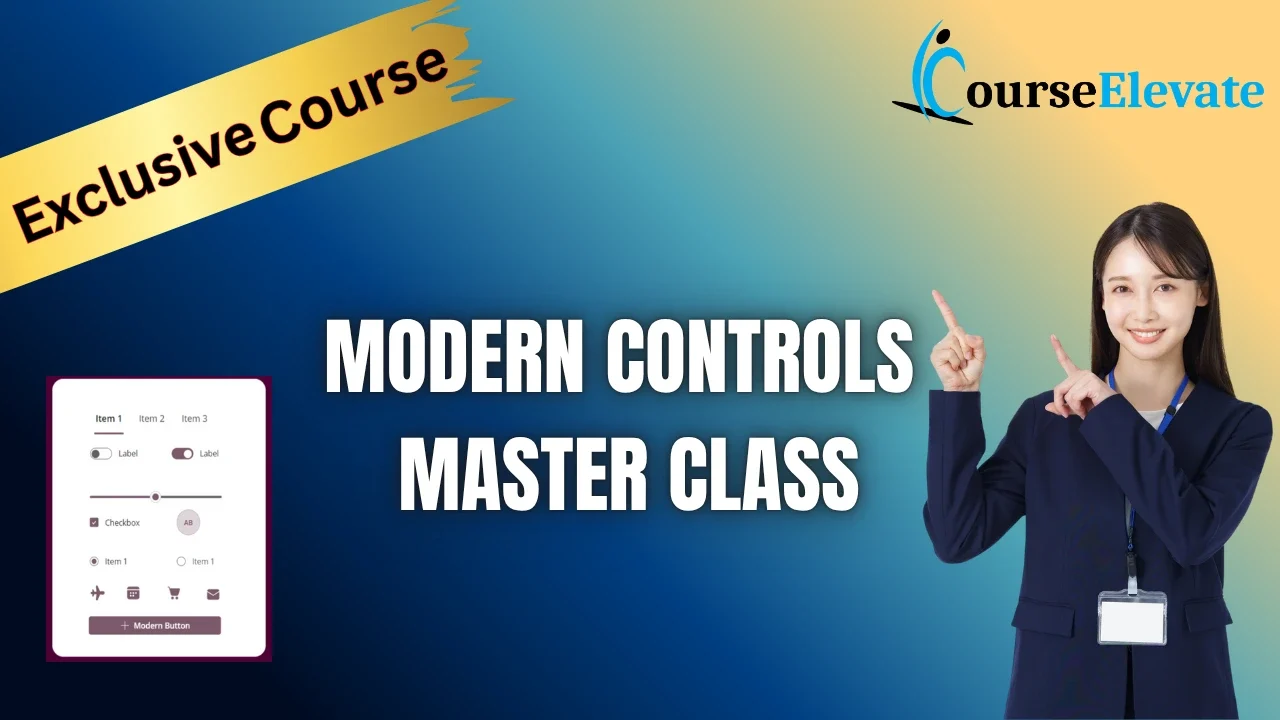
Transform your Apps with Power Apps Modern Controls for stunning & user-friendly designs.
Follow our expert-led video tutorials to master themes, forms, and data management.
Table of Contents
- Power Apps Modern Controls Introduction: Why Modern Controls Are a Game-Changer
- Difference between Modern control and classic control
- Power Apps Modern Controls Video 1: Mastering Themes for Brand Consistency
- Power Apps Modern Controls Video 2: Building Beautiful, User-Friendly Forms
- Power Apps Modern Controls Video 3: Scaling with Advanced Table and Form Controls
- Why You Should Start Using Modern Controls Today
- FAQ

Introduction: Why Power apps Modern Controls Are a Game-Changer
Have you ever poured hours into a Power App only to hear users call it “clunky” or “outdated”? I’ve been there, and it’s frustrating. But here’s the good news: Microsoft’s Modern Controls in PowerApps are here to change the game. These controls, built on the Fluent Design System, aren’t just a visual upgrade—they’re a complete rethink of how we design apps to be intuitive, performant, and visually stunning.
In this blog post, I’m sharing insights from my three-part video series on CourseElevate, where I walk you through power apps Modern Controls from the ground up. Whether you’re a beginner or a seasoned developer, these tutorials will show you how to create apps that users love. Let’s dive into the highlights of each video and explore how you can transform your Power Apps.
Key Differences: Classic vs. Modern Controls
Modern Controls prioritize simplicity and theme integration but sacrifice some granular properties. Below is a high-level comparison:| Aspect | Classic Controls | Modern Controls |
| Performance | Slower rendering, more manual config | Faster, theme-driven styling |
| Themes | Basic, retired | Fluent-based, 8 OOTB + custom, 16 palettes |
| Properties | Extensive (e.g., individual fills/colors) | Simplified; relies on themes |
| Visual Appeal | Bulky, outdated | Sleek, intuitive, responsive |
| Compatibility | Legacy support | Preview mode for some; full for others |
| Dynamic Theming | Limited | Native support via App.Theme |
Power Apps Modern Controls Video 1: Mastering Themes for Brand Consistency
Themes are the backbone of any polished Power App, and Modern Controls make them easier to implement than ever. In the first video, I break down how to enable and customize themes to align with your organization’s branding.
Key Takeaways
Enable Modern Controls: Navigate to Settings > Updates > Modern controls and themes and toggle it on. This unlocks a suite of visually appealing controls.
Custom Themes: Create a theme with a unique name, font, and color palette. For example, I created a “Training Theme” with Lato font and a light blue palette (#00B7C3).
Pro Tip: Extract the theme’s JSON using the App.Theme function and save it as a template for reuse across apps. This ensures consistency and saves hours of styling.
By mastering themes, you can make your app look professional without endless manual tweaks. Watch the video to see how changing themes dynamically impacts controls like buttons in real time.
Power Apps Modern Controls Video 2: Building Beautiful, User-Friendly Forms
In the second video, I compare classic and modern controls by building a travel booking form. The difference is night and day—modern controls are sleek, intuitive, and designed for user engagement.
Travel Booking Form Case Study
I worked with a travel company whose classic control form had a 42% abandonment rate. After switching to modern controls:
Abandonment rate dropped to 18%.
User satisfaction scores jumped by 67%.
Support tickets fell by 54%.
Control-by-Control Breakdown
Header Control: Forget clunky labels and rectangles. The modern header includes logo positioning, profile picture support, and style variants (Primary, Neutral, Light).
Combo Box: Enable AllowSearching and AllowMultiSelect for a smoother experience. The modern combo box offers a clean search interface and checkbox selection.
Toggle Control: While it lacks automatic text switching, you can add custom logic like If(Toggle1.Check, “On”, “Off”) for better UX.
Button Control: Built-in icon support and customizable border radii (e.g., 10px on each corner) make buttons more clickable and visually appealing.
Check out the video to see how modern controls create a form that’s not just functional but delightful to use.
Power Apps Modern Controls Video 3: Scaling with Advanced Table and Form Controls
The third video tackles enterprise-level apps with a focus on table and form controls. I demonstrate how to build an issue tracker using a SharePoint list, showcasing the power of modern controls for data management.
Issue Tracker Highlights
Table Control: Connects seamlessly to a SharePoint list (e.g., “Issue Tracker” with columns like Title, Description, Priority). Features include:
One-click sorting with visual indicators.
AllowRangeSelection: true for easy data export to Excel.
Responsive reflow behavior that switches to list view on smaller screens.
Form Control: Automatically validates data types (e.g., rejecting non-numeric input for an integer field). Use Set(gFormMode, If(IsBlank(Table1.Selected), FormMode.New, FormMode.Edit)) to toggle between new and edit modes dynamically.
Real-World Impact: For a financial client, modern table and form controls reduced data quality issues by 80% and improved app performance significantly.
Watch the video to learn how to build a scalable, responsive app that handles complex data with ease.
Why You Should Start Using Modern Controls Today
Modern Controls aren’t just about aesthetics—they deliver measurable results. From reducing user abandonment to streamlining development, they empower you to build apps that stand out. My years of consulting have shown me that these controls save time, boost user satisfaction, and cut down on support requests.
Ready to transform your Power Apps? Watch the full video series on CourseElevate and start building apps that users love.
And for all the modern controls list in power apps, visit this microsoft docuementation
FAQ
What are Modern Controls in PowerApps?
Modern Controls are a set of UI components based on Microsoft’s Fluent Design System, offering improved performance, visual appeal, and ease of configuration compared to classic controls.
How do I enable Modern Controls?
Go to Settings > Updates > Modern controls and themes and toggle the option on. This unlocks modern themes and controls in PowerApps Studio.
Can I use custom themes across multiple apps?
You can’t export themes directly, but you can extract the theme JSON using App.Theme and recreate it in other apps for consistency.
Are modern controls fully backward compatible?
Some properties (e.g., toggle text switching, slider value display) are limited in modern controls. Workarounds like custom logic can address these gaps.
Where can I learn more about Modern Controls?
Check out the above full 3 video series on CourseElevate for hands-on tutorials and advanced tips.



