

Designing a Document Generation System in Power Apps (Interview Answer)
When preparing for Power Apps interviews, one question that appears again and again is about designing a document generation system in Power Apps for real business scenarios. Interviewers are not looking for button clicks or screenshots. Instead, they want to understand how you think, how you structure solutions, and whether you can design enterprise-ready architecture.
Let me explain how I personally approach this scenario.

Interview Question
“Our legal team wants to generate contracts, NDAs, and service agreements directly from a Power Apps application with all data automatically filled. How would you design this?” In this article, I explain how I approach Power Apps document generation using a real legal automation scenario.
Watch complete video here
Quick Interview Answer
I design a document generation system in Power Apps by using Power Apps for data capture, Word templates stored in SharePoint for layout, Power Automate for populating and converting documents, and SharePoint libraries for storing and tracking generated files.
How I Understand the Real Business Problem
Before I talk about technology, I always think about the business reality.
In many companies, legal teams still:
- Copy client details from emails
- Paste data into Word templates
- Save files manually
- Email attachments
As a result, mistakes happen, Formatting becomes inconsistent and tracking becomes difficult.
Therefore, my goal is simple:
I want legal users to open one Power Apps screen, enter client details, click Generate, and immediately receive a professionally formatted Word or PDF document that is automatically stored and traceable.
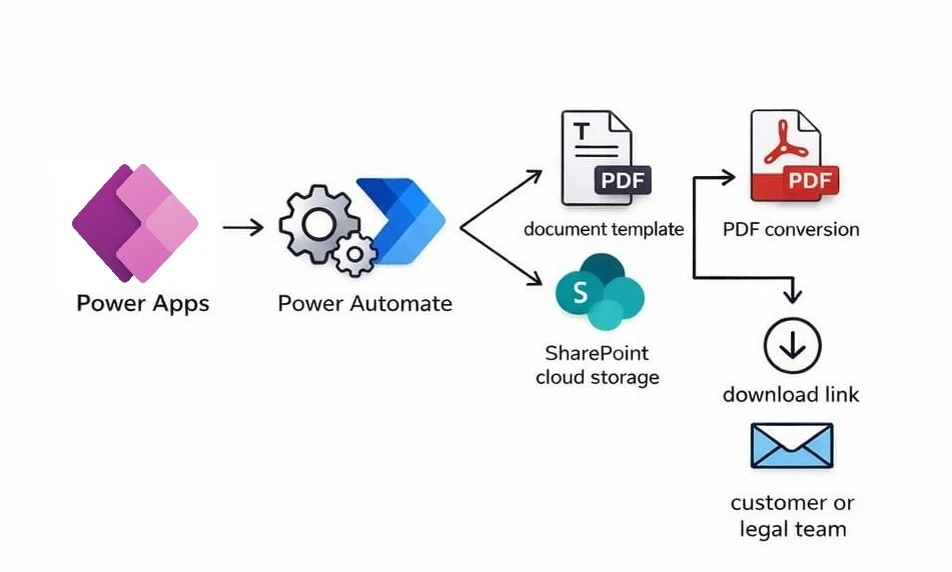
How I Design Power Apps Document Generation Architecture
I To keep things simple, I use a layered architecture.
- Power Apps captures data
- Power Automate processes data
- Word templates define layout
- SharePoint stores everything
So the overall flow becomes:
Power Apps → Power Automate → Word Template → PDF → SharePoint → Link back to Power Apps
This Power Apps document generation architecture is simple, scalable, and enterprise-ready. This pattern is proven, scalable, and easy to explain in interviews.
How I Break the Solution into Logical Layers
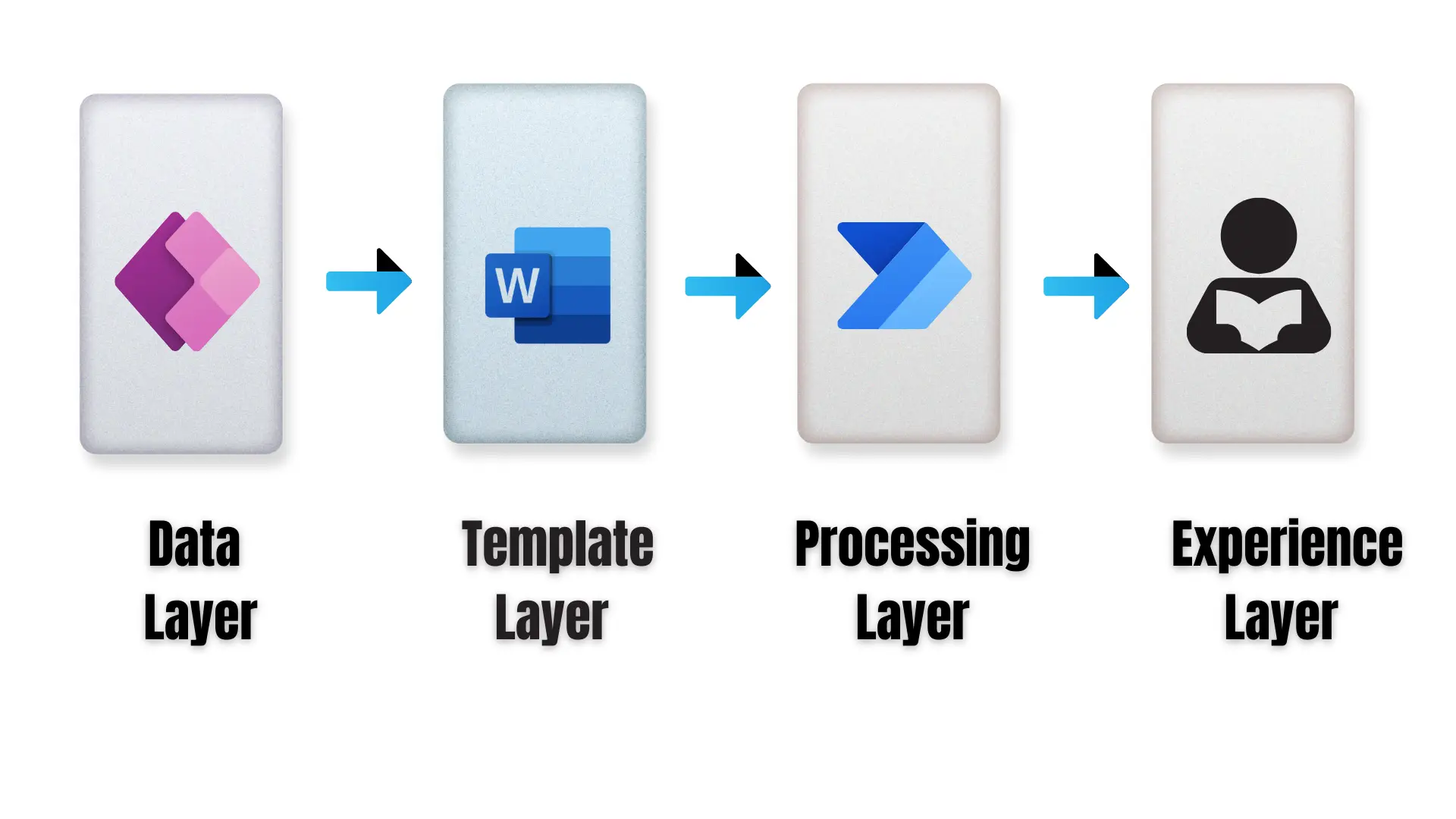
I usually describe the solution using four layers.
Data Layer
I design a Power Apps form where legal users enter:
- Client Name
- Contract Type
- Start Date
- End Date
- Payment Terms
When the user clicks Generate, I send this data as clean JSON to Power Automate.
Template Layer
I store Word templates inside a SharePoint document library.
These templates contain content controls such as:
- ClientName
- StartDate
- PaymentTerms
Because of this approach, legal teams can update wording and clauses themselves without involving developers.
Processing Layer
I build a Power Automate flow that:
- Receives data from Power Apps
- Retrieves the correct template
- Populates content controls
- Converts Word to PDF
- Saves the file
Power Automate becomes the engine of the solution.
Experience Layer
Finally, I return the generated document link to Power Apps.
From there, users can:
- Download
- Preview
Everything feels seamless.
Why I Choose Word Templates?
However, I prefer Word templates over HTML for legal documents because:
- Legal teams already understand Word
- Formatting is reliable
- Headers, footers, and tables work well
- Power Automate natively supports content controls
As a result, maintenance becomes much easier.
What My Power Automate Flow Does?
When the user clicks Generate:
- First, I trigger the flow from Power Apps.
- Next, the template is loaded from SharePoint.
- Then, Power Apps values are mapped to the template.
- Finally, a Word document is created.
Nothing more than needed.
How I Handle Storage and Versioning?
Because legal wording changes frequently, versioning is critical in legal systems.
Therefore:
- I store templates in versioned folders.
- More importantly, I never overwrite old templates.
- Generated documents are stored separately.
- In addition, I save the template version with each record.
This guarantees traceability.
How I Handle Errors?
For this reason, I wrap important actions in Try–Catch scopes.
If something fails:
- I log the error in SharePoint
- I return a friendly message to Power Apps
- Optionally, I notify an admin
Users never see technical exceptions.
How I Think About Performance?
- I keep the flows lightweight.
- I avoid unnecessary actions.
- I reuse metadata where possible.
- I compress images if used.
- If batch generation is required, I use controlled parallelism.
Who Maintains the Templates?
I design the system so:
- IT owns the structure
- Legal owns the content
- Legal teams update wording.
- Developers only manage tag standards.
This separation reduces support effort.
Optional Enhancements I Might Mention
Depending on the organization:
- Approval workflows
- Digital signatures
- Audit logs
- Role-based security
- Multi-language templates
Mentioning these shows enterprise thinking.
How I Summarize in an Interview
“I design a layered architecture where Power Apps captures data, Word templates stored in SharePoint control layout, Power Automate populates and converts documents, and SharePoint stores outputs with versioning and security.” That answer usually satisfies interviewers.
Final Thoughts
Once I understand this pattern, I can reuse it for:
- Contracts
- NDAs
- Invoices
- Certificates
- Letters
Only the template changes. The architecture stays the same.
This Power Apps document generation pattern can be reused for many business scenarios.
if you need step by step tutorial to generate document from Power Apps, Watch this video
Watch more power apps interview question, click here
Word Templates in Power Platform
This is an official Microsoft Learn guide on using Word templates inside Power Apps / Power Platform.



